

 ROB RUN

Best ROB RUN Settings Guide Quick Overview:
- Turning most post-processing effects off can increase your frame rate without affecting the ROB RUN’s clean and sharp look.
- You can fix in-game stutters by reducing your mouse polling rate.
- Keep Object Visibility Distance at maximum while turning off Interface Window Blur and Eye Adaptation to get a competitive advantage.
Ready to do some high-level heists now that your game runs well? Skycoach can help you Get the Best Gear to guarantee a successful robbery streak.

Read closely 
Browse our hottest ROB RUN Boosting services






Best Rob RUN Graphics Settings
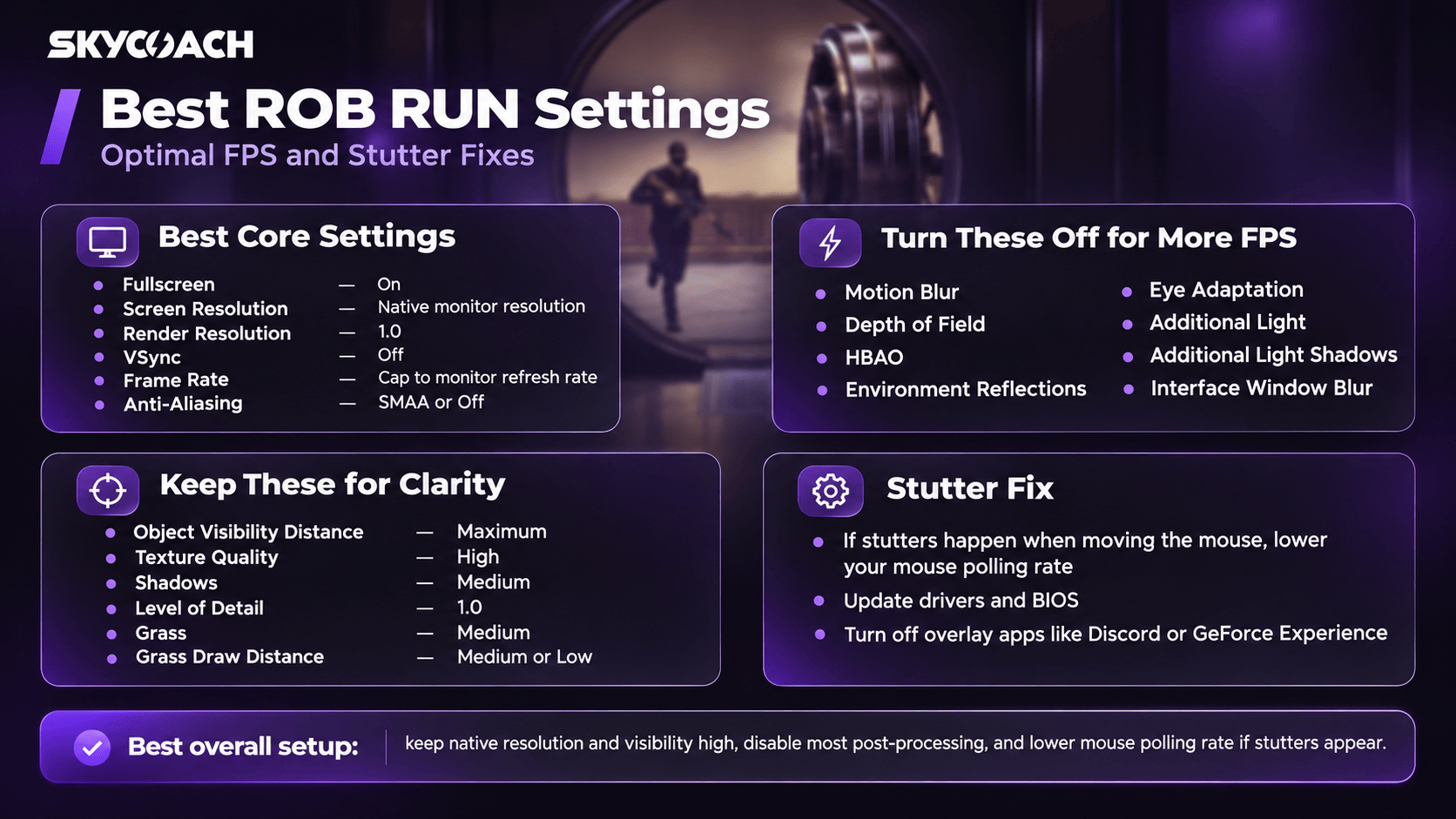
Despite its simplistic visuals, ROB RUN is not a very well-optimized game, and many players complain about regular FPS drops and stutters coming out of nowhere on otherwise solid hardware. This is a well-known problem with no current solution aside from tinkering with the graphics settings. The problem is that ROB RUN doesn’t properly explain what its settings do, and if you aren’t super tech-savvy, you won’t have any idea what to do with most of them.
Overall, I’d suggest lowering your expectations regarding the game’s graphical fidelity if you expect it to run smoothly. Maybe the devs will be able to optimize it better in the future, but for now we have to play with the cards we were given.
If you are struggling with keeping consistent FPS in ROB RUN, here are my suggested settings — I tried my best to explain what each individual option does so that you can make your own decisions based on that information.
|
Setting |
Recommended Option |
Explanation |
|
Fullscreen |
On |
Fullscreen offers better performance by default. It’s a bit annoying to switch to other tabs when playing like that, and it’s not as important on newer, more powerful PCs, but it can make a difference on older models. |
|
Screen Resolution |
Same as your default monitor resolution |
If you want your game to look decent, you’ll have to stick with your monitor’s resolution. Messing with it often results in weird visual issues and overall blurriness, which is especially painful when it comes to in-game fonts. |
|
Render Resolution |
1.0 |
Anything below 1.0 is going to result in a blurrier picture. However, lowering it to 0.9 or 0.8 shouldn’t be too bad if you really, really need some extra FPS. |
|
VSync |
Off |
VSync is only required for older monitors that can’t support high framerates, resulting in screen tearing. If that’s your case, then turn it on. |
|
Frame Rate |
Cap to your monitor’s refresh rate |
You might keep it unlocked if you’re certain in your PC’s capabilities. However, if you’re looking to maximize FPS, then capping it isn’t going to negatively affect anything — you are limited by the refresh rate of your monitor either way. If you use VSync, however, then you literally have to cap it in accordance with your monitor’s refresh rate to avoid (or at least reduce) screen tearing. |
|
Anti-aliasing |
SMAA or Disabled |
It’s generally good to have at least some form of Anti-aliasing, because it makes edges of various objects way less blocky. However, it is also quite demanding (especially MSAA), so turning it off completely might save you some FPS. |
|
Graphics Quality |
Custom |
No need to use a preset — every single option will be changed individually. |
|
Post-processing |
On |
In ROB RUN, turning the Post-Processing button simply enables you to choose what to do with each post-processing effect individually. Some of these are actually okay to keep on, so I’d suggest you don’t turn it all off entirely. |
|
HDR |
On |
If you have an HDR monitor, then this will increase your game’s color range and contrast without costing you any FPS. This is mostly a matter of preference, and it also varies from one monitor to another. Some might argue that darker shadows are worse for competitive games where enemies can hide in the dark, but I don’t feel like it’s that impactful in ROB RUN. If you don’t have an HDR monitor, then you should turn this setting off anyway. |
|
Motion Blur |
Off |
Motion Blur is an unnecessary (and oftentimes annoying) feature that requires extra processing power. |
|
Depth of Field |
Off |
Depth of field makes everything feel like it was shot with an actual real-life camera, meaning that some objects are inevitably going to be out of focus. For a competitive 3D game, this is actually a bit of a disadvantage. Now, what makes it worse is the fact that blurring background stuff actually costs you FPS, because the game needs to process the full models and textures first anyway and then calculate how to blur them correctly on top of that. |
|
HBAO |
Off |
HBAO can make the game look a bit more realistic and nice in general thanks to improved shadows, but you pay for it with some FPS. If you ask me, ROB RUN’s style actually allows you to turn things like these off without feeling too bad about it. |
|
Environment Reflections |
Off |
Turning Environment Reflections off is usually one of the first things recommended when you are struggling with keeping high FPS. These are quite taxing, and while the resulting image generally does look better, I am not sure that it’s worth it overall. |
|
Eye Adaptation |
Off |
This one isn’t really affecting your FPS, but you really don’t want prolonged bright-to-dark transitions and additional visual effects designed to imitate human eye behavior in a competitive video game. The better your visibility is at all times, the better results you will have. |
|
Additional Light |
Off |
Additional light sources are very demanding in video games. Some scenes will look more natural with this, especially when it comes to darker interiors, like the Bar area. Still, I’d recommend turning it off if you need to improve your framerate. |
|
Shadows |
Medium Quality |
There aren’t many things that ruin the visual experience as much as having no shadows or super-blocky ones. I’d recommend keeping these at medium at the very least, unless you are truly desperate for some extra frames per second. |
|
Additional Light Shadows |
Off |
No additional light means no additional light shadows and a lot more capacity freed to run your game better. |
|
Texture Quality |
High |
Usually, these are very taxing, but, due to the game’s overall style, textures in ROB RUN aren’t particularly heavyweight, and there isn’t much reason to reduce their quality. If you want a clean and sharp image, keep these high. |
|
Level of Detail |
1.0 |
Considering that you’ve turned off many additional effects, you should be able to have a decent native level of detail without the need to make things blurrier. |
|
LOD Crossfade |
Off |
When objects are far away from the player, the game uses lower-detail models to save your PCs processing power, and then switches to higher-definition ones when you come closer. Crossfade makes this process less “jumpy”, so that you aren’t just transitioning from one model to another in a span of a single frame. The problem is that crossfading is taxing for your PC, while the visual difference isn’t as substantial, in my opinion. |
|
Object Visibility Distance |
Maximum |
Object Visibility is affecting your FPS a lot, because your game has to load and draw more objects at all times. However, lowering it directly impacts your gameplay, making you unable to see things other players can, so I recommend against that. |
|
Water |
Minimum Quality |
Swimming is heavily discouraged in ROB RUN anyways, so you won’t spend much time interacting with water. The less demanding it is, the better. |
|
Grass |
Medium Quality |
Grass is rather persistent in ROB RUN, so this setting might help you with FPS. You can try Low if you’re fine with the way it looks, too. |
|
Grass Draw Distance |
Medium or Low |
Medium Grass Draw Distance looks okay. Low Draw distance will be very noticeable, as the game will start loading chunks of grass right in front of your eyes, but it can also save FPS while increasing visibility a bit. |
|
Interface Window Blur |
Off |
While it does have a tiny effect on FPS, the main reason to turn off Interface Window Blur is to keep visibility of your surroundings when you’re managing your inventory. |
How to Fix ROB RUN Stutters
In some cases, lowering the graphics settings to the point of no return still doesn’t help with getting a consistent framerate in ROB RUN. In general, when this happens on an otherwise decent PC, this isn’t a hardware problem. As I’ve mentioned, ROB RUN is simply not a very well-optimized game, and many players may still experience sudden massive FPS drops.
Interestingly enough, Kefir Games has come up with a bit of a solution to the problem — at least, it works for some players. If you notice that your game starts stuttering when you move your mouse, but runs fine otherwise, you might be able to fix it by reducing your mouse polling rate setting through your mouse configuration app.
I’ll be honest: I have no idea how (and why) this works, but if it fixes the problem and allows you to actually hit targets with your favorite weapon, then I’m happy.
Unfortunately, if that didn’t help either, there’s not much to do outside the basics like updating your drivers and BIOS or turning off any overlay programs like Discord or GeForce Experience.
ROB RUN System Requirements
If you are unsure whether your PC can handle ROB RUN at all, here are the official system requirements based on the game’s Steam page.
|
Component |
Minimum |
Recommended |
|
OS |
Windows 10 (64-bit) or later |
Windows 10 (64-bit) or later |
|
Processor |
Intel Core i5-6600K or AMD Ryzen R5 1600 |
Intel Core i5-9600K or AMD Ryzen 5 3600 |
|
Memory |
12 GB RAM |
16 GB RAM |
|
Graphics |
NVIDIA GeForce GTX 1050 Ti or AMD Radeon RX 580 or Intel Arc A380 |
NVIDIA GeForce RTX 2070 or AMD Radeon RX 5700 XT or Intel Arc B570 |
|
DirectX |
Version 11 |
Version 11 |
|
Network |
Broadband Internet connection |
Broadband Internet connection |
|
Storage |
20 GB available space |
20 GB available space |

You got -20% OFF 