

 Dallon Avery
How to Play Division Resurgence on PC quick overview:
- Yes, you can play Division Resurgence on PC.
- There are two primary options for PC emulators: BlueStacks and MuMu Player.
- As of the release, Division Resurgence is poorly optimized, and you may encounter some crashes.
- The game officially supports gamepads and mouse & keyboard controls with specialized UI for each type of input.
- Built-in graphics settings allow you to make the game look better than on your phone.
Want to unlock all in-game content and get better gear? Buy Division Resurgence Leveling Boost at Skycoach and get your character to any level you want. This service is done by professional Division players who have tens of thousands of hours in Division 1, Division 2, and are now helping gamers like you in Division Resurgence!


Read closely 
Browse our hottest Division Resurgence services



How to Play Division Resurgence on PC
While Division Resurgence isn’t officially launched on PC as it's a mobile title in the series, the game can be played on PC via emulators that make your PC act like another device. In our case, we’re talking about emulating an Android device or a phone with Android OS on it.
So an Android emulator for PC makes your computer behave like an Android phone or tablet. That lets you open Android apps and games on your computer, even though your PC is not actually an Android device.
So, which emulators can you use to run Division Resurgence on PC? Well, you have two primary options:
- BlueStacks - one of the best emulators for running mobile games on PC, features deep control customization, allows running multiple instances, etc.
- MuMu Player - a simple and light emulator that is optimized to provide high FPS in mobile games.
Both emulators can run Division Resurgence on PC, and in the next sections, I’ll explain how to set up each one. And in case you were wondering about Google Play Games, Division Resurgence is not on that platform yet.
BlueStacks Installation and Settings for Division Resurgence
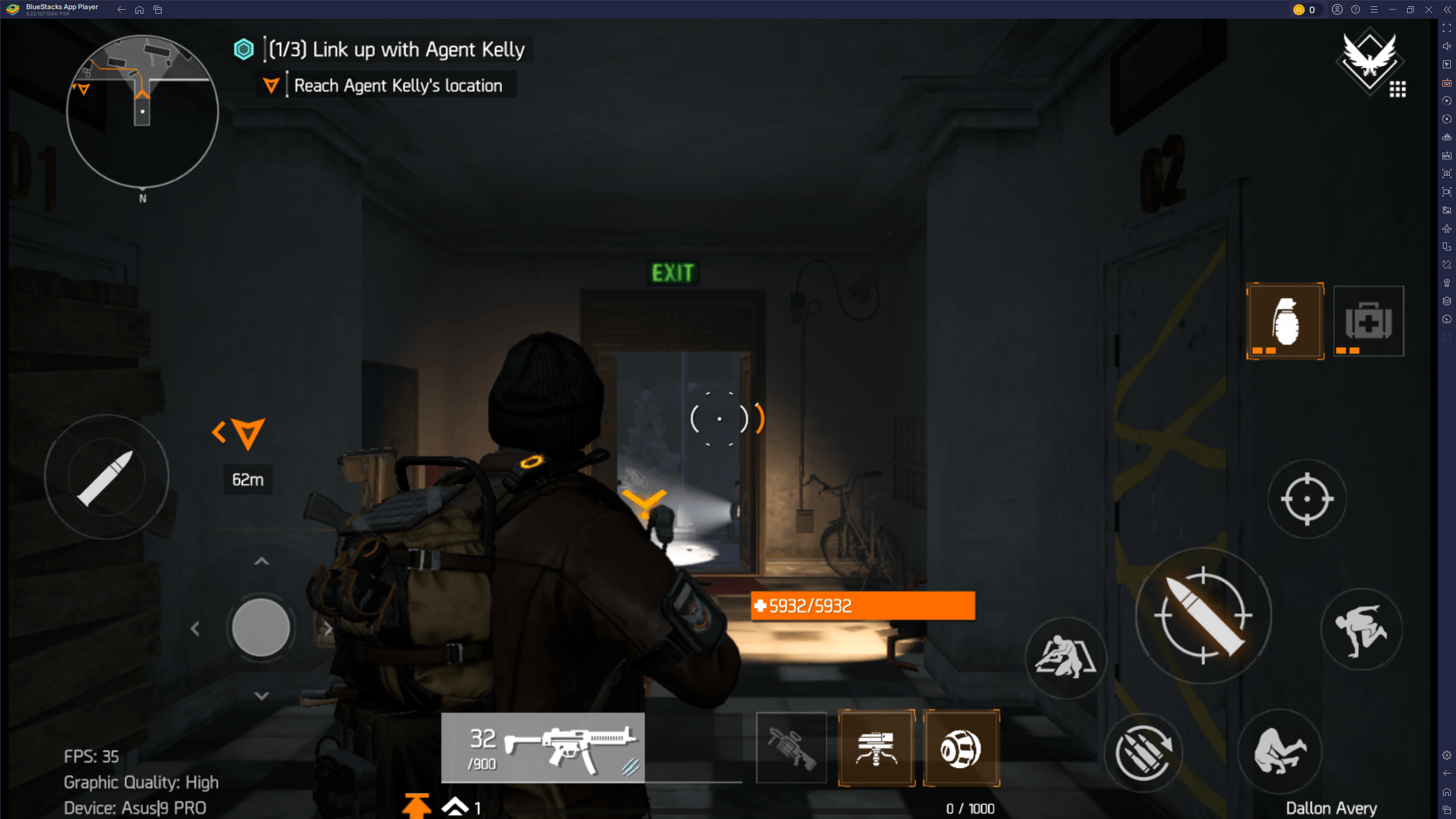
Getting the game to run on this emulator is pretty easy; all you have to do is download the emulator, install it, and then go over some emulator settings just to make sure that your first launch goes smoothly.
Follow these steps to get the Division Resurgence BlueStacks version running:
- Download BlueStacks 5 Pie 64-bit from the official website.
- Install BlueStacks, then open it and click on Home in the top left corner of the window.
- Go to the System Apps folder.
- Launch the Google Play Store inside BlueStacks and sign in with the same Google account you used to pre-register for Division Resurgence.
- (Optional but recommended) Install Gmail inside the emulator. Some players receive their early access or registration links via email, and these links only open properly on Android.
- Search for Division Resurgence in the Play Store and install the game.
- Once installed, you’ll see Division Resurgence in your BlueStacks home screen. Click to launch.
Before playing, it’s worth adjusting BlueStacks settings for better performance. So, go ahead and open emulator settings:
- Performance: Set CPU and RAM allocation to the highest available for your PC. Enable High Frame Rate and set it to 120 FPS if supported.
- Display: Switch to Landscape mode and use 1920x1080 resolution (or 1440p if your monitor supports it). For pixel density, go with the recommended medium of 240 DPI.
- Graphics: Select Vulkan as the renderer. The game often fails to load under OpenGL or DirectX.
- Phone: choose the most recent predefined profile phone to emulate. The game will allow you to choose more settings; the better your emulated phone is.
If you decide to emulate your own phone and it's not as good as the new ones, you’re going to get a message in the game saying “This device’s system is antiquated, which may cause rendering issues and crashes during gameplay. We kindly suggest upgrading the system for an ecnhanced gaming experience.” This basically means that you’ve chosen the wrong phone to emulate, and the game will run poorly and may even crash.
Note: You can’t change any graphics settings until you finish the tutorial and create your Agent.
If you run into stability issues, check that you are indeed using the Pie 64-bit version and not another build. For more information on how to run the game on this emulator, go to this official BlueStacks support page for the game.
MuMuPlayer Installation and Settings for Division Resurgence
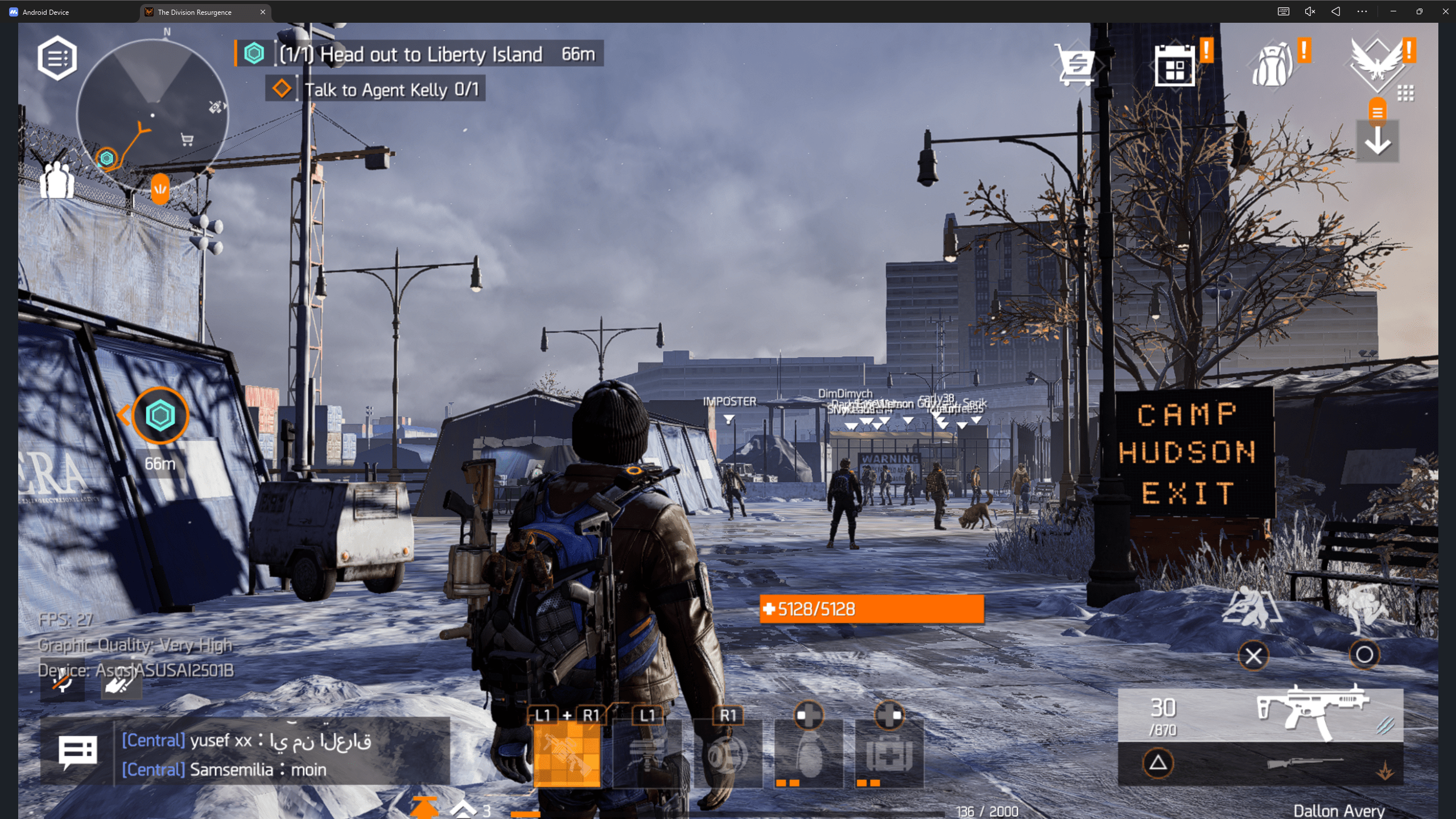
The installation process for MuMuPlayer is pretty similar, but the difference is in how to create the emulated device and some of the emulator settings.
Follow these steps to get the Division Resurgence MuMuPlayer in a playable state:
- Download MuMuPlayer from the official website.
- Install the emulator and launch it.
- Create and then open the new Android Device.
- Sign in to the Google Play Store using the account you registered with for Division Resurgence.
- Search for Division Resurgence in the Play Store and install the game.
- Once installation finishes, you’ll see the Division Resurgence icon on the MuMu home screen.
To get the best experience, head into the device settings (make sure the game is closed)
Performance tab:
- Graphics renderer - Vulkan
- Performance settings - High (CPU 6 Cores, RAM 12 GB)
- GPU memory usage - Optimal graphics quality
- Forced use of a discrete graphics card - On
- Smart Memory Optimization (Exclusive) - Off
Display tab:
- Resolution settings - 2560 × 1440 (DPI 360)
- FPS settings - Maximum FPS
- Maximum FPS - 165/240
- Screen brightness - 50
- Screen style - Common
- Window auto-rotation - On
- Multi-tab mode - On
- MuMu custom cursor - On
Model tab:
- Device model - Preset
- Brand - Asus
- Device model - ROG Phone 9
- Network access model - ASUSAI2501B
- IMEI - 861307055817875
- Phone number - Not set
- GPU Model - Preset
- Preset - High: Adreno (TM) 740
GPU models may affect the default settings in the game. Restart the game after the changes to apply. Other settings tabs can be ignored.
It’s really important to select this phone preset or a similar one to get access to more settings in the game.
MuMuPlayer treats the game as if it’s running on a tablet, which means you can stretch the display to widescreen and enjoy Division Resurgence with much sharper visuals than a phone could offer.
If you need more help setting up the game on this emulator, check out the MuMuPlayer Division Resurgence support page.
Browse our hottest Division Resurgence services





Division Resurgence Best Settings for PC
Now, let’s move on to the game and select the right settings for the best experience. But before you can do that, know that some of the settings will be locked until you complete the tutorial and create your character. So, we’ll start with what’s available right away, and that’s controls.
The game does support mouse & keyboard, but I haven’t been able to enable the native support. So, if you have a gamepad, I suggest using it. Whether you will use an XBOX controller or a PlayStation, the in-game prompts will adjust and display the correct buttons.
The Quick, Combat, and Weapon Settings tabs are all mostly preferential. Do not touch them until you’ve played enough, and change them if some things seem weird.
Generic Settings -> External Device UI
- Keyboard/Mouse Exclusive UI - On
- Controller UI - On
You can rebind controller and keyboard buttons as you desire, but the default binds mimic the ones from the big Division games. You can also adjust sensitivity for different types of weapons and scopes separately if any of them feel too fast or too sluggish.
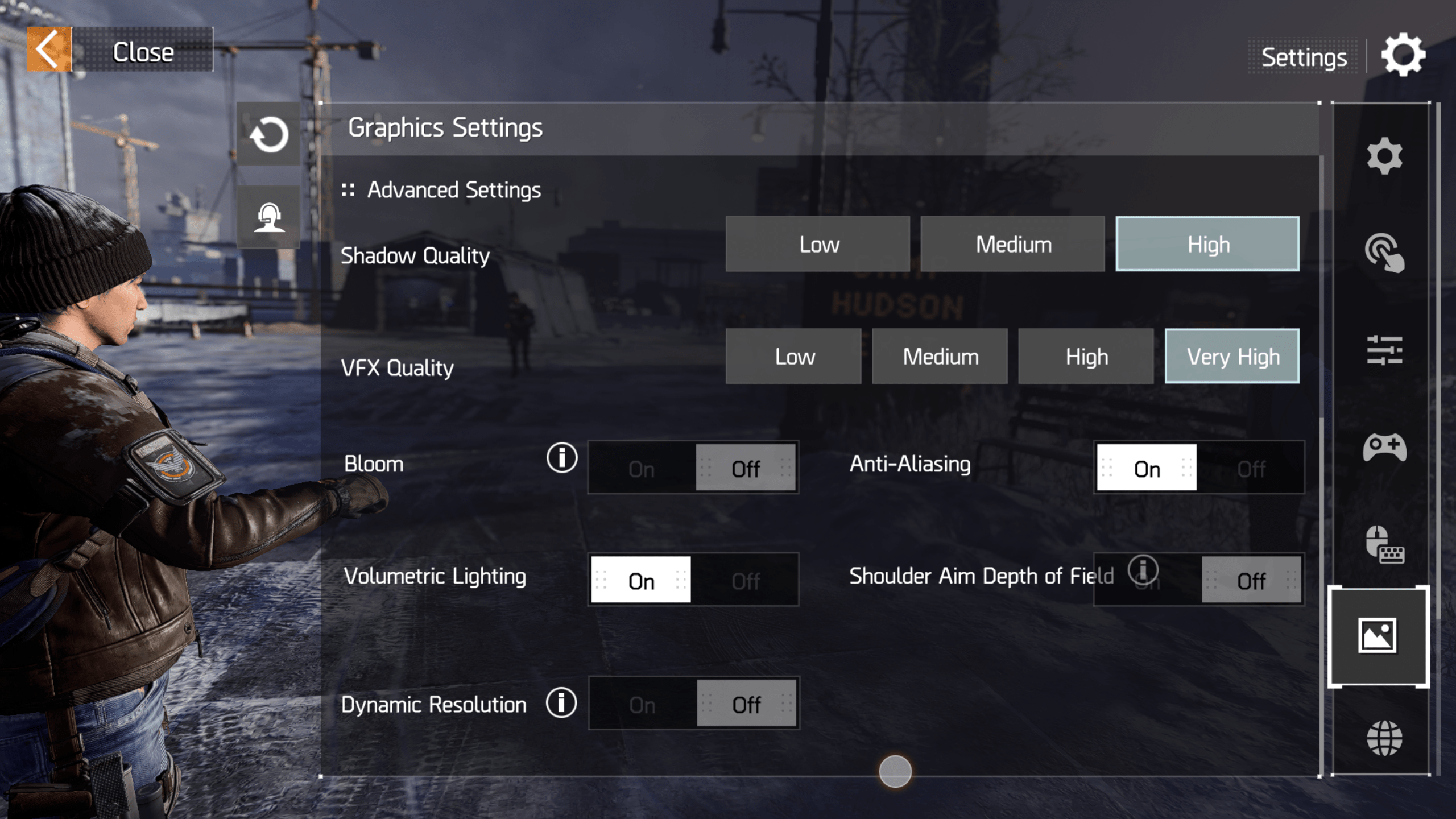
Graphics Settings:
- Graphics - Very High
- Resolution - High
- Framerate - Standard
Advanced Settings:
- Shadow Quality - High
- VFX Quality - Very High
- Bloom - Off
- Anti-Aliasing - On
- Volumetric Lighting - On
- Shoulder Aim Depth of Field - Off
- Dynamic Resolution - Off
Very important - the high and very high graphics settings, as well as resolution, are available only on Standard framerate, which caps it at 30 FPS, no matter what PC you’re running it on. On Medium framerate, which is capped at 60 FPS, you can only get Medium graphics settings, and only if your phone is new enough by the game’s standards to change these settings.


You got -20% OFF 
How to Fix Division Resurgence on PC
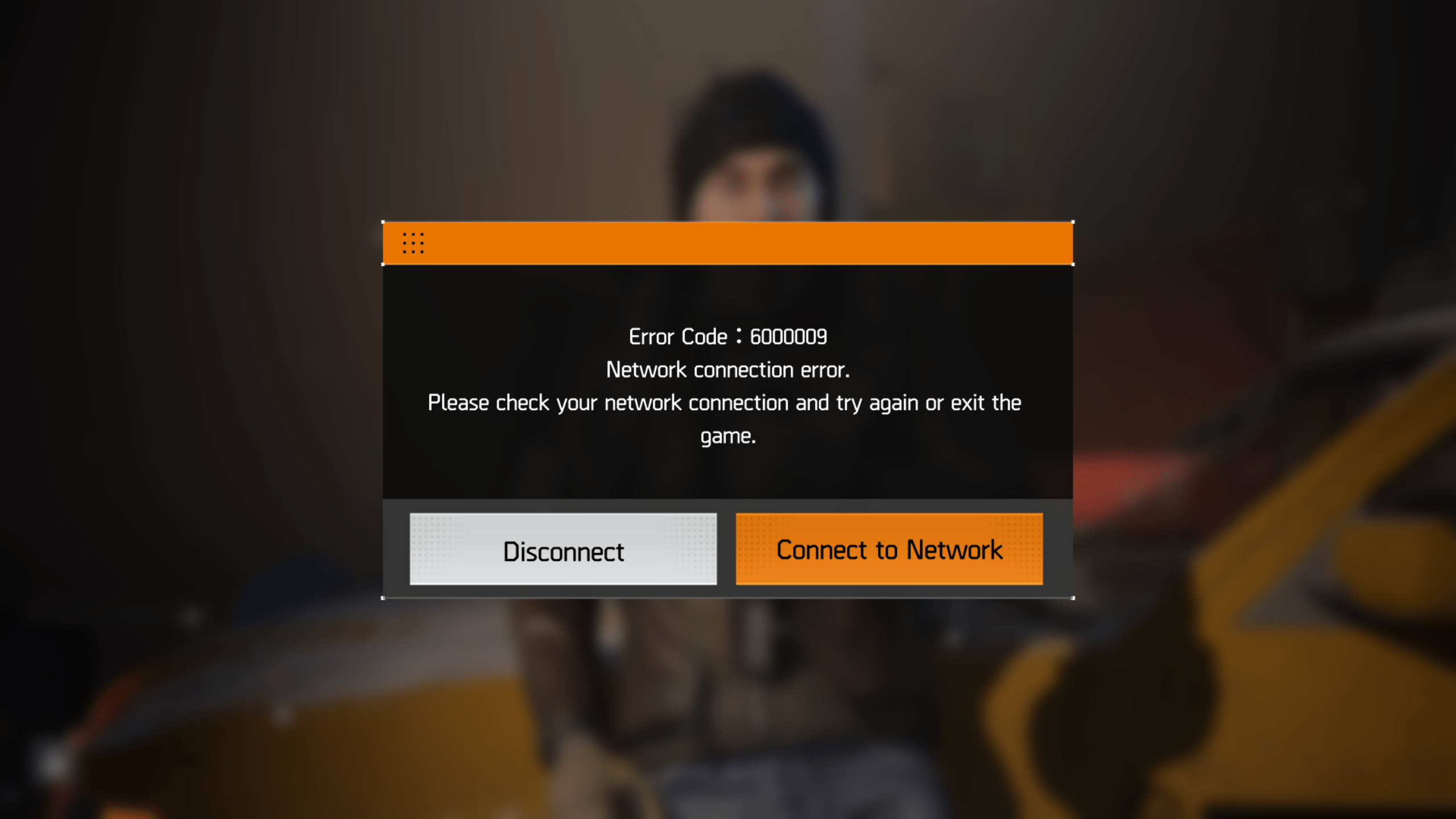
The game runs poorly on all PCs because it all depends on what kind of phone you’re emulating. There are crashes, freezes, and errors to deal with. Below, I’ve listed some of those issues I encountered and how to fix them:
- The game freezes - make sure you’ve downloaded ALL files in the background during the tutorial.
- The game crashes at character creation - make sure you’re emulating a new and powerful phone.
- The game is laggy or has low FPS - you can choose between either having nice graphics and low FPS or higher FPS but worse graphics and lower resolution. Also, make sure you’re emulating a powerful phone.
- The game doesn’t switch to keyboard & mouse UI - I haven’t found a way to recognize this type of input on either emulator.
- The game shows the wrong controller prompts - I’ve only noticed this happening on BlueStacks. Change your emulator to MuMuPlayer, and the game will recognize your PS gamepad.
- The game shows a connection error - that’s normal and might not be related to your emulator. Just press “try again” if there’s such an option, or restart the emulator and then the game.
There are a bunch more issues plaguing the game right now. Players have been discussing more issues on this Reddit thread, talking about things like setting up a custom KB&M control scheme by binding the phone controls to the mouse and keyboard.
F.A.Q.
Can you play Division Resurgence on PC?
Yes, you can use Android emulators to play the game and use a keyboard and mouse or a gamepad, as the game supports these input devices and has UI interfaces specialized for them.
What emulator is best to play Division Resurgence on PC?
None of the emulators can run the game flawlessly right now, but the best options are:
- BlueStacks
- MuMuPlayer
Does Division Resurgence have gamepad support?
Yes, the game does support XBOX and PS controllers and displays the correct input prompts.
Why does Division Resurgence crash on my emulator?
There could be a bunch of reasons for that, but check which device you’re emulating and make sure it's one of the new ones with a powerful CPU and a lot of RAM on board. The game locks out some settings and may work worse on older phones.
Is Division Resurgence free-to-play on PC?
Officially, the game is not available on PC, but you can download it for free and play just the same by using Android emulators.