GTA 6
GTA 6 Best Settings Quick Overview:
- GTA 6 launches with 30 FPS on all consoles, with no officially announced 60 FPS Performance Mode.
- PS5 Pro supports PSSR and exclusive ray-traced shadows.
- Enabling Game Mode on your TV and calibrating HDR can improve your overall experience.
- GTA 6 has adjustable aim assist, multiple minimap modes, and optional cinematic kill and crash cameras.

Read closely 
Browse our hottest GTA 6 Boosting services






Best GTA 6 Settings to Change First
Before getting into specific console configurations, I want to cover the actual GTA 6 settings worth changing. Rockstar hasn't published the entire options menu, but the gameplay previews have already revealed lots of interesting settings. Some you may recognize from GTA 5, while others are new and could make a noticeable difference in how you play. The new gameplay settings have to do with the more realistic HUD, which can be switched to a more default layout.
Anyway, here are the GTA 6 best settings I'd recommend starting with:
|
Setting |
Recommended Option |
|
Minimap Mode |
Classic |
|
Aim Assist |
Moderate or higher |
|
Cinematic Kill Camera |
Off |
|
Cinematic Crash Camera |
Off |
|
Default Movement Speed |
Faster movement |
|
Criminal Profile Notifications |
On |
|
Streamer Mode |
Off (On when streaming) |
|
DualSense Haptic Feedback |
On |
|
Adaptive Triggers |
On |
|
3D Audio |
On with compatible headphones |
The complete list of settings will be added once the game is out.
Personally, I'd start by adjusting aim assist and switching the minimap to Classic. By default, Rockstar made aim assist off or toned it down to a minimum, which is how I always play single-player games on consoles. I think it's a bit more immersive this way. As for slow-mo kills, this comes all the way back from Max Payne 3, and I’ve come to appreciate this cinematic effect. At the same time, I hate being interrupted during gameplay by things I can’t control. So if this slow-mo effect happens too often, I’ll turn it off.
Best GTA 6 Graphics and Performance Settings
Let's address the elephant in the room. GTA 6 only runs at 30 FPS on PS5, PS5 Pro, Xbox Series X, and Xbox Series S. Ouch! Rockstar officially confirmed this in its November 10 announcement, explaining that the studio prioritized visual fidelity and environmental density over higher frame rates. Aren’t the current-gen consoles good enough to run GTA 6 at 60 frames in any capacity? Even with lower texture quality or limited draw distance? I guess not. Now, I’m not sure if there will ever be an official or even unofficial 60 fps patch as it happened to Bloodborne on PS4, but one can only hope.
Performance Mode also seems to be missing. Not even on PS5 Pro, which does get some pretty cool exclusive features. Here’s the table that will probably shatter any hope you could have had regarding frame rates for both console families:
|
Platform |
FPS |
Confirmed Features |
|
PS5 |
30 FPS |
DualSense support, Tempest 3D Audio |
|
PS5 Pro |
30 FPS |
PSSR upscaling, ray-traced shadows |
|
Xbox Series X |
30 FPS |
Native Series X version |
|
Xbox Series S |
30 FPS |
Native Series S version |
|
Xbox One |
30 FPS game target |
Cloud streaming with Series S graphics settings |
The PS5 Pro is technically the best-equipped PlayStation for GTA 6 thanks to PlayStation Spectral Super Resolution (PSSR) and ray-traced shadows. But I don’t think I would recommend anyone upgrade from their regular PS5 to a Pro version just for those extra kinks. We also don't know whether the Pro will maintain a more consistent 30 FPS during particularly demanding situations. On PC, the FPS used to drop a lot in forests with lots of trees. Knowing that Leonida is full of rural areas, that could become a potential problem even for consoles.
Best PS5 and Xbox Settings for GTA 6
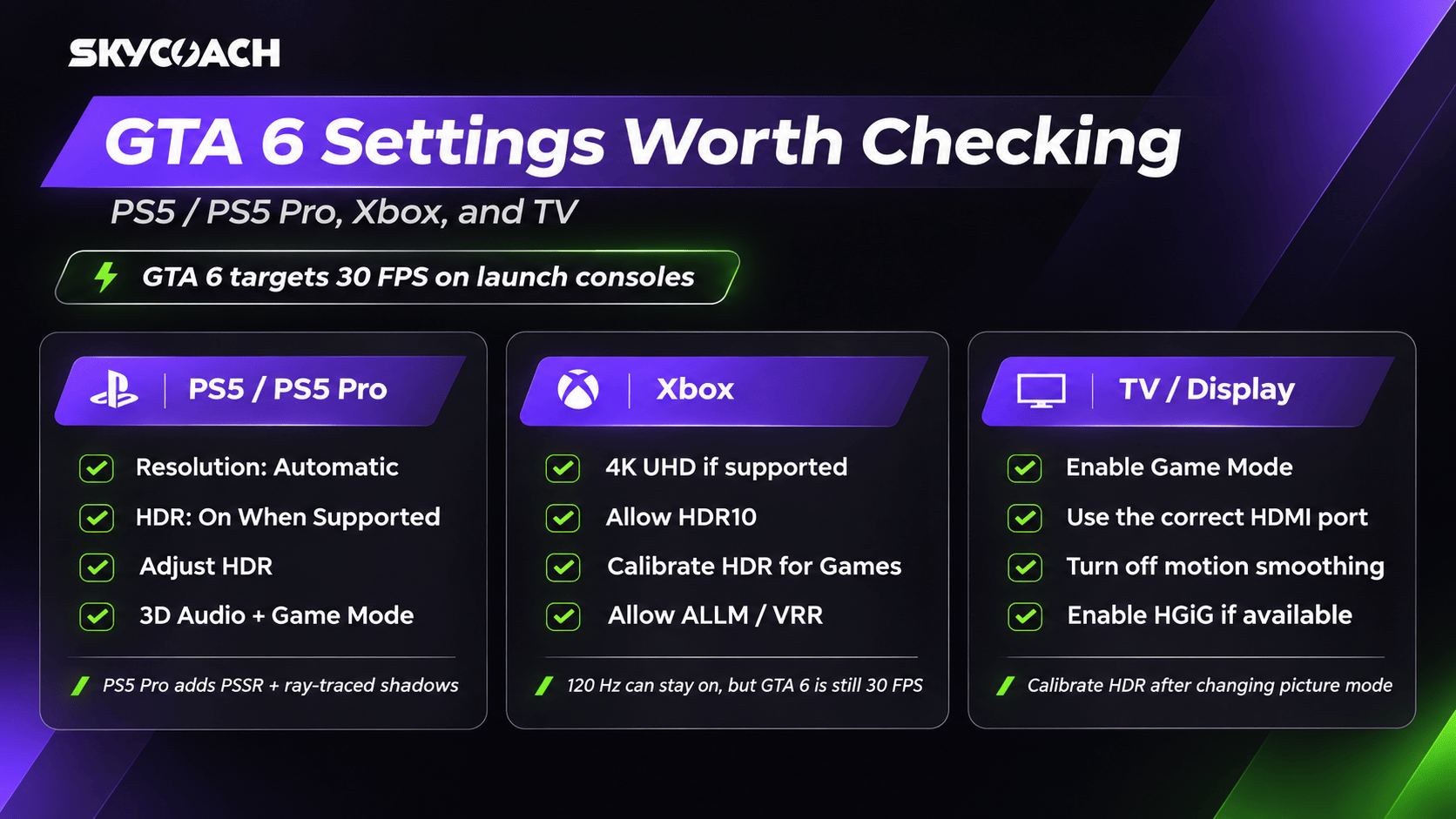
Even if GTA 6 doesn't let you choose between Performance and Quality modes, there are several console settings worth checking out. They won’t make the game run twice as fast, but these will almost definitely help depending on what you’re using.
I've put together the best PS5 and Xbox Series X|S settings for GTA 6 below:
|
Setting |
PS5 / PS5 Pro |
Xbox Series X|S |
|
Resolution |
Automatic |
4K UHD, if supported |
|
Game Mode / ALLM |
On |
On |
|
HDR |
On When Supported |
Allow HDR10 |
|
HDR Calibration |
Adjust HDR |
Calibrate HDR for Games |
|
VRR |
Automatic, if supported |
Allow Variable Refresh Rate |
|
120 Hz Output |
Automatic |
120 Hz, if supported |
|
TV Motion Smoothing |
Off |
Off |
|
HGiG |
On, if supported |
On, if supported |
Most of these options are available in your console's display settings, but some, such as Game Mode and HGiG, are controlled through your TV settings. Actually, your TV holds a lot of sway in how you will enjoy the game. Again, I’m not saying you should run to the store and get an OLED 8K TV with a higher refresh rate. But it would be nice!
Game Mode, HDMI, and Input Lag
The first thing I'd recommend is enabling Game Mode on your TV. Modern TVs often apply additional image processing to make movies look smoother, but that processing can introduce some noticeable input lag. And you want to avoid that in a game like this. For GTA 6, where you'll be driving at high speeds and constantly getting into gunfights, I'd rather sacrifice a little image processing for more responsive controls.
If your TV supports Auto Low Latency Mode (ALLM), your console can activate Game Mode automatically. On Xbox, you can find this under Settings → General → TV & Display Options → Video Modes. PS5 owners can check ALLM under Settings → Screen and Video → Video Output.
While you're there, make sure your console is connected to an appropriate HDMI port. Some TVs only support their full gaming features through specific HDMI 2.1 inputs. So, it wouldn’t hurt to check your ports. Maybe you’ve been using the wrong one all this time!
Best HDR Settings for GTA 6
HDR is another setting I'd pay attention to. GTA 6 has plenty of bright beaches, colorful sunsets, neon-lit streets, and dark interiors. Proper HDR calibration should make those environments look much better, while incorrect settings can wash out bright details or make darker areas difficult to see.
Here's how to calibrate HDR on each console:
- PS5: Go to Settings → Screen and Video → Video Output → Adjust HDR.
- Xbox Series X|S: Go to Settings → General → TV & Display Options → Calibrate HDR for Games.
Follow the on-screen instructions to adjust brightness until the calibration symbols are barely visible or disappear, as directed by each test screen. On PS5, I'd also recommend setting HDR to On When Supported rather than Always On, so non-HDR content isn't unnecessarily converted.
If your television supports HGiG, try enabling it before calibrating HDR. HGiG allows the console's HDR calibration to guide tone mapping instead of having the television apply additional processing on top. It can initially look darker, but that doesn't necessarily mean something is wrong. Just remember that not every TV supports it, and the best results depend on your specific display.
Finally, leave VRR and 120 Hz enabled on compatible consoles and displays if they work properly. These are useful settings for other games, but they won't unlock 120 FPS in GTA 6, and we don't have confirmation that VRR will improve GTA 6's 30 FPS presentation.
You can find additional setup details in Sony's official PS5 video output guide and Microsoft's Xbox TV optimization guide.
Best GTA 6 Controller, Camera, and HUD Settings
Now for the settings inside GTA 6 itself. According to the gameplay previews collected by GTABase, Rockstar has introduced more flexible customization for aiming, navigation, movement, and cinematic effects. Some of these are pretty minor, but others change how the game feels compared to GTA 5.
The big one for me is aim assist. In GTA 5, aiming with a controller often meant holding the left trigger and immediately locking onto an enemy. GTA 6 reportedly moves away from that strong automatic targeting, using a lighter form of aim assistance instead. Rockstar's Rob Nelson has indicated that the amount of aiming assistance can be adjusted.
I'd recommend increasing aim assist at first, especially if you're used to GTA 5's lock-on system. You can gradually lower it once you get comfortable with the new shooting mechanics. The full sensitivity and dead-zone ranges haven't been confirmed yet, so recommending specific numerical values would be pointless.
There's also the new Focus ability, which works somewhat like Dead Eye in Red Dead Redemption 2. Activating Focus slows time and highlights potential targets or vulnerable areas, including parts of vehicles. Previewers describe a meter that drains while the ability is active, meaning you can't just use it indefinitely. I'd suggest learning how Focus works early because carefully targeting enemies should be more effective than spraying bullets everywhere.
GTA 6 also reportedly allows players to disable two cinematic camera effects:
- Cinematic Kill Camera: Triggers dramatic slow-motion camera moments during certain kills. I'd keep it off for normal gameplay, but it's a fun option if you enjoy Rockstar's cinematic presentation.
- Cinematic Crash Camera: Activates special camera angles during major vehicle collisions. Personally, I'd turn this off because I don't want an unexpected camera change interfering with a police chase.
Both options are separate from Focus, which is an actual gameplay mechanic rather than a cinematic effect.


You got -20% OFF 
Best GTA 6 Minimap and HUD Settings
Another interesting change is that GTA 6 reportedly includes three different minimap modes. The default interface is more dynamic than GTA 5's, hiding information when you don't need it and bringing it back when necessary. I like the idea, but I'm not entirely convinced it'll be the best option for everyone.
Here's how the three reported GTA 6 minimap modes work:
|
Minimap Mode |
How It Works |
My Recommendation |
|
Default |
HUD fades when unnecessary and reappears when needed |
Best for immersion |
|
Classic |
Minimap stays visible |
Best overall |
|
Compass |
Uses a smaller directional compass |
Best for minimal HUD |
I'd choose Classic for my first playthrough. GTA 6's police system seems more complicated than before, with officers remembering details about your appearance and vehicles. Having navigation available at all times sounds pretty useful when you're trying to escape a wanted area.
Default mode is still worth trying. Preview reports suggest that pressing Down on the D-pad temporarily reveals hidden HUD elements, while setting a waypoint keeps navigation information on-screen. Compass mode is probably something I'd use later when I know Vice City well enough to navigate without constantly staring at the minimap.
There are a few more customization options worth mentioning:
- Default Movement Speed: Players can reportedly adjust their regular movement behavior. I'd prefer faster movement for general gameplay, although slower walking can feel more natural during exploration.
- Criminal Profile Notifications: Notifications related to Jason and Lucia's criminal behavior can reportedly be hidden. Keep them enabled initially to understand how the system works.
- Streamer Mode: Reportedly filters copyrighted music, making it useful for streaming and recording. However, it doesn't necessarily guarantee copyright-safe recordings.
PS5 players also get some additional controller customization. Rockstar confirmed that GTA 6 uses DualSense haptic feedback, adaptive triggers, and the controller's integrated speaker, with adjustments available through accessibility settings. I would keep those features enabled because they're part of the PlayStation experience. If the trigger resistance becomes uncomfortable, reduce it through the available controls.
I'd also enable Tempest 3D Audio when using compatible headphones. GTA 6 should benefit from more precise positional audio, especially when listening for approaching vehicles, gunfire, or activity around you.