 Rick Flair
Path of Exile 2 Build Planner Guide - Patch 0.5 Quick Summary:
- PoE2’s Build Planner makes following builds much easier by putting passive nodes, gems, and stat priorities directly inside the game.
- Importing builds is simple on PC, but exporting still needs Path of Building 2 and a Build Forge.
- Bad build files can waste your time, so patch version, class, ascendancy, gear requirements, and notes matter.
If you are looking to unlock the strongest nodes right away and don’t want to max out your level yourself, pay attention to our PoE 2 Power Leveling Boost to get your character to max level today.


Read closely 
Browse our hottest PoE 2 Boosting services








Path of Exile 2 Build Planner Explained
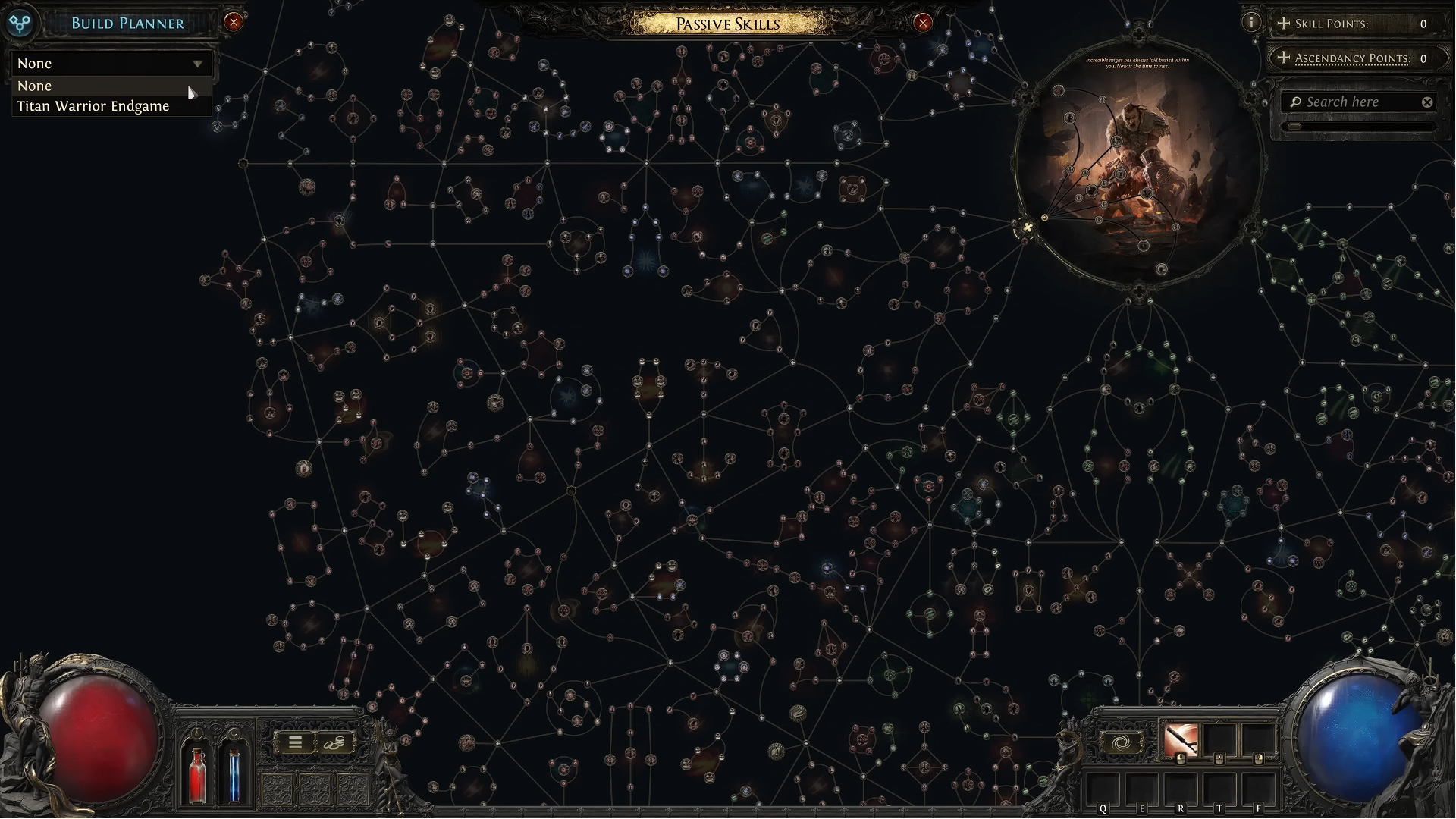
What’s a build planner? It’s pretty simple, really. It’s a tool that helps you to follow a player’s build conveniently, without the need to constantly look at your second screen to make sure you’re following the build right. Implementing a build into your build planner lets you clearly see what nodes you need to take and in what order, but that’s not all. It highlights the Stat priority for your slots, as well as shows what gems you need for the build, both skill and support ones. In this guide, I will talk about importing and exporting your builds. By the end of it, you will have a full understanding of how to use the Build Planner system in PoE2.
How to Import Builds in Path of Exile 2
Importing builds in Path of Exile 2 has never been easier. You just simply download the .build file from the website of your choice and paste it into the Build Planner folder. Let me explain how to import builds in Path of Exile 2:
- Navigate to the .build you downloaded. Right-click on it, then Copy
- Go to C:/Users/Name/Documents/My Games/Path of Exile 2/BuildPlanner
- Open Build Planner and then paste your .build file into this folder
Note that the path shown here is just an exemplary one. You might have this on any other drive, plus your Name will be obviously different. Side note: if you’re on SteamOS, that’s how your path will look:
- /home/deck/.local/share/Steam/steamapps/compatdata/2315204395/pfx/drive_c/users/steamuser/Documents/My Games/Path of Exile 2/BuildPlanner
But yeah, that’s how you import the build. Now, how do you activate it in-game?
- Open PoE2 and press P to open your skill tree
- In the top-left corner, under Build Planner, select the build you need
- The nodes you need to take will be highlighted, showing you the order in which you take them
Note that this works not only for the skill tree but also for Skill and Support gems. To use the build gem recommendations, here’s what you do:
- Open your Inventory tab and right-click on any gem
- Navigate to the top-left corner of the window that pops up and select the name of your build from the drop-down menu
For this to work, you don’t have to possess any of the gems that you will need to infuse. The list will show you what gems you will need to infuse at each gem tier. For Support gems, it’s a bit different. You’ll have to select a skill you want to infuse with Support gems, and then in the top-right corner of that window, you’ll need to click on the build’s name.
How to Export Your Builds in Path of Exile 2
While importing your builds is a piece of cake now, thanks to the built-in Build Planner, exporting them is not. It’s not that difficult, though, but it requires you to have a third-party program installed on your PC. Unfortunately, exporting builds isn’t available on consoles for now, so this guide only suits PC players. Before we begin, you'll need Path of Building 2, which can be downloaded from GitHub. It’s a utility that helps you export your character's build as code. We will need this code further. Here’s a step-by-step guide on how to export your builds in PoE2:
- Click on the Import/Export build in the top left corner
- Click Generate under Build Sharing
- Click Share, and then Copy
- Go to PoE2 Build Forge
- Paste your code into the window at the bottom of the page
- Click Convert, and after that, you'll have a pop-up saying that the website can't grab the code directly.
- Click the link that the pop-up offers you to open. Copy the full code from this link.
- Paste the whole code into the window, just like in step 5, and click Convert
- Download your .build file
Congratulations, now you've made your .build file that you can freely share with your friends or on specialized websites. Bear in mind that this process not only copies your node progression but also your gems slotted, so make sure your character wears what is supposed to be in the build.
Browse our hottest PoE 2 Boosting services








What to Check Before Using a Build
This section will help you avoid mistakes and bricking your progression path. Before importing any build into PoE2, check if it has more info than just skill names and class. The in-game Build Planner can show a plethora of stuff, including skills, crafting notes, gear hints, but it can give you this only if this information is stored inside the imported .build file. The file can’t get up-to-date on its own, so there are a few things to check when downloading the build:
- Patch Version: The current actual patch version is 0.5, but at the time you are reading this article, it might be something else. Always make sure that you use the build for the actual patch.
- Build Type: Check if this build is meant for leveling, endgame farming, bosses, or mapping.
- Class and Ascendancy: Make sure that the build matches your exact class path.
- Required Uniques: Check if there are any Uniques that are marked as mandatory. If you don’t have them, ignore the build.
- Attribute Requirements: Never ignore this. Remember that gems have their own requirements, and if you lack Strength, Dex, or Int, this build won’t work.
- Gear Flexibility: Ideally, a build should be generic enough for you to start using it when you barely have anything for it, but there are some high-end builds that are focused around niche gear or items. Check for it as well.
The biggest mistake you can make when choosing a build is to pick the build based on its final form. Remember that you have to get there somehow first, so the build needs to be playable before hitting its peak. If the build you like requires uniques, capped res, and high-level gems to actually get going, reserve it for your alt and find something better for now.


You got -20% OFF 
Common Mistakes to Avoid
If you find yourself with Build Planner not working or not working as intended, check this section for troubleshooting. Oftentimes, the most frustrating issues are caused by the simplest solutions. Here are some common issues with PoE2 Build Planner:
- Wrong Folder: Double-check if you’ve chosen the right folder. It should be Documents/My Games/Path of Exile 2/BuildPlanner
- Outdated Build: So far, it’s hard to say if the build for the older patch will cause any troubles, but just in case don’t download the ones that aren’t up-to-date
- Using the Wrong Build: Check if the build is for your character and class, and if it’s a leveling or an endgame build
- Ignoring Required Gear: If the build requires certain gear, not even the Uniques, but for instance, maces and not swords for it to function properly, pay extra attention to it
- Using Build with no Notes: Don’t rely on builds that have no explanation of why you should take a certain node or why you need a certain stat distribution
If the issues still persist, perhaps it’s caused by game bugs, in which case I advise you to contact Path of Exile’s support team. Generally, there aren’t many things that can go wrong with builds, so I don’t think you’ll run into any issues.
F.A.Q
What is the Build Planner in Path of Exile 2?
Build Planner is an in-game system that helps players follow imported builds. It can highlight passive nodes, show gem recommendations, and list stat priorities.
How do you import builds in Path of Exile 2?
Download a .build file, then place it inside the Path of Exile 2 BuildPlanner folder. After that, open the passive tree and select the build from the Build Planner menu in the top-left corner.
Where is the PoE2 Build Planner folder?
On Windows, it is usually inside Documents/My Games/Path of Exile 2/BuildPlanner. The exact drive and user name can be different.
Can you import PoE2 builds on Steam Deck?
Yes. SteamOS uses a different folder path under drive_c/users/steamuser/Documents/My Games/Path of Exile 2/BuildPlanner, but .build files can still be placed inside the game’s BuildPlanner directory.
Can console players export PoE2 builds?
No. Build exporting is not available on consoles right now.