 Dallon Avery
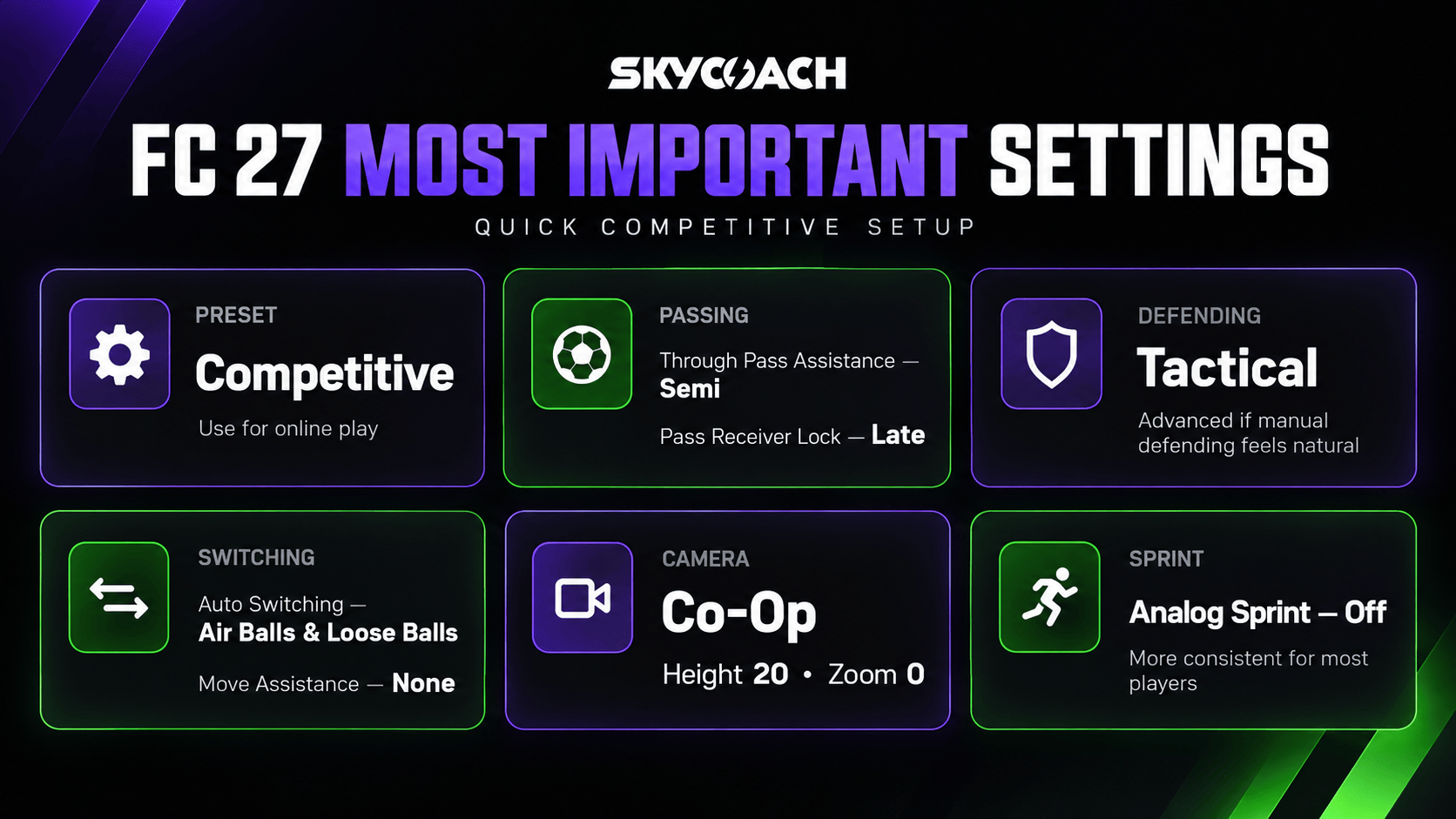
FC 27 Best Settings Quick Overview:
- You should use the Competitive Preset for online matches
- Set passing to Semi/Assisted
- Tactical Defending is best for most players
- Set Auto Switching to Air Balls and Loose Balls
- Use the Co-Op camera for better pitch visibility
Need help farming coins in FC 27? Buy FC 27 Coins at Skycoach and get any amount you need from proven and professional sellers. This is the easiest way to get coins for an affordable price.


Read closely 
Browse our hottest FC 27 Boosting services




Best FC 27 Gameplay Settings
Gameplay settings have the biggest impact on match control. I would say these are arguably more important than your audio or visual settings. Here, things like passing, defending, switching, and shooting. All should be altered or, at the very least, understood by you. FC 27 also makes several mechanics more manual than FC 26. So let’s take a look at what you can change in there and why. The choices in the options you’ll see come from personal experience, and I’ve also looked at some popular YouTubers and what they’re using.
Presets
|
Setting |
Best Value |
|
Preset |
Competitive |
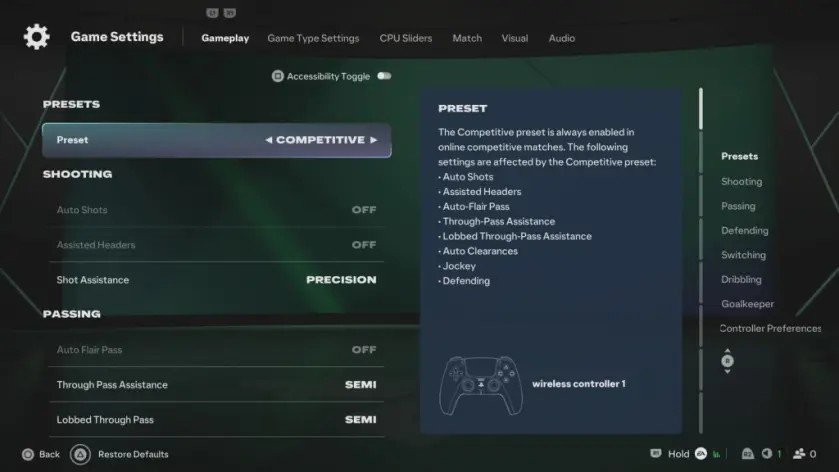
Competitive should be used for online play. It is mandatory in major competitive modes anyway. It also applies competitive values to several assistance settings.
Shooting
|
Setting |
Best Value |
|
Auto Shots |
Off |
|
Assisted Headers |
Off |
|
Shot Assistance |
Assisted / Precision |
Auto Shots and Assisted Headers are disabled by Competitive settings.
Shot Assistance is kinda important, actually. Assisted is safer for most players. Precision is for those with accurate aiming and offers a higher skill ceiling.
If you’re new, pick Assisted. Then, try Precision once you know what you’re doing. Precision can improve shot placement when aimed correctly. It is less forgiving when the stick direction is inaccurate.
Passing
|
Setting |
Best Value |
|
Auto Flair Pass |
Off |
|
Through Pass Assistance |
Semi |
|
Lobbed Through Pass |
Semi |
|
Ground Pass Assistance |
Assisted |
|
Cross Assistance |
Assisted |
|
Lob Pass Assistance |
Assisted |
|
Pass Receiver Lock |
Late |
|
Precision Pass Sensitivity |
Normal |
Through Pass Assistance and Lobbed Through Pass should stay on Semi. FC 27 gives players more control over through-ball direction and power. Poor stick direction is therefore punished more heavily.
Cross Assistance works well on Assisted. FC 27 already makes crossing more direction-dependent. Assisted keeps crosses manageable without removing player input.
Pass Receiver Lock should be set to Late. It lets players adjust the target until very late. This helps when a defender suddenly closes the original passing lane. Animation Start can feel more responsive for some players, so you’re welcome to try it too.
Precision Pass Sensitivity should remain Normal. High makes aiming more responsive, but also less forgiving. FIFAUTeam confirms these are the two available options.
Defending
|
Setting |
Best Value |
|
Auto Clearances |
Off |
|
Clearance Assistance |
Directional |
|
Jockey |
Manual |
|
Defending |
Tactical / Advanced |
|
Professional Fouls |
On |
|
Pass Block Assistance |
On |
Competitive settings disable Auto Clearances and use Manual Jockey.
Clearance Assistance should be Directional. This keeps clearance power assisted while respecting directional input.
Tactical is better for players wanting consistent defensive actions. The game chooses between physical challenges and standing tackles contextually. Advanced gives more direct control over each defensive action. Professional Fouls should stay On. Pass Block Assistance should also stay On. It helps nearby players attempt interceptions automatically.
Speaking of tactics, check out the Best FC 27 Formations guide where we listed the meta custom tactics.
Switching
|
Setting |
Best Value |
|
Auto Switching |
On Air and Loose Balls |
|
Auto Switching Move Assistance |
None |
|
Right Stick Switching |
Classic |
|
RS Switching Reference |
Player Relative / Ball Relative |
|
RS Switching Sensitivity |
4 |
|
Next Player Switching |
Classic / Closest to Ball |
|
Reaction Time Calibration |
Off / On |
|
Reaction Time Calibration Sensitivity |
6 when enabled |
|
Player Lock |
On |
Auto Switching Move Assistance should generally be None. Low remains useful for players wanting brief movement assistance after switching.
Right Stick Switching should be Classic. For RS Switching Reference, Player Relative uses the controlled player as the reference point. Ball Relative instead uses the ball. Players already comfortable with either system should avoid changing unnecessarily.
RS Switching Sensitivity is best around 4. This setting depends heavily on your stick accuracy.
Next Player Switching is Classic, which remains familiar and predictable for many players. Closest to Ball is useful for immediate defensive pressure.
Several creators report that Classic currently feels inconsistent. Closest to Ball is therefore worth trying if L1/LB switching feels wrong.
Reaction Time Calibration is the one setting without clear agreement. One creator recommends On with sensitivity at 6. Another current setup recommends Off. I use the former, but pick your own.
FIFAUTeam says the setting compensates for changes to the next-player indicator during a player's reaction window. It does not affect input speed.
Player Lock should remain On. It enables manual off-ball control and directed attacking movement. Even the third creator, who personally dislikes the mechanic, recommends enabling it.
Dribbling
|
Setting |
Best Value |
|
Simplified Skill Moves |
Off |
Simplified Skill Moves should be Off. It limits direct control over specific skill moves. This is going to help you practice some new moves, more on that in our FC 27 Skill Moves guide.
Goalkeeper
|
Setting |
Best Value |
|
Save Assistance |
Assisted |
|
Camera Pan Speed |
Default |
Save Assistance should stay Assisted. It mainly matters during goalkeeper-controlled situations and offline play. Team Gullit also recommends Assisted. Camera Pan Speed can remain Default.
Controller Preferences
|
Setting |
Best Value |
|
Right Stick Remap |
Off |
|
L1/R1 and L2/R2 Remap |
Off |
|
Analog Sprint |
Off |
|
Trigger Effect |
Off |
|
User Vibration |
Off |
The two remap settings are accessibility options. They only need changing when their alternative control scheme is required. FIFAUTeam confirms that these remaps concern menu navigation.
Analog Sprint should be Off for most players. This makes sprint input consistent at full trigger pressure. Two creators recommend Off, alongside Team Gullit.
Advanced players can still use Analog Sprint On. Partial R2/RT pressure allows finer speed control.
Trigger Effect and User Vibration should stay Off. They add controller feedback without providing a gameplay advantage.
Best FC 27 Game Type Settings
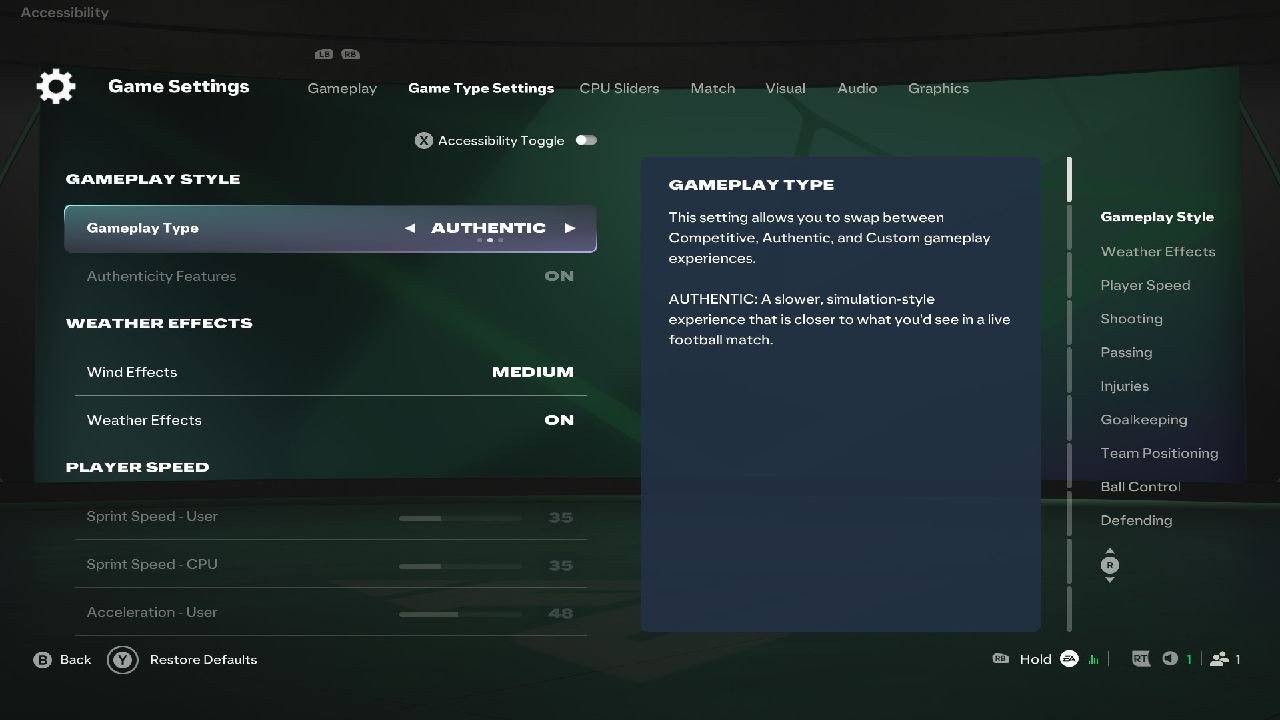
If the goal is online or competitive play, I wouldn’t touch these settings at all. I’d keep the Gameplay Type on Competitive and leave the custom sliders alone. These options are mainly useful for offline modes like Career Mode, where players may want a slower, more realistic, or more simulation-focused experience. Once you start changing values such as Sprint Speed, Acceleration, Shot Error, Passing Error, Positioning, and First Touch Error, you’re no longer optimizing competitive gameplay. You’re customizing how the game itself behaves.
For competitive play, I’d therefore stick to the default Competitive setup and focus on the Gameplay settings instead.
Players who mainly play Career Mode can use Custom Gameplay and realistic slider sets, but those settings are outside the scope of the competitive recommendations in this guide.
Best FC 27 CPU Sliders
For online or competitive play, I wouldn’t change the CPU Sliders either.
These settings only change how CPU-controlled players behave. They affect things like defensive aggression, tackling frequency, build-up speed, shot selection, crossing, dribbling, and skill-move usage. FC 27 also lets you separately tune CPU opponents and CPU teammates.
If the goal is competitive online play, I’d leave the CPU behavior settings at their default values and avoid using Custom AI Behaviour. These sliders are much more relevant to Career Mode and other offline modes where you may want to change how realistic, aggressive, or difficult the AI feels.
AI Behaviour
|
Setting |
Recommended Value |
|
AI Behaviour |
Default / unchanged |
|
Competitor Mode – CPU Opponent |
Off |
|
Competitor Mode – CPU Teammate |
Off |
|
Player Based Difficulty – CPU Opponent |
Off |
|
Player Based Difficulty – CPU Teammates |
Off |
I’d keep Competitor Mode Off unless I specifically wanted a harder offline AI opponent. It makes the CPU imitate the play style of high-level FC players and is only available on Legendary or Ultimate difficulty.
I’d also leave Player Based Difficulty Off for a normal setup. Turning it on gives star CPU players enhanced AI behavior, which is again more about shaping an offline experience than improving competitive settings.
CPU Opponent and Teammate Sliders
I wouldn’t manually change values such as:
- Defending Aggression
- Stand Tackle Aggression
- Sliding Tackle Aggression
- Professional Foul Frequency
- Build Speed
- Shot Frequency
- Crossing Frequency
- Dribble Frequency
- Skill Move Frequency
These are all offline AI-tuning options rather than settings that improve online gameplay. FIFAUTeam confirms that CPU Sliders change the AI’s moment-to-moment decision-making and can be customized separately for opponents and teammates.
If I were playing Career Mode and wanted a more realistic AI setup, then I’d use a dedicated slider preset. For an online-focused FC 27 settings guide, though, I’d leave this entire tab alone.
Browse our hottest FC 27 Boosting services





Best FC 27 Match Settings
Most Match settings mainly affect Kick Off and other offline matches. Online modes usually determine things like match length and conditions automatically, so I wouldn’t worry about matching every value before playing Rivals or other competitive modes. The tab contains General, Conditions, Pitch, and Referee settings.
General
|
Setting |
Best Value |
|
Quick Match |
On |
|
Half Length |
6 Minutes |
|
Difficulty Level |
Preference |
|
Watch Full Match Intro |
Never |
|
Attributes |
Default |
|
Quick Substitutes |
On |
I’d keep Quick Match On because it remembers the previous Side, Teams, and Kits setup in solo Kick Off and takes me straight to Match Preview. It simply saves time between matches.
I’d use 6-minute halves if I want offline matches to feel reasonably close to the pacing of normal online FC matches. There isn’t a competitive advantage here, though, and online modes set their own match duration.
Difficulty Level is entirely player-dependent. I’d simply raise it whenever I start winning comfortably against the CPU. There’s no useful universal “best” difficulty.
I’d set Watch Full Match Intro to Never. The full version can run for around three minutes and adds broadcast elements such as team sheets, anthems, and stadium atmosphere. They’re nice for immersion, but I don’t need them when I want to get into matches quickly.
I’d leave Attributes on Default. This gives the intended FC 27 attribute behavior. Classic changes how attributes are applied and is more useful if I specifically want the older FC-style experience.
Quick Substitutes should stay On. I want the option to make a suggested substitution immediately instead of pausing and navigating through Team Management.
Conditions
|
Setting |
Best Value |
|
Stadium |
Preference |
|
Match Conditions |
Custom |
|
Season |
Preference |
|
Dynamic Time of Day |
Preference |
|
Time of Day |
Day |
|
Weather |
Clear |
None of this will make you better online , but I’d use Custom Match Conditions for offline play. That removes random lighting and weather changes and lets me keep visibility consistent. FIFAUTeam confirms that Random can choose the season, weather, and time of day automatically, while Custom lets me choose them myself.
I prefer Day and Clear weather if the goal is pure gameplay visibility. Rain, darker lighting, and certain stadium conditions can make the ball and players harder to read without adding anything useful competitively.
Stadium and Season are mostly visual preferences, so I wouldn’t pretend there is one objectively best choice.
Pitch
|
Setting |
Best Value |
|
Ball |
Default |
I’d use the Default ball. There are more than 100 alternatives, but changing the ball is cosmetic. For a settings guide focused on consistent gameplay, I’d rather leave it on the standard option than introduce a ball with colors or patterns that might be less visible on a particular pitch.
Referee
|
Setting |
Best Value |
|
Bookings |
On |
|
Handball |
Off |
|
Offsides |
On |
|
Referee Strictness |
Default |
|
Injuries |
Off / On for Career Mode |
Bookings and Offsides should obviously stay On if I want normal football rules.
I’d keep Handball Off. Handball calls can create fouls and penalties from animations I don't directly control, so I don't think they improve an offline setup focused on consistent gameplay. Players looking for more simulation-style matches can turn them back on. FIFAUTeam lists On, On only for GK, On except penalties, and Off as the available options.
Referee Strictness should stay Default. I don't see a competitive reason to deliberately make officials more lenient or stricter.
For ordinary Kick Off, I’d turn Injuries Off. They introduce another random interruption without improving the actual match. In Career Mode, however, I’d leave Injuries On because squad fitness and player availability are part of the mode's longer-term management.
The Match tab therefore doesn't need nearly as much attention as Gameplay. Most of its options either affect offline matches only or come down to presentation and personal preference.
Best FC 27 Visual Settings
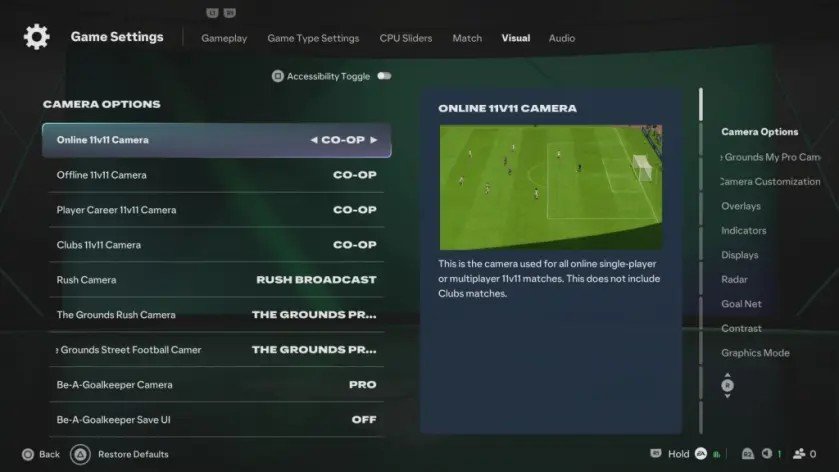
Visual settings matter much more than most of the previous categories because this is where FC 27 keeps its camera settings, player indicators, radar, and several HUD options. For competitive play, I want the widest useful view of the pitch without filling the screen with unnecessary overlays.
Camera
|
Setting |
Best Value |
|
Offline 11v11 Camera |
Co-Op |
|
Online 11v11 Camera |
Co-Op |
|
Player Career 11v11 Camera |
Co-Op |
|
Clubs 11v11 Camera |
Co-Op |
|
Rush Camera |
Rush Tactical |
|
The Grounds Rush Camera |
Rush Tactical |
|
The Grounds Street Football Camera |
The Grounds Pro |
|
Be-A-Goalkeeper Camera |
Co-Op |
|
Be-A-Goalkeeper Save UI |
On |
|
Power Shot Zoom |
Off |
FC 27 separates the camera by mode, but I’d use Co-Op for regular 11v11 matches. It gives me much more information horizontally, so I can see passing lanes, runs, and defensive shape without relying on the radar as much. Multiple current FC 27 guides also recommend Co-Op for competitive play. Nealguides suggests similar settings.
Tele Broadcast is still a reasonable alternative if Co-Op makes the players feel too small. It brings the action closer, which can make dribbling and one-on-one situations easier to read, but I lose some peripheral pitch visibility.
I’d turn Power Shot Zoom Off. I don’t want the camera suddenly changing perspective when I take a Power Shot. Keeping the view stable makes it easier to see defenders and possible rebounds. Some guides leave it On, so this is not universal, but for a competitive setup I prefer consistency over the cinematic effect.
The Grounds My Pro Settings
|
Setting |
Best Value |
|
Horizontal Camera Sensitivity |
20 |
|
Vertical Camera Sensitivity |
20 |
|
Inverse Horizontal Camera Control |
Off |
|
Inverse Vertical Camera Control |
Off |
These only matter when manually controlling the camera in The Grounds. I’d start at 20 for both sensitivities and keep inverted controls Off unless I already use inverted camera controls in other games. A current FC 27 camera guide also uses 20/20.
Camera Customization
|
Setting |
Best Value |
|
Custom Camera Settings |
Custom |
|
Height |
20 |
|
Zoom |
0 |
|
Pro Camera Zoom |
10 |
|
Pro Camera Speed |
10 |
|
Pro Camera Swing |
10 |
|
Camera Shake Visuals |
Off |
|
POV Camera Scenes Visuals |
Off |
|
Main Menu Video |
Preference |
I’d start with Height 20 and Zoom 0. This gives me the broadest practical view with Co-Op and makes it easier to track players away from the ball. Several current competitive guides independently recommend this exact combination or something very close to it.
There is a legitimate alternative here. One of the creators you provided uses Co-Op with 13 Height and 3 Zoom.
I’d therefore treat the two setups like this:
20 Height / 0 Zoom gives me maximum pitch awareness.
13 Height / 3 Zoom brings the players closer while still keeping the advantages of Co-Op.
If 20/0 makes players feel too small, I’d reduce Height or add a few points of Zoom before abandoning Co-Op altogether.
Camera Shake Visuals should be Off. Camera movement after goals or other events adds nothing useful and can be distracting. FIFAUTeam confirms that this option specifically controls those camera-shake effects.
I’d also keep POV Camera Scenes Visuals Off. First-person views during stoppages and highlights are presentation features rather than useful gameplay information.
Overlays
|
Setting |
Best Value |
|
Connection Monitoring |
Contextual |
|
Input Overlay |
Off |
|
Score Clock |
On |
|
Score Clock Dropdown |
Off |
|
Scrolling Line Ups |
Off |
|
HyperMotion Insight Overlays |
Off |
|
Measurement System |
Default |
|
Tactical Chalkboard |
On |
|
Tactical Suggestions Notifications |
Off |
|
Footedness Icons |
On |
|
Skill Moves Rating |
On |
|
PlayStyles+ Icons |
On |
|
FUT Objective Gameplay Notification |
Off |
I’d keep Connection Monitoring on Contextual. That way ping, packet-loss, and jitter information appears when there is actually a connection problem instead of permanently taking up screen space. FC 27 also offers Always On and Off.
Input Overlay should normally be Off. It becomes useful when troubleshooting controls or connection delay. FC 27 even has Side-by-Side and Diagnostics modes that compare local and synchronized network inputs.
The third creator uses Input Overlay because viewers need to see his commands, not because it improves normal gameplay.
Score Clock stays On, while I’d disable Scrolling Line Ups and HyperMotion Insight Overlays. The latter two add information between or around gameplay without helping me make decisions during the match.
I’d keep Footedness, Skill Moves Rating, and PlayStyles+ Icons On. Unlike decorative overlays, those can remind me of information that actually affects what I should do with the selected player. FIFAUTeam confirms that these appear alongside the Player Name Bar.
Indicators
|
Setting |
Best Value |
|
Player Name Bar |
Enabled + Overhead Info |
|
Overhead Player Info |
Player Name |
|
Player Indicator Size |
Default |
|
Player Indicator Fade |
Off |
|
Player Indicator Colours |
Default |
|
The Grounds Kickabout Teammate Indicators |
Red/Blue |
|
Drop Kick Reticle Size |
Default |
|
Drop Kick Reticle Colour |
Default |
|
Drop Kick Hit Confirm |
Default |
|
Drop Kick Charge Size |
Default |
|
Drop Kick Charge Colour |
Default |
|
Ball Trail Colour |
Default |
|
Teammate Contain Indicator |
On |
|
PlayStyles+ Overhead Indicators |
On |
|
Clubs Player Indicators |
Default |
|
Next Player Switch Indicator |
On |
|
Player Based Difficulty Indicator |
Off |
|
Online ID Indicator |
Fade |
|
Corner Kick Trajectory |
On |
Player Name Bar is one of the visual settings I would definitely change. I’d use Enabled + Overhead Info, then set Overhead Player Info to Player Name.
That lets me immediately see which player I control. From that, I can remember the player's weak foot, Skill Moves, PlayStyles, and passing or shooting strengths without trying to identify a small player model from the camera view. The third creator specifically highlights this problem when playing with a distant Co-Op camera.
FIFAUTeam confirms that Enabled + Overhead Info keeps the normal Player Name Bar while adding the name or number above the controlled player.
Teammate Contain Indicator should stay On. When I hold R1/RB for teammate contain, I want to know exactly which AI defender is responding.
Next Player Switch Indicator should also be On. FC 27's L1/LB switching is one of the mechanics several creators have complained about, so I’d rather see who L1/LB will switch to than guess. FIFAUTeam confirms that the indicator shows which player L1/LB will switch to.


You got -20% OFF 
Displays
|
Setting |
Best Value |
|
Celebration Camera Focus |
User Controlled Team |
|
Hold to Skip |
Off |
|
Precision Pass Visuals |
On |
|
Shot Visuals |
On |
|
Underfoot Player Highlighter |
Display on Stoppages |
|
Communication System |
On |
|
AR Coach in Rush |
Show |
|
Ping System |
On |
I’d set Celebration Camera Focus to User Controlled Team. When I concede, I don’t need the camera following the opponent's celebration. The option exists specifically to keep the camera focused on my own side instead.
I’d keep Precision Pass Visuals and Shot Visuals On, particularly while learning those mechanics. They give direct feedback about aim, which matters much more when using Precision Shooting or more manual passing.
Rush communication features can stay On. They actually give useful team info, so I’d leave them on.
Radar
|
Setting |
Best Value |
|
Radar |
2D |
|
User Radar Colour |
Default |
|
Opponent Radar Colour |
Default |
I’d always keep the radar enabled and use 2D. Even with a wide Co-Op camera, there are situations where players are outside the visible area. The radar gives me the cleanest overview of every player's position.
2D is also easier to read quickly than the angled 3D version. FC 27 offers 2D, 3D, and Off.
Goal Net
|
Setting |
Best Value |
|
Net Tension |
Default |
|
Net Shape |
Default |
|
Net Meshing |
Default |
These are purely cosmetic. I’d leave them at Default. They don't help competitive play, so there is no reason to pretend one net shape is a better gameplay setting than another.
Contrast and Visibility
|
Setting |
Best Value |
|
Colour Blindness |
Default / as needed |
|
Brightness |
Default |
|
Contrast |
Default |
|
High Contrast/Gameplay |
Off |
|
High Contrast/Menus |
Off |
|
Reduced Transparency |
Off |
|
Player Shadows |
Off |
|
Stadium Shadows |
Off |
Colour-blindness and High Contrast options are accessibility tools. I’d leave them at Default unless I specifically benefit from them. FC 27 allows extensive customization of team, goalkeeper, referee, and ball colors when High Contrast Gameplay is enabled.
Player Shadows are different. I’d turn them Off. Removing them keeps the pitch cleaner and avoids dark areas around players that can reduce visual clarity.
I’d also disable Stadium Shadows for offline play. Large shadow bands across the pitch can make player and ball visibility inconsistent. This setting does not affect FUT online matches because those matches are played at night without stadium shadows anyway.
Graphics Mode
|
Setting |
Best Value |
|
Graphics Mode |
Favour Resolution |
FC 27 offers Enhanced Visuals and Favour Resolution, with both targeting 60 FPS on supported consoles. Enhanced Visuals adds features such as ray-traced ambient occlusion and dynamically adjusts resolution, while Favour Resolution uses standard lighting and prioritizes image resolution.
Best FC 27 Audio Settings
Audio settings don’t matter as much, so set them all as you prefer. Here are some of my preferences:
- I’d keep Music Always On disabled. Turning it on causes menu music to continue during gameplay and mutes commentary and other broadcast audio. Unless I specifically want music while playing, I’d rather keep normal match audio intact.
- Disable All Music for Streaming Purposes should stay Off unless I’m recording or streaming. If I am creating content, I’d turn it On because the option exists specifically to disable music that could create copyright issues.
- I’d keep Archetype Perk Activation Sound On. Unlike most audio options, this gives me actual gameplay information by confirming when an Archetype Perk activates. I don’t see a reason to remove a useful audio cue unless I find it distracting.
Commentary language, commentary team, and volume levels are entirely personal preference. I wouldn’t claim that lowering commentary suddenly makes someone play better.
Disable Critical Commentary is also optional. If critical remarks become distracting during bad matches, I’d turn them off. Otherwise, they can stay enabled.
There isn’t really a competitive setup to recommend here. I’d adjust Rush audio entirely around what I find comfortable.
If music makes it harder to concentrate, I’d lower Gameplay Music Volume. If I enjoy the presentation, I’d leave it higher. None of these options change gameplay itself.
Same deal with The Grounds. These sliders control ambiance, commentary, gameplay sounds, music, and football sound effects.
I wouldn’t change these specifically for competitive reasons. I’d simply balance them so gameplay sounds remain easy to hear while music and commentary sit at comfortable levels.
F.A.Q.
What are the best settings for FC 27?
For online play, I recommend the Competitive preset, Semi Through Passes, Late Pass Receiver Lock, Air Balls and Loose Balls Auto Switching, and Analog Sprint Off. I’d also use a wide Co-Op camera to see more passing lanes and runs.
What are the best controller settings for FC 27?
I’d keep regular passing assisted, Through Pass Assistance on Semi, Pass Receiver Lock on Late, and Right Stick Switching on Classic. Auto Switching should be set to Air Balls and Loose Balls, while Auto Switching Move Assistance works best on None.
What is the best camera setting in FC 27?
I recommend the Co-Op camera because it shows much more of the pitch than closer broadcast cameras. A good starting point is 20 Height and 0 Zoom, although lower height or a little zoom can make players easier to see.
Is Co-Op or Tele Broadcast better in FC 27?
I prefer Co-Op for competitive play because I can see more passing options, defensive positioning, and off-ball runs. Tele Broadcast is a good alternative if Co-Op makes the players look too small on your display.
Should Shot Assistance be Assisted or Precision in FC 27?
I’d use Assisted if finishing is inconsistent or you’re still learning FC 27. Precision has a higher skill ceiling and gives skilled players more control, but inaccurate aiming is punished more heavily.