 Dallon Avery
Modern Warfare 4 Best Settings Quick Overview:
- Use display settings that match your monitor refresh rate and aspect ratio
- Enable frame generation if your graphics card supports this technology to improve FPS
- You don’t have to change all 800+ options to make the game run well and feel good
- Ray Tracing is a very performance-heavy setting, best left turned off
- Use Graphics Presets to find the best starting point for the desired FPS, then change specific settings to fine-tune
Enjoy the optimized gameplay with new mastery camos for your weapons! Buy MW4 Ripple Tide Camo at Skycoach and receive the camo for the chosen weapon type from our veteran CoD players!

Read closely 
Browse our hottest Call of Duty Boosting services



Best Modern Warfare 4 Graphics Settings
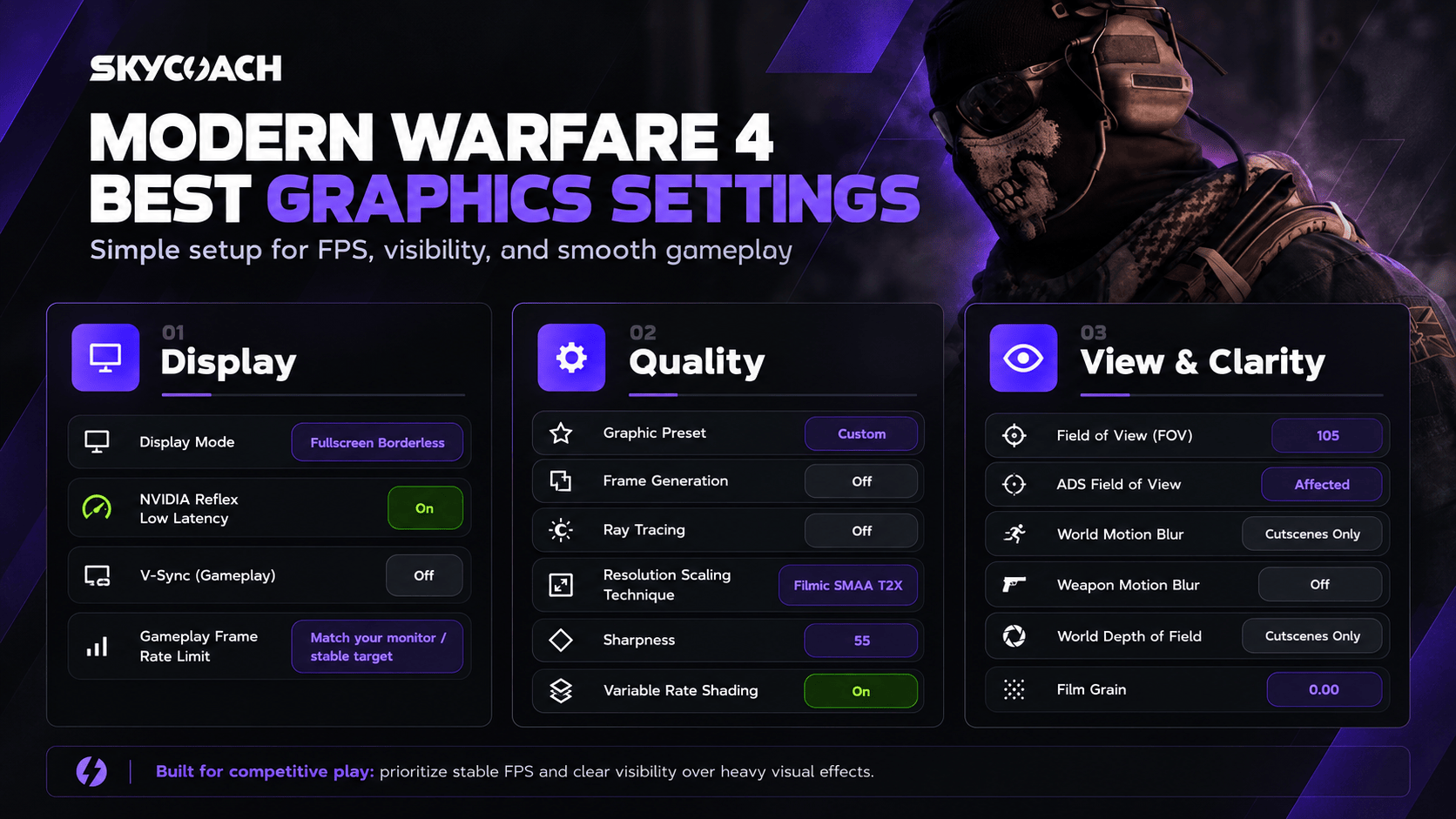
In recent years, the developers have added over 800 customization options across all kinds of settings categories, which is just an insane number if you think about it. Now, I do love to have this kind of range of options in my PC game. Not that I love tinkering around, but so that if I have any issues, I can address them specifically and fine-tune the game to how I like it, which happens naturally after hundreds of hours in.
I wouldn’t say the settings are super different from Black Ops 7, 6, or Modern Warfare 3. If you've seen the options screen in those games, it’s basically the same in Modern Warfare 4, but there are some new ones too.
In this guide, I will not cover 800 options, because that’s just not realistic. Let’s be honest - most of them are best left as defaults. But I will go over the most important ones in the following categories:
- Graphics with 3 sub-tabs: Display, Quality, View
- Audio - just like in BF6, proper sound settings make the game better
- Interface - fine-tuning HUD to your liking is equally important
But I will deliberately leave out the Controller, Keyboard & Mouse settings because I want to leave it up to your preference. Now, let’s proceed to the Graphics tab settings and its first tab - Display.
Best MW4 Display Settings
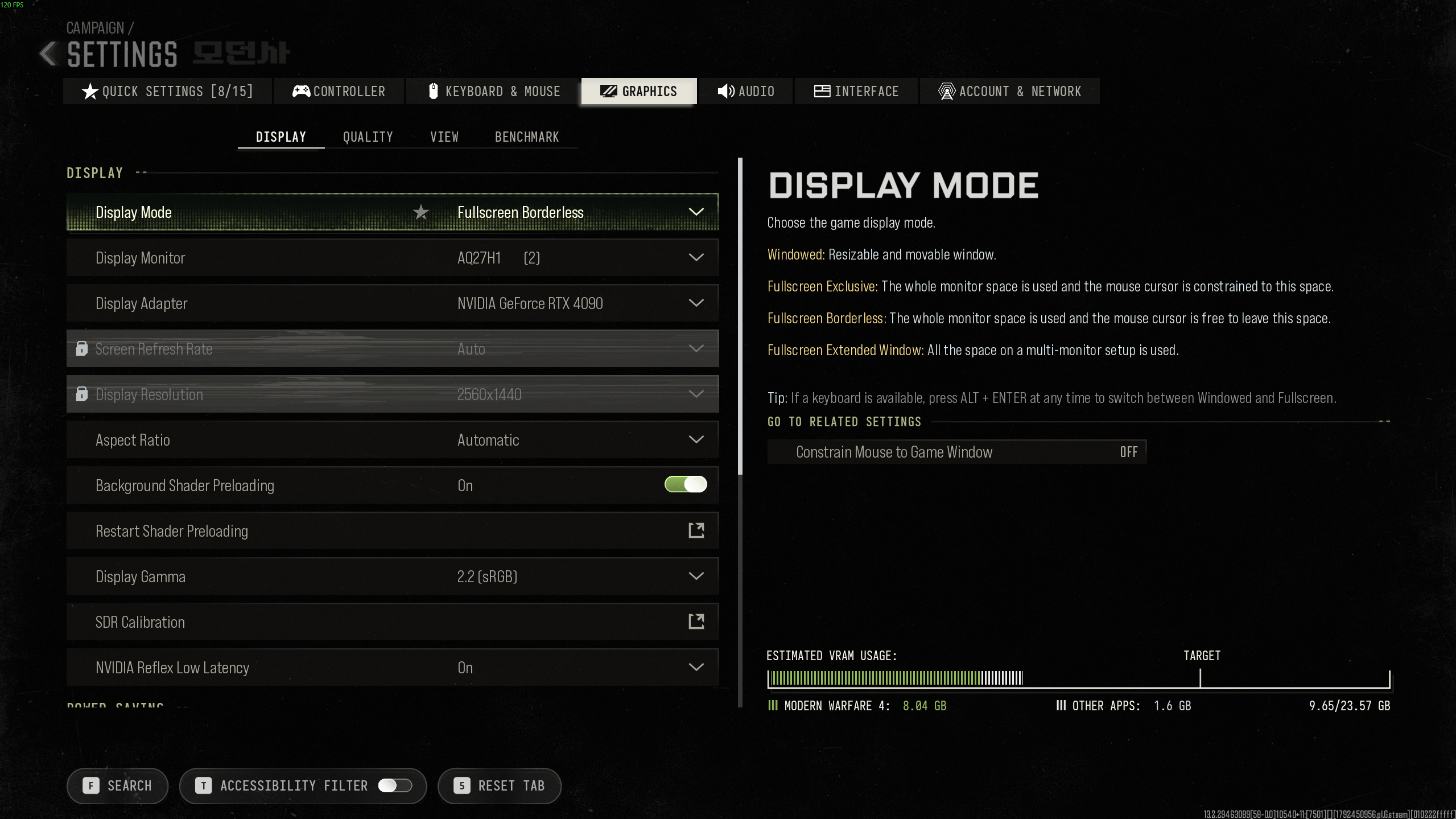
Display is reserved for your general Monitor settings. This is where you can handle Vertical Sync, fine-tune gamma, turn on or off NVIDIA Reflex, as well as put a cap on frame rate. This is also where some settings depend on your PC setup.
Here are my recommended Modern Warfare 4 Display settings:
|
Setting |
Recommended Value |
What It Changes |
|
Display Mode |
Fullscreen Borderless |
Controls whether the game runs in a window, borderless fullscreen, or exclusive fullscreen. |
|
Display Monitor |
Your main gaming monitor |
Selects the monitor used to display the game. |
|
Display Adapter |
Dedicated GPU |
Selects the graphics processor used by MW4. |
|
Screen Refresh Rate |
Highest available |
Determines the monitor's refresh rate when using Fullscreen Exclusive. |
|
Display Resolution |
Native resolution |
Controls the game's output resolution. |
|
Aspect Ratio |
Automatic |
Adjusts the image to match the monitor's aspect ratio. |
|
Background Shader Preloading |
On |
Allows the game to prepare shaders in the background. |
|
Restart Shader Preloading |
When troubleshooting |
Restarts shader preparation if you experience shader-related issues. |
|
Display Gamma |
2.2 (sRGB) |
Adjusts the brightness response for SDR output. |
|
SDR Calibration |
Calibrate for your monitor |
Adjusts the SDR image using the game's calibration controls. |
|
NVIDIA Reflex Low Latency |
On |
Reduces system latency to improve input responsiveness. |
|
Power Saving |
||
|
Eco Mode Preset |
Custom |
Controls the preset used for power-saving features. |
|
V-Sync (Gameplay) |
Off |
Synchronizes gameplay frames with the monitor's refresh rate to prevent tearing, potentially adding input lag. |
|
V-Sync (Menus) |
100% |
Synchronizes menu rendering with the monitor's refresh rate. |
|
Custom Frame Rate Limit |
Custom |
Allows separate FPS limits for gameplay, menus, and when the game is inactive. |
|
Gameplay Custom Frame Rate Limit |
Match your performance target |
Limits the maximum FPS during gameplay. |
|
Menu Custom Frame Rate Limit |
60 FPS |
Limits FPS while navigating menus. |
|
Out of Focus Custom Frame Rate Limit |
30 FPS |
Limits FPS when the game isn't the active window. |
|
Reduce Menu Render Resolution |
Optimal |
Reduces the resolution used to render menus to save resources. |
|
Pause Game Rendering |
Off |
Controls whether rendering pauses under supported conditions. |
|
Reduce Quality When Inactive |
On |
Reduces graphical quality when the game loses focus. |
|
Focused Mode |
0 |
Controls additional darkening around the game window when applicable. |
I would personally stick with Fullscreen Borderless, especially if you're using two monitors. Exclusive fullscreen used to be the way to go for the smoothest FPS, but personally, I have a double monitor setup, so I kind of have to use the Borderless mode. Besides, Alt+Tabbing is much easier this way. These days, everyone uses it.
NVIDIA Reflex Low Latency is one of the settings I would always check. You have Off, On, and On + Boost as options, and I'd recommend starting with On. As NVIDIA explains in its system latency optimization guide, reducing the rendering queue can help lower system latency and make inputs feel more responsive. On + Boost can offer additional benefits in certain situations, but it also increases GPU power consumption, so I wouldn't enable it automatically.
It’s just always a good idea to have as little delay between the input and the result as possible.
For V-Sync, I prefer keeping it Off during gameplay. I only ever use V-Sync when playing on 4k TV when there’s some serious screen-tearing going on. On top of that, I don’t think you can use Frame Generation if you have V-Sync On.
The Custom Frame Rate Limit isn’t super important, but you can change it if you play on a laptop. I don't see much reason to render menus at 120 or 250 FPS when 60 is more than enough for navigating them. Likewise, setting the Out of Focus limit to 30 FPS reduces unnecessary GPU activity when you're doing something on your second monitor. For gameplay, choose a cap that your PC can maintain consistently rather than simply setting the slider to its maximum.
Best MW4 Quality Settings
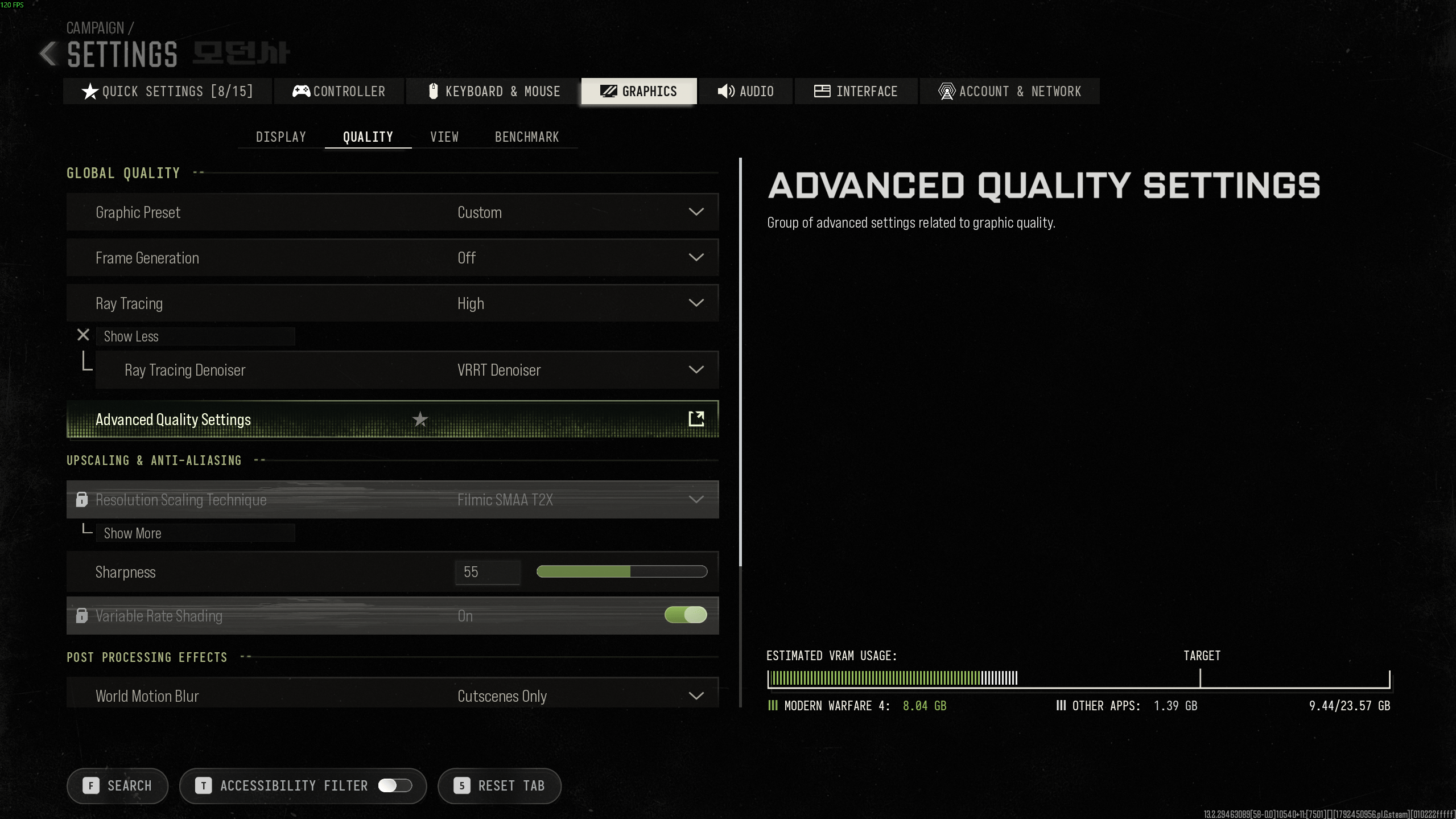
Quality is arguably the most important part of the game settings, as it is responsible not only for how the game looks but also for how well it runs. I really do suggest trying out different presets as a starting point if you’re expecting the game to run at a certain FPS, and then change minute, specific settings. Honestly, this tab isn’t very different from previous games, so if you played CoD before, this should be familiar.
The first part of this menu includes global quality options, upscaling, anti-aliasing, and post-processing effects. We'll go through them in the same order as the game.
|
Setting |
Recommended Value |
What It Changes |
|
Global Quality |
||
|
Graphic Preset |
Custom |
Allows graphics settings to be adjusted individually rather than using a predefined quality preset. |
|
Frame Generation |
Off |
Generates additional displayed frames between traditionally rendered frames. |
|
Ray Tracing |
Off for competitive play |
Controls ray-traced visual effects, which can increase GPU workload. |
|
Ray Tracing Denoiser |
VRRT Denoiser (when using Ray Tracing) |
Controls the denoising method used for ray-traced effects. |
|
Advanced Quality Settings |
Adjust individually |
Opens a separate menu of detailed graphics quality options. |
|
Upscaling & Anti-Aliasing |
||
|
Resolution Scaling Technique |
Filmic SMAA T2X at native resolution |
Controls the technique used to smooth jagged edges or upscale the rendered image. |
|
Sharpness |
55 (starting point) |
Adjusts the sharpening applied to the image. |
|
Variable Rate Shading |
On |
Allows different parts of the image to be shaded at different rates to reduce rendering workload. |
Post Processing Effects
|
Setting |
Recommended Value |
What It Changes |
|
World Motion Blur |
Cutscenes Only |
Controls motion blur applied to moving objects and camera movement in the game world. |
|
Weapon Motion Blur |
Off |
Controls motion blur applied to your weapon during movement. |
|
World Depth of Field |
Cutscenes Only |
Controls background blur and depth-of-field effects in the game world. |
|
Weapon Depth of Field |
Off |
Controls depth-of-field effects associated with your weapon. |
|
Film Grain |
0.00 |
Adjusts the amount of cinematic grain applied to the image. |
Post Processing effects are not very performance-intensive, and all depend on your personal preference. I hate Motion Blur in any way, shape, or form, so I always keep it off. But for cinematic effect, I decided to keep it on in Cutscenes to keep things extra “cinematic”.
I'd also reduce Film Grain to 0.00 instead of the current 0.10. It's a small adjustment, but removing the grain gives you a cleaner image without sacrificing meaningful visual detail. These settings won't necessarily give you a substantial FPS boost, but they're worth changing for better clarity.
The first thing I'd change here is Ray Tracing. Your current configuration has it set to High, which is fine if you're playing the campaign and want better lighting and reflections. For multiplayer, though, I'd turn it Off. These visual improvements aren't nearly as important as maintaining stable frame times, especially when the action gets hectic.
I'd also leave Frame Generation disabled for competitive gameplay. It can make the displayed FPS counter look considerably better, but generated frames aren't the same as newly rendered gameplay frames. As explained in NVIDIA's official MW4 DLSS overview, the game supports DLSS 4.5 and Frame Generation technologies on compatible RTX GPUs. For the campaign, these features are worth experimenting with, but for multiplayer, I'd rather prioritize native rendering performance and responsiveness.
Resolution Scaling Technique can reduce the rendering resolution without you needing to change the actual in-game resolution if the FPS drops below a certain threshold. I don’t like to use this because most games run pretty well on my hardware, since I'm working with an RTX 4090 at 1440p. But it can also upscale the resolution to make the game render at a higher resolution than your monitor. Again, if you’re trying to optimize the game, I would just go for Frame Generation through DLSS or FSR rather than doing this. Also, this option is not available if you have Ray Tracing on.
Sharpness can make the game look too ugly if you turn it all the way up, so keep it at the default value and increase it in small increments to get that slightly clearer image in the game.
MW4 Advanced Quality Settings
Advanced Quality Settings is where all the specialized settings live. Here you have your texture quality, shadow quality, shader, particle effects, and everything else. There are just so many of these that you can tune separately that the devs decided to put them all into a separate screen. But chances are, this is the screen you want to be in to disable some of the most impactful settings.
Details & Textures
|
Setting |
Recommended Value |
What It Changes |
|
VRAM Scale Target |
70 |
Sets the target percentage of video memory the game can use. |
|
Texture Resolution |
High |
Controls the resolution and detail of surface textures. |
|
Texture Filter Anisotropic |
Ultra |
Improves the clarity of textures viewed at an angle. |
|
Detail Quality |
Normal |
Controls the quality of smaller environmental details. |
|
Particle Resolution |
Low |
Determines the resolution of particle effects. |
|
Bullet Impacts |
On |
Displays bullet impact marks on surfaces. |
|
Persistent Effects |
Off |
Controls whether certain environmental effects remain visible for longer. |
|
Shader Quality |
Medium |
Adjusts the complexity and quality of shader effects. |
|
Shading Quality |
Medium |
Controls the quality of surface shading. |
|
On-Demand Texture Streaming |
Optimized |
Downloads additional high-quality surface textures while playing. |
|
Allocated Texture Cache Size |
32 GB |
Determines the local storage space allocated to downloaded texture data. |
|
Download Limits |
Off |
Controls whether daily texture downloads are restricted. |
|
Daily Download Limit (GB) |
1 GB if enabled |
Sets the daily download allowance for streamed textures. |
|
Local Texture Streaming Quality |
Default |
Controls the quality of locally cached streamed textures. |
|
In-Game Video Quality |
High |
Adjusts the quality of video playback within the game. |
Texture Resolution plays a huge part in how the game looks, so if you want to reduce it, make sure to keep testing it to see how much lower you’re willing to go versus how much FPS it gives. Remember, there are other settings that can be sacrificed at a lower visual fidelity loss. Trust me on this, or check the setting description, as it will show you how it impacts VRAM usage.
On-Demand Texture Streaming is there to replace the separately downloadable high-resolution texture pack. So, if your machine can run it, you can turn it on, and the game will continue to download high-res textures whenever it needs. It also, obviously, impacts the internet traffic.
Shadow & Lighting
|
Setting |
Recommended Value |
What It Changes |
|
Shadow Quality |
Normal |
Controls the resolution and overall quality of shadows. |
|
Shadow Filtering Quality |
Normal |
Adjusts the filtering and smoothness of shadow edges. |
|
Screen Space Shadows |
Low |
Controls additional screen-space shadow effects. |
|
Occlusion and Screen Space Lighting |
Low |
Adjusts contact shading and screen-space lighting effects that add depth to objects and environments. |
|
Screen Space Reflections |
Off or Low |
Controls reflections calculated using information visible on the screen. |
|
Static Reflection Quality |
Low |
Controls the quality of static reflections. |
I'd personally lower most of these settings for multiplayer. Shadow Quality is the one I wouldn't necessarily push all the way down because some shadows can help you understand the environment and occasionally notice movement. Normal seems like a reasonable compromise, although it's worth comparing it against Low if you need more performance.
Occlusion and Screen Space Lighting is another setting I would reduce. The extra shading makes corners, objects, and surfaces look more realistic, but I don't think Ultra is necessary for competitive play. Lowering it may also make certain dark areas easier to read, depending on the scene.
Screen Space Reflections and Static Reflection Quality both can be sacrificed to the FPS gods! Reflections on windows, polished floors, and other surfaces look good in screenshots, but they're rarely worth prioritizing over stable FPS. If you're playing the campaign and have performance to spare, you can turn them back up.
Environment
|
Setting |
Recommended Value |
What It Changes |
|
Terrain Quality |
Normal |
Controls the quality and detail of terrain surfaces. |
|
Volumetric Quality |
Low |
Adjusts the quality of volumetric effects such as atmospheric lighting and fog. |
|
Deferred Physics Quality |
Low |
Controls the physics quality of water and ground deformation. |
|
Weather Grid Volumes Quality |
Low |
Adjusts the quality of volumetric weather effects. |
|
Water Quality |
Low or minimum available |
Controls the quality of water rendering and related effects. |
I would keep most Environment settings fairly low. Volumetric Quality is one of the first I'd reduce because atmospheric lighting and fog can be expensive to render, especially at higher resolutions. These effects look impressive in the campaign, but I'd rather have consistent performance during multiplayer fights than more elaborate lighting.
Deferred Physics Quality is particularly easy to lower. According to the in-game description, this affects water and terrain physics like snow prints, waves, etc. I don’t think you’ll be watching at how the water flows when you walk with your fett in it or how cool the snow trails are when you pass through. So, just kill those completely.
Terrain Quality can stay at Normal as a starting point. We don’t want to make it look ugly!
Browse our hottest Call of Duty Boosting services




Best MW4 View Settings
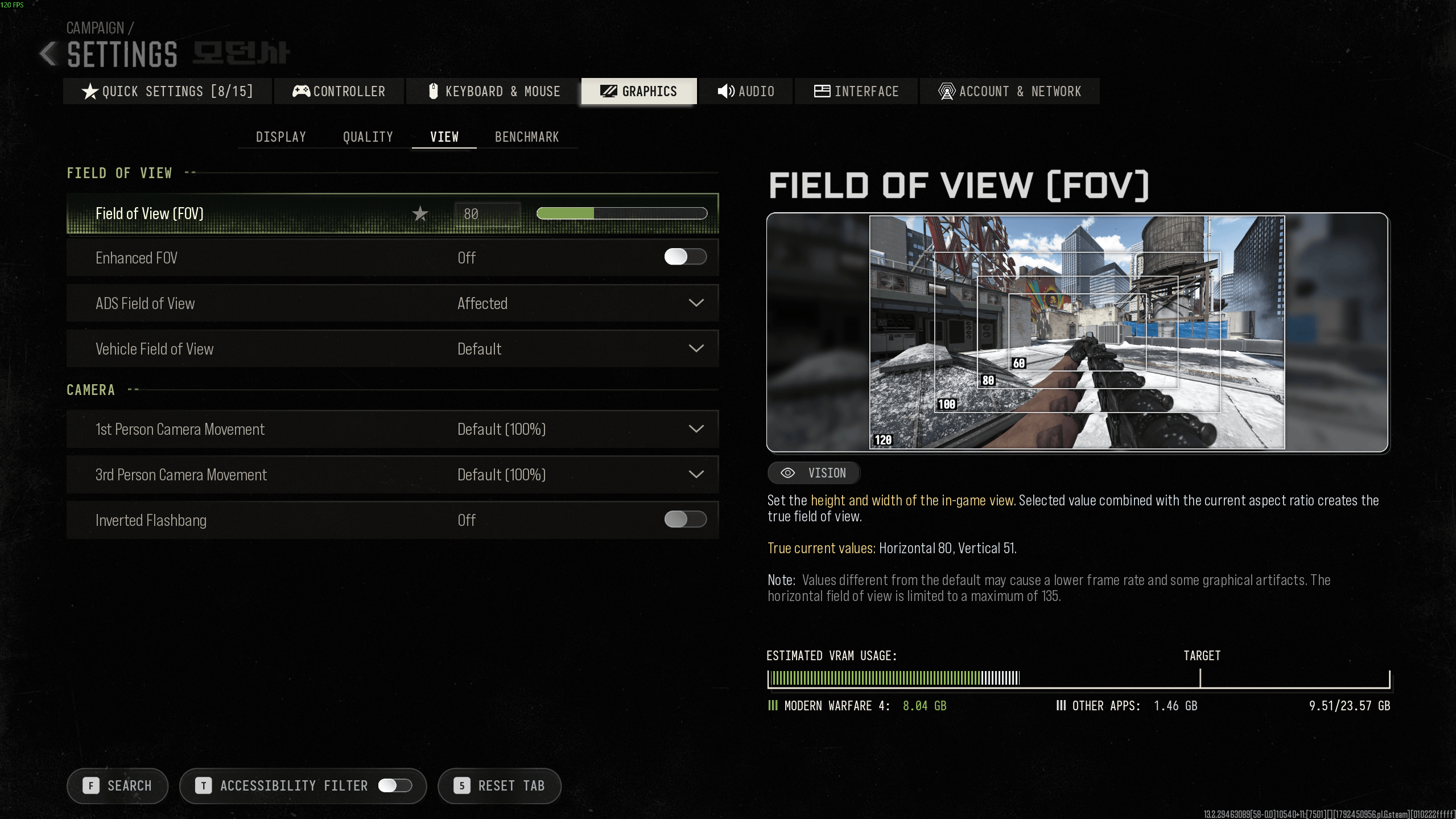
View settings are mainly for your FOV, which you definitely want to increase from the default 80. The rest are kind of up to you.
Here are my recommended Modern Warfare 4 View settings:
|
Setting |
Recommended Value |
What It Changes |
|
Field of View |
||
|
Field of View (FOV) |
105 |
Sets the height and width of the in-game view. Secelted value combined with the current aspect ratio creates the true field of view. |
|
Enhanced FOV |
Off (try On) |
Expands peripheral visibility using a lens-based effect without changing the central FOV. |
|
ADS Field of View |
Affected |
Determines whether aiming down sights uses the selected FOV or a narrower view. |
|
Vehicle Field of View |
Default |
Controls the field of view while using vehicles. |
|
Camera |
||
|
1st Person Camera Movement |
Minimal (25%) |
Adjusts how much the first-person camera moves during gameplay. |
|
3rd Person Camera Movement |
Minimal (25%) |
Adjusts camera movement in third-person view. |
|
Inverted Flashbang |
On (optional) |
Replaces the bright flashbang effect with a darker visual effect. |
Personally, I think 105 FOV is a nice middle ground. Your current setting is 80, which makes enemies appear larger but also limits how much you can see around you. Increasing it gives you better peripheral awareness, which is particularly useful when clearing buildings or fighting several opponents at once. I wouldn't automatically push it to 120 or higher, though. The wider you go, the smaller distant enemies can appear, and that can make certain gunfights harder.
MW4 also introduces Enhanced FOV, which works a bit differently. According to the official Call of Duty PC features overview, it uses a lens effect to expand visibility near the edges of the screen without changing the central FOV. It’s a cool way to approach the wider FOV without making the fish-eye effect. So, I suggest you try out higher values so you can see more on the screen. It’s super useful for multiplayer.
For ADS Field of View, I'd choose Affected. This keeps your aiming perspective closer to your regular FOV instead of zooming in as much. Personally, I prefer the consistency when switching between hip-fire and ADS, although Independent is worth trying if you struggle to see distant targets. Vehicle FOV can stay at Default unless you find the camera uncomfortable.
Finally, I'd reduce both camera movement settings to Minimal (25%). Less camera shaking makes the image feel steadier, particularly when sprinting or dealing with explosions. Inverted Flashbang is more of a comfort setting than a competitive advantage. I would enable it if bright flashes bother you, but otherwise it comes down to preference.
I would also go for the Inverted Flashbang because if you’re like me and you’ve played lots of FPS games on top of CoD, your eyes will thank you for turning this on.
Note: Modern Warfare 4 includes a built-in Benchmark tool, but it's only accessible in Multiplayer Mode. Since I'm writing this guide during the single-player campaign and DMZ early access period, I haven't been able to run it yet. I'll revisit the results once multiplayer becomes available.
Best Modern Warfare 4 Audio Settings
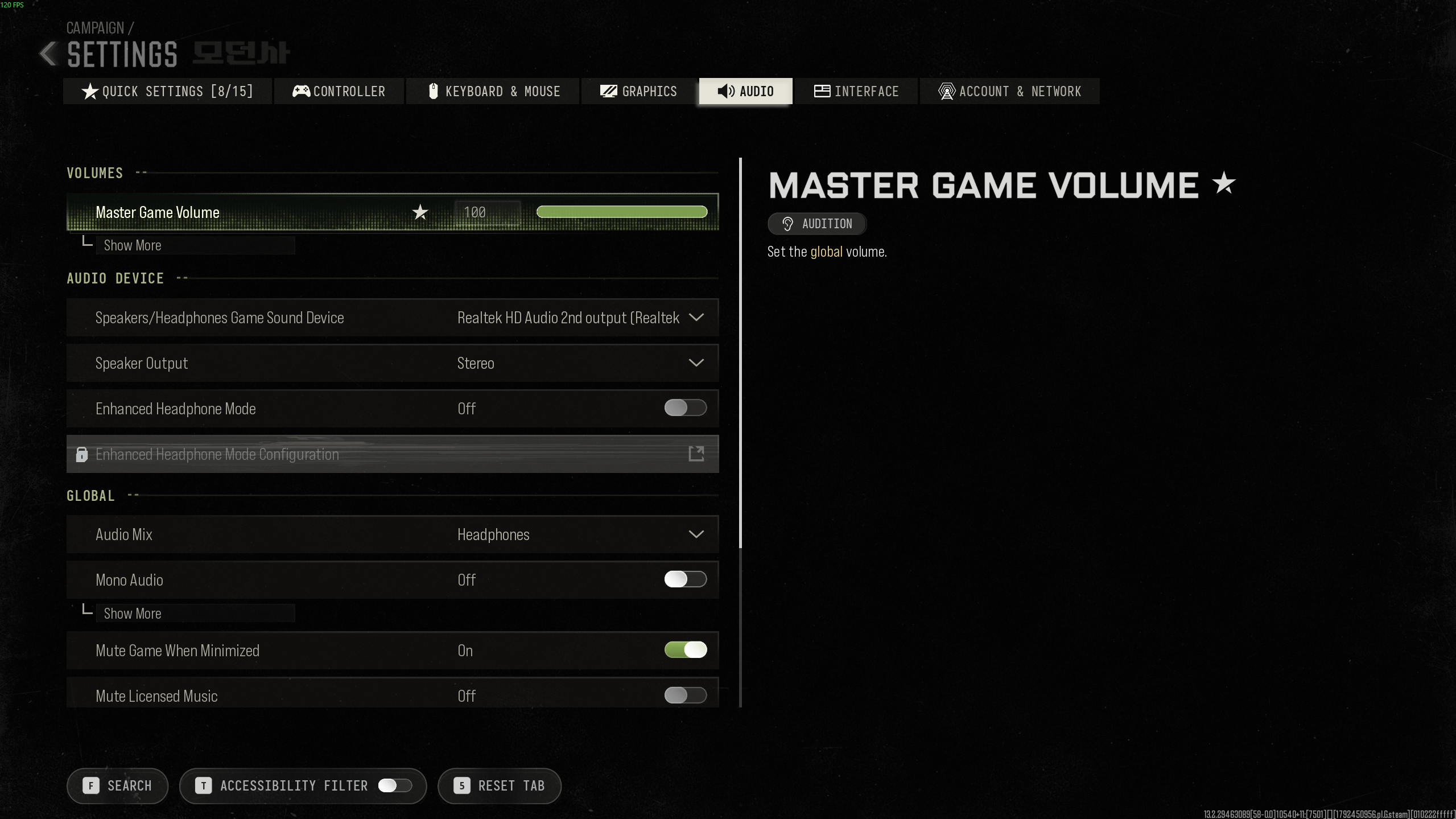
Getting your audio settings right is especially important in Modern Warfare 4 multiplayer and DMZ. While the classic “turn off background music because its annoying” is still the best thing you can do in this tab, I would recommend trying out a few more options on offer here.
Here are my recommended MW4 audio settings:
|
Setting |
Recommended Value |
What It Changes |
|
Volumes |
||
|
Master Game Volume |
80–100 |
Controls the overall game volume. |
|
Audio Device |
||
|
Speakers/Headphones Game Sound Device |
Your main audio device |
Selects the device used for game audio playback. |
|
Speaker Output |
Stereo (for stereo headphones) |
Selects the speaker output configuration. |
|
Enhanced Headphone Mode |
Off (test On) |
Enable Embody’s Immerse Spatial Audio to increase the directional accuracy of sounds played in the world. It is compatible with any headphone or earbud mode. |
|
Enhanced Headphone Mode Configuration |
Default if enabled |
Opens the configuration menu for Enhanced Headphone Mode. |
|
Global |
||
|
Audio Mix |
Headphones |
Selects the sound mix used to balance game audio for different listening setups. |
|
Mono Audio |
Off |
Controls whether audio channels are combined into a mono output. |
|
Mono Amount |
100 (inactive when Off) |
Adjusts the amount of mono audio mixing when the feature is enabled. |
|
Mute Game When Minimized |
On |
Mutes game audio when the game is minimized. |
|
Mute Licensed Music |
On for creators |
Disables licensed music that may cause copyright issues in recordings or streams. |
|
Asymmetrical Hearing Compensation |
Off |
Enables separate audio adjustments intended to compensate for hearing differences. |
|
Configure Frequency Intensity |
Disabled unless compensation is enabled |
Opens frequency intensity adjustments for individual audio channels. |
|
Functionality |
||
|
Reduce Tinnitus Sound |
On |
Reduces the high-pitched ringing effect associated with certain in-game sounds. |
|
Headshot & Kill Alerts |
On |
Enables audio notifications for headshots and kills. |
Unlike BF6, where you can turn on different sound presets like the Mixtape for that extra crispness of the explosion sound, in CoD MW4 I would recommend trying out. Enhanced Headphone Mode. It adds spatial audio processing, which may help with directional cues on some headphones, but I wouldn't assume it always improves positional accuracy. Personally, I'd first get comfortable with the standard Headphones mix and then compare the two in the same environment. If you're already using spatial audio processing through Windows or your headset software, be careful about stacking multiple effects.
I'd also leave Mono Audio Off for normal stereo headphones. Combining the left and right channels can remove useful directional information, which isn't ideal when you're trying to determine whether someone is approaching from the left or right. Asymmetrical Hearing Compensation is different, since it's designed for individual hearing needs. I wouldn't change its frequency settings without a specific reason.
For the Functionality options, I recommend enabling Reduce Tinnitus Sound. The high-pitched ringing effect can be unpleasant, and I don't think keeping it at full intensity offers any meaningful competitive benefit. I'd also leave Headshot & Kill Alerts enabled because the audio feedback makes it easier to recognize successful hits and eliminations without constantly checking the HUD.
Best Modern Warfare 4 Interface Settings
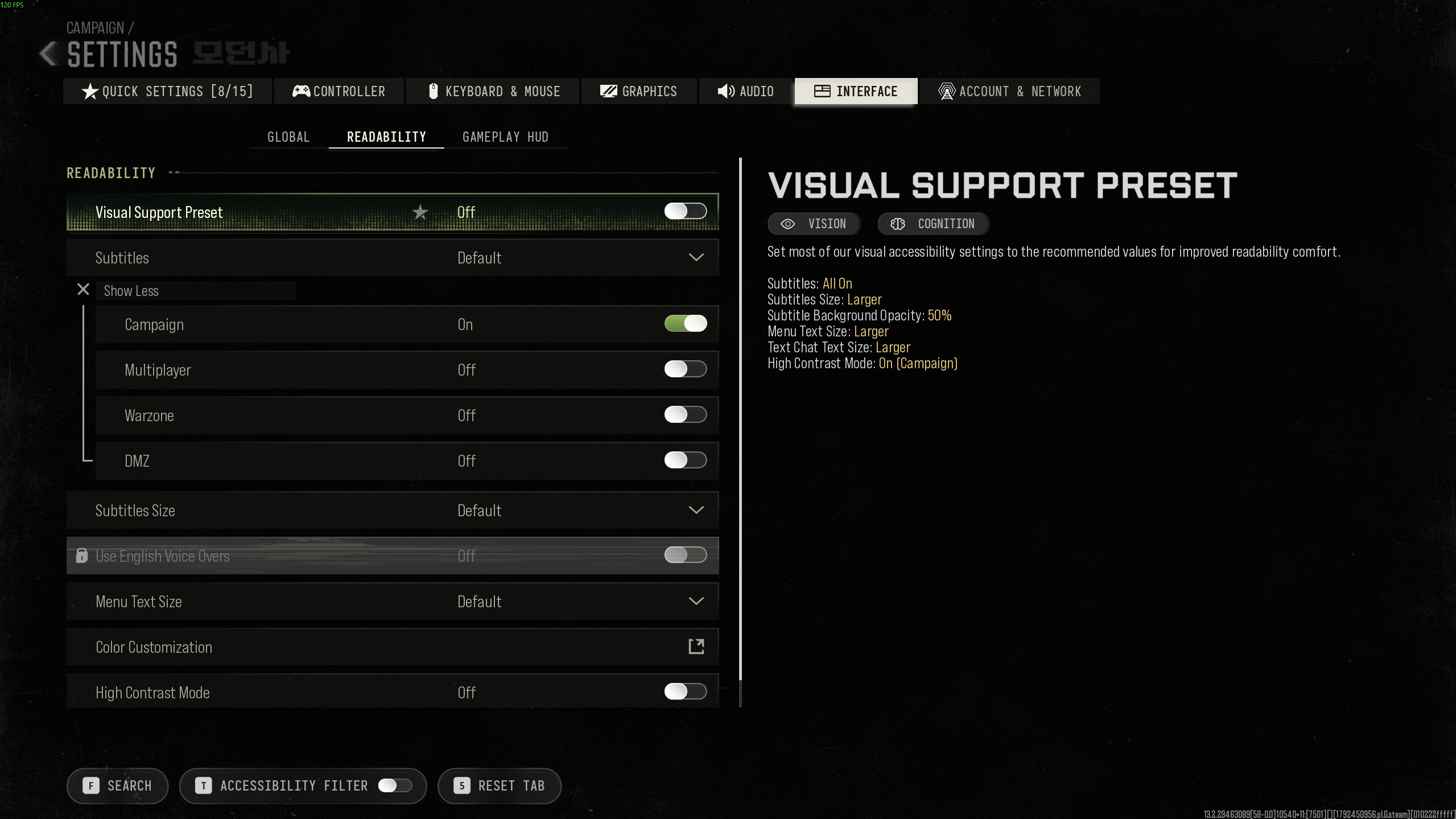
This is something I usually mess around with after hundreds of hours into the game when I want to move around specific HUD elements, disable or enable some telemetry data, and so on. You have to give props to the devs for letting us disable some pesky HUD elements like Stamina Bar or Compass. This is also the tab where you can turn on some Motion Sickness options that reduce that effect if you’re sensitive to it.

You got -20% OFF 
Best MW4 Global Interface Settings
|
Setting |
Recommended Value |
What It Changes |
|
Menu |
||
|
Menu Prompts |
Automatic |
Changes the displayed button prompts based on your most recent input device. |
|
Skip Killcam |
Off |
Controls whether killcams are skipped automatically. |
|
Tooltips |
Off |
Enables or disables explanatory tooltips in menus. |
|
Telemetry |
||
|
Telemetry |
Custom |
Allows you to select which performance metrics appear on screen. |
|
FPS Counter |
On |
Displays the current frames per second. |
|
Graphic Card (GPU) Temperature |
On (while testing) |
Displays your GPU temperature. |
|
Graphic Card (GPU) Time |
On (while testing) |
Shows GPU frame processing time. |
|
Graphic Card (GPU) Clock |
Off |
Displays the GPU clock speed. |
|
VRAM Usage |
On (while testing) |
Shows how much graphics memory is being used. |
|
Processor (CPU) Time |
On (while testing) |
Displays CPU frame processing time. |
|
Clock |
Off |
Displays the current time. |
|
Game Latency |
On |
Shows the game's reported latency metric. |
|
Telemetry Label Size |
Default |
Changes the size of telemetry labels. |
|
Hardware In-Game Alert Icons |
On |
Displays warnings related to hardware or performance issues. |
I'd definitely enable the FPS Counter, even if you're happy with how the game runs. It's useful for checking whether a graphics adjustment actually improves performance rather than just making the image look worse. I would also enable GPU Time and CPU Time while testing different settings. Comparing these values can help you identify which component is taking longer to process a frame, although you should check whether the results remain consistent during actual gameplay.
GPU Temperature and VRAM Usage are worth monitoring when experimenting with High or Ultra graphics settings. If your VRAM usage approaches the available capacity or temperatures become unusually high, you have a better idea of what to investigate. Personally, I'd keep these metrics enabled while optimizing the game, then disable the unnecessary ones once everything is running smoothly.
I'd also leave Hardware In-Game Alert Icons On. There's little reason to hide warnings that could help explain sudden performance problems. The other options are mostly personal preference. I prefer keeping Killcam enabled because watching how someone eliminated you can occasionally reveal a useful position or angle, while Tooltips can be disabled once you're familiar with the menus.
Best MW4 Readability Settings
Readability tab is for displaying subtitles, changing the text font size, and customizing colors. Now color customization is actually pretty useful and not only for those who are colorblind. Changing the crosshair color and colors of allies, team, party, and other objects on the minimap is the kind of customization freedom that only devs who love gaming add. For example, if you come from Halo games, you might want to change the Team colors to blue so you have that usual Red vs. Blue type of experience. It’s going to be helpful in Warzone for telling who’s on your squad versus everybody else.
|
Setting |
Recommended Value |
What It Changes |
|
Visual Support Preset |
Off |
Applies a collection of visual accessibility settings to improve readability. |
|
Subtitles |
Custom |
Allows subtitles to be enabled separately for different modes. |
|
Campaign |
On |
Displays subtitles during campaign gameplay. |
|
Multiplayer |
Off |
Controls subtitles in multiplayer. |
|
Warzone |
Off |
Controls subtitles in Warzone. |
|
DMZ |
Off |
Controls subtitles in DMZ. |
|
Subtitles Size |
Default |
Adjusts the size of subtitle text. |
|
Use English Voice Overs |
Personal preference |
Uses English voice acting when the option is available. |
|
Menu Text Size |
Default |
Changes the size of text displayed in menus. |
|
Color Customization |
Adjust individually |
Opens additional color and interface customization options. |
|
High Contrast Mode |
Off |
Enables visual highlighting designed to make important elements easier to distinguish. |
|
High Contrast Type |
Full Color (if enabled) |
Controls the visual style of High Contrast Mode. |
|
Allies |
On (if High Contrast is enabled) |
Enables contrast highlighting for allies. |
|
Enemies |
On (if High Contrast is enabled) |
Enables contrast highlighting for enemies. |
|
Civilians |
On (if High Contrast is enabled) |
Enables contrast highlighting for civilians. |
|
Darken Background |
Off |
Darkens the game world to increase contrast with highlighted elements. |
Personally, I'd keep Visual Support Preset Off unless you specifically need the accessibility improvements it applies. The preset changes several settings at once, including subtitle size, menu text size, and High Contrast Mode, so it's easier to leave it disabled and adjust individual options yourself. For subtitles, I prefer keeping them enabled in the campaign, where there's plenty of dialogue to follow, but disabling them in multiplayer and DMZ to avoid unnecessary text on the screen.
Color Customization is the one setting I'd encourage everyone to experiment with. Changing the colors used for allies, enemies, and interface elements can make important information easier to distinguish, particularly if the default colors blend into certain environments. I wouldn't recommend one universal color combination because monitor settings and personal color perception can make a difference.
Finally, High Contrast Mode is worth testing if you have trouble distinguishing characters from the background. However, I wouldn't automatically enable it for competitive play without checking how it behaves in actual matches. It changes the presentation of important visual elements, and the Darken Background option can noticeably affect how the game world looks. For normal gameplay, I'd start with High Contrast Mode Off and adjust it only if you find it helpful.
Best MW4 Gameplay HUD Settings
The Gameplay HUD settings don't have much impact on FPS, but they can make the screen easier to read during fights. Personally, I prefer keeping useful information visible while getting rid of unnecessary movement and distractions. I would pay particular attention to HUD Widget Shake, Crosshair Dot, and HUD Bounds because these affect how comfortably you can track information during a match.
|
Setting |
Recommended Value |
What It Changes |
|
HUD |
||
|
HUD Bounds |
Adjust to your monitor |
Changes the horizontal and vertical margins used to position HUD elements. |
|
HUD Widget Shake |
Off |
Controls whether HUD elements shake during gameplay. |
|
Compass |
On |
Displays the directional compass. |
|
Player HUD Prompts |
Fade after 5 seconds |
Controls how long player-related prompts remain visible. |
|
Stamina Bar |
On |
Displays the stamina indicator. |
|
Vehicle HUD Prompts |
Never Disappear |
Controls how long vehicle-related prompts remain visible. |
|
Crosshair |
||
|
Crosshair Lines |
On |
Displays the crosshair lines. |
|
Crosshair Dot |
On |
Adds a central dot to the crosshair. |
|
Crosshair Dot Scale |
Default |
Changes the size of the central dot. |
|
Crosshair Opacity |
100 |
Adjusts the transparency of the crosshair. |
|
Crosshair Color |
White or bright contrasting color |
Changes the crosshair's color. |
|
Motion Reduction |
||
|
Motion Sickness Reduction Preset |
Off (unless needed) |
Applies settings intended to reduce motion discomfort. |
|
Horizontal Line Preset |
Off |
Enables a horizontal visual reference designed to help with motion discomfort. |
|
Advanced Motion Sickness Control |
Adjust if needed |
Opens additional settings for reducing motion discomfort. |
The first thing I'd disable is HUD Widget Shake. I don't see much benefit in having interface elements move around when explosions happen or the camera shakes. Keeping the HUD stable makes it easier to read information during hectic fights, especially in multiplayer. I'd also adjust HUD Bounds so important elements sit comfortably within your peripheral vision. On a large monitor, bringing them slightly closer to the center can help you check information without looking too far away from your crosshair.
For the Crosshair, I'd keep both Crosshair Lines and Crosshair Dot enabled. The dot gives you a consistent reference point for centering your aim, while the lines help with general hip-fire positioning. I would leave Opacity at 100 so the crosshair remains visible, but experiment with the color if white blends into bright environments. A contrasting color can be easier to follow, particularly when aiming against the sky or light-colored buildings.
Finally, I'd leave the Motion Sickness Reduction Preset and Horizontal Line Preset disabled unless you experience discomfort while playing. These are accessibility options, and there's no reason to force them into a competitive setup if you don't need them. Advanced Motion Sickness Control is worth exploring if regular camera movement makes you uncomfortable, but otherwise I'd stick with the camera movement adjustments we covered earlier in the View settings.
Advanced Motion Sickness Control
|
Setting |
Recommended Value |
What It Changes |
|
Anchors |
||
|
Horizontal Line |
Off |
Displays a horizontal reference line to help maintain visual orientation. |
|
Horizontal Line Thickness |
1 (if enabled) |
Adjusts the thickness of the reference line. |
|
Dot Grid |
Off |
Displays reference dots that can help reduce disorientation. |
|
Dot Size |
1 (if enabled) |
Changes the size of the reference dots. |
|
Anchors Opacity |
100 (if enabled) |
Controls the transparency of the visual reference elements. |
|
Anchors Color |
White |
Changes the color of the reference elements. |
|
Edges |
||
|
Vignetting |
Off |
Adds a soft darkening effect around the screen edges. |
|
Vignetting Opacity |
50 (if enabled) |
Adjusts the strength of the vignette effect. |
|
Vignetting Color |
Black |
Changes the color of the vignette. |
|
Border |
Off |
Adds a border around the screen to create a stable visual reference. |
|
Border Opacity |
50 (if enabled) |
Adjusts the visibility of the border. |
|
Border Color |
Black |
Changes the border color. |
I would leave all these settings disabled unless you're experiencing motion sickness. Horizontal Line and Dot Grid add stable visual references to help with orientation during camera movement, while Vignetting and Border modify the edges of the screen to make movement feel less disorienting. Personally, I wouldn't use them for regular multiplayer because they add visual elements or obscure parts of the image. However, if fast camera movement makes you uncomfortable, they're worth trying individually rather than enabling everything at once.
F.A.Q.
What are the best settings for Modern Warfare 4?
Keep Ray Tracing off, start with a lower graphics preset, and turn on frame generation if it's available on your graphics card. You may also want to reduce the texture and shadow quality, as well as other performance-heavy options.
How much FPS is good for Modern Warfare 4?
That depends on the actual refresh rate of your monitor. A while back, the acceptable number was 60, but for multiplayer games, you want to have as much as possible - 120, 240, or even higher.
How can I make Modern Warfare 4 run better?
Start by lowering Volumetric Quality, Shadow Quality, Screen Space Reflections, and other demanding graphical effects. You can also try DLSS Quality, FSR, or XeSS if your GPU supports them. I'd recommend closing unnecessary background applications, updating your graphics drivers, and checking CPU and GPU frame times through the game's Telemetry settings.
Is 60 FPS good for Modern Warfare 4?
Yes, 60 FPS is good enough, especially for playing the single-player campaign. In Multiplayer, DMZ, or Warzone, you might want to strive for a higher number, as this gives you a real advantage in the game.
Is Modern Warfare 4 well optimized on PC?
MW4 features over 800 customizable options, which means you’re more likely to tune the game to make it run better on your PC. That said, the game is still pretty demanding in terms of hardware. Always check System Requirements before purchasing.
What are the best MW4 settings for visibility?
I'd start with 100–105 FOV, ADS Field of View set to Affected, and both camera movement settings reduced to Minimal. Disable gameplay Motion Blur, Depth of Field, and Film Grain to keep the image as clean as possible. You can also experiment with enemy colors in Interface → Readability → Color Customization if the default indicators are difficult to distinguish.