WARDOGS

Best WARDOGS Settings Quick Summary:
- The game has Potato settings that you can use if you’re playing WARDOGS on a super low-end system.
- Keep VSync off and use NVIDIA Reflex Enabled for lower input delay.
- Turn Global Illumination off, with Shadows and Reflections on Low.
- Use DLAA if your PC is strong, or DLSS Quality if you need more FPS.
Enjoy an easier start in the game and Get WARDOGS Cash in any amount you want in just a few clicks. Skip the grind and afford anything you like in the game.


Read closely 
Browse our hottest WARDOGS Boosting services





Best Video Settings
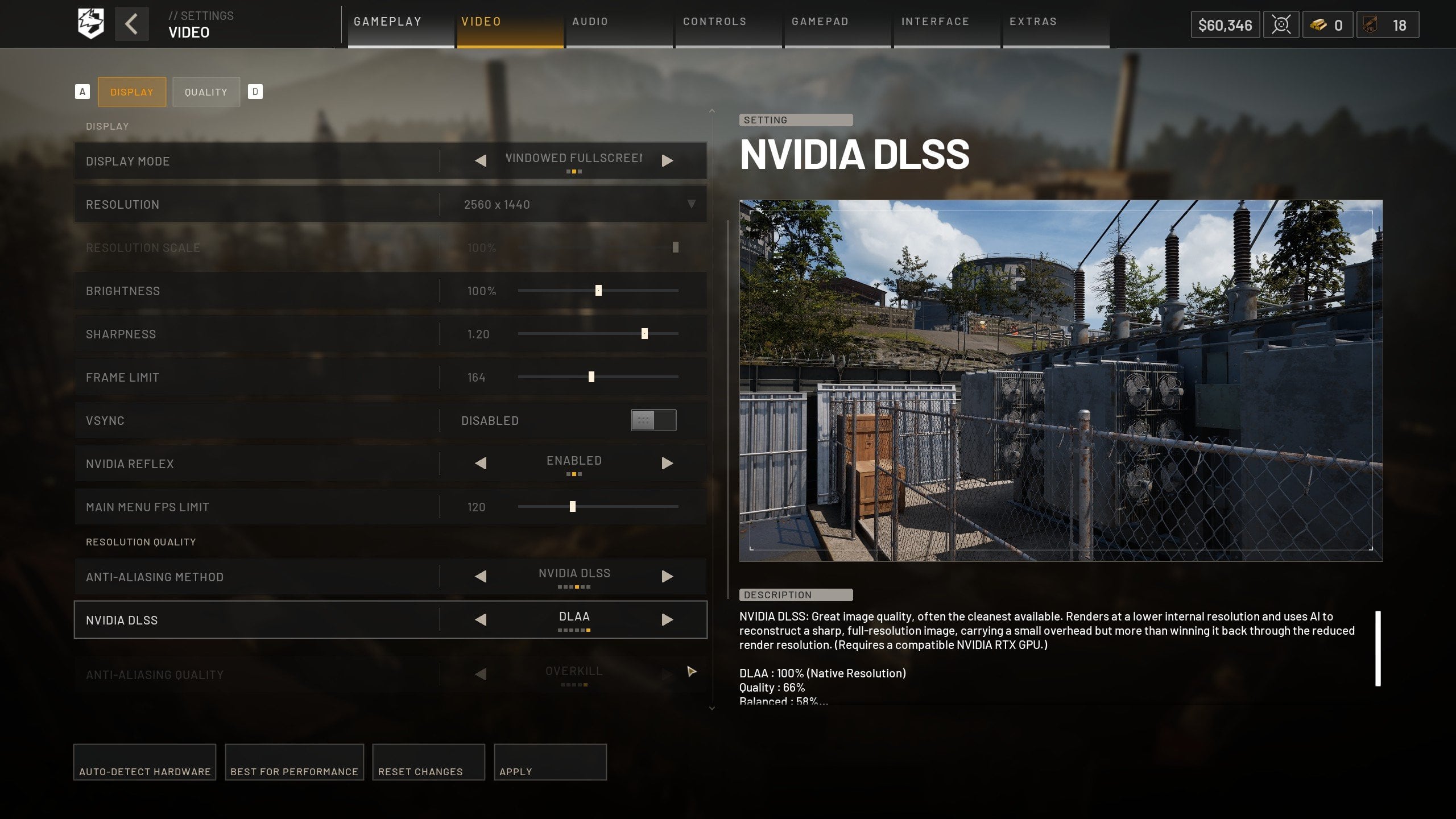
Even though it’s not the first setting tab on the list when you open the menu, it’s very important in terms of how your game will run. It’s also directly connected with the graphics settings section I’ll jump into next. Here, you adjust all the stuff like NVIDIA DLSS, VSync, and so on. Check out the best video settings in WARDOGS:
|
Setting |
Recommended Value |
|
Resolution |
Native |
|
Brightness |
Default / Personal |
|
Sharpness |
Default |
|
Frame Rate Limit |
Match your monitor |
|
VSync |
Disabled |
|
NVIDIA Reflex |
Enabled |
|
Main Menu FPS Limit |
Enabled |
|
Anti-Aliasing Method |
DLSS |
|
NVIDIA DLSS |
DLAA on strong PCs / Quality on weaker PCs |
Use your monitor’s native resolution. Don’t drop resolution first unless your PC is really struggling. Lower resolution can improve FPS, but it also makes enemies less clear, and WARDOGS already has enough long-range spotting.
Set your FPS cap to match your monitor. For example, if you have a 360Hz monitor, cap it around 360 FPS. If you have 144Hz, use 144 or slightly above it. No need to overcomplicate this. And always, trust me, always keep VSync off. I actually don’t even know who’s using this setting today, lol.
Best Gameplay Settings
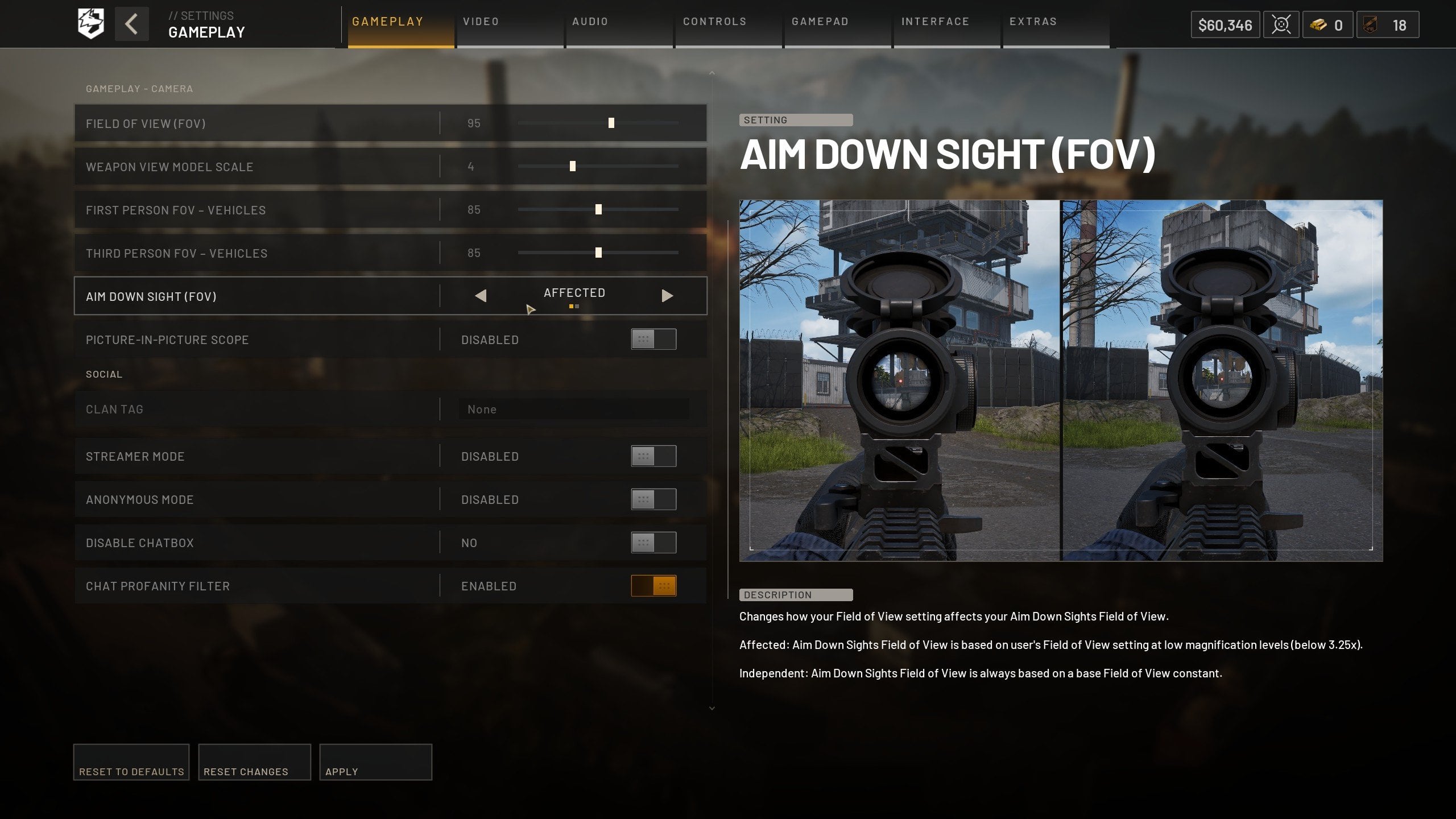
Most of the gameplay settings here are meant to be adjusted to your personal preference. Specifically, Field of View (FOV) and other stuff like Weapon View Model Scale. But I’ll share what my settings look like here just to help those who’re only starting. See the best gameplay settings for WARDOGS:
|
Setting |
Recommended Value |
|
Field of View |
95 |
|
Weapon View Model Scale |
4 |
|
Vehicle FOV |
Default / Personal choice |
|
ADS FOV |
Affected |
|
Picture-in-Picture Scope |
Disabled |
|
Enemy Filter |
Optional |
You can experiment with your FOV, but I like 95, and it’s perfect for me. Going higher won’t matter this much here, we’re not in CoD here, lmao. I'm also playing with Assault Rifles most of the time, and 95 is good enough when running with any of them. Speaking of the guns, I use the ones from S-Tier in my WARDOGS Weapon Tier List; you can check it out as well.
Best Graphics Settings in WARDOGS
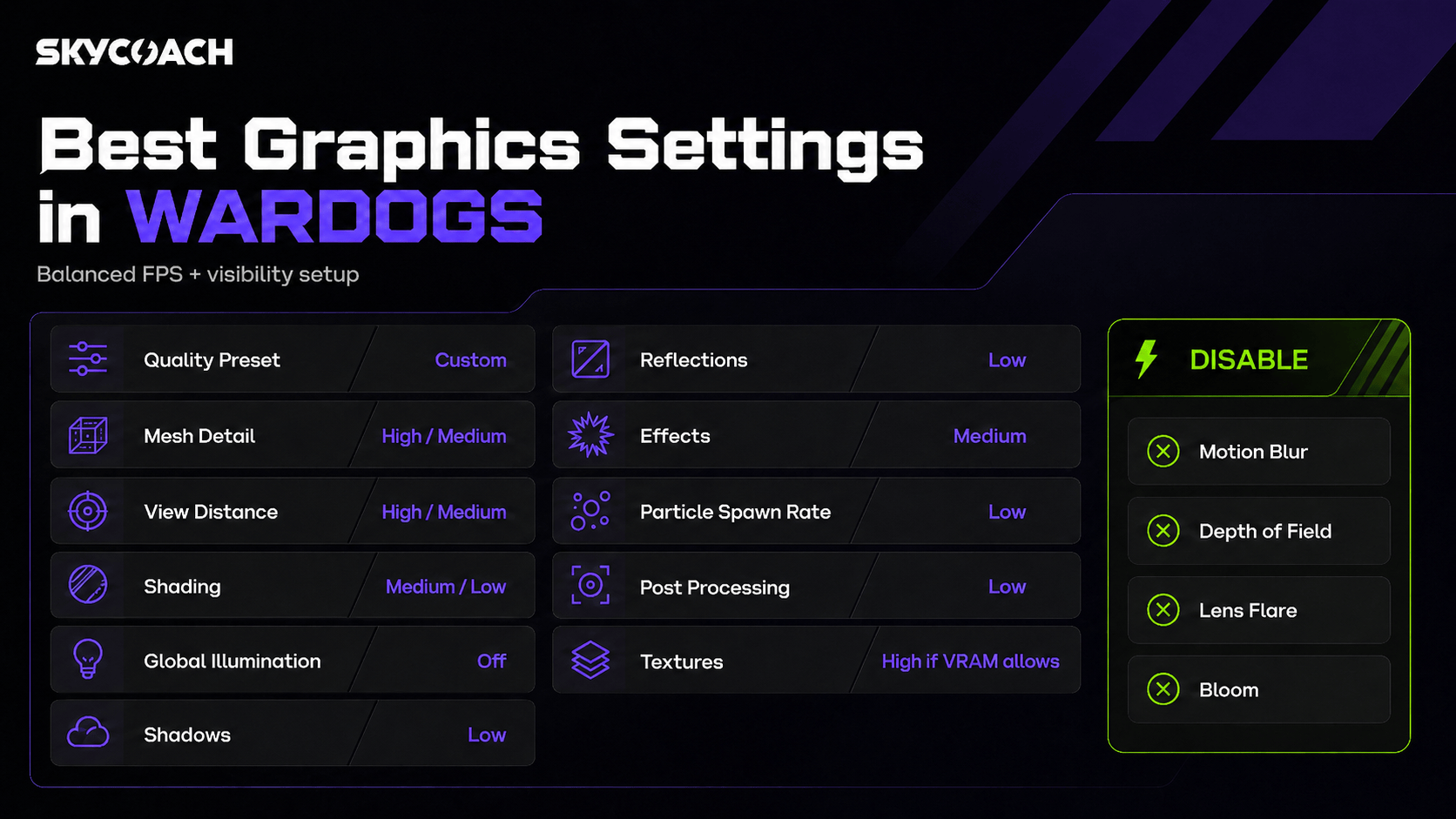
This is the tab where most of the miracles happen. I honestly think that WARDOGS is a well-optimized title despite what people are saying, but adjusting this tab makes it even better. They’ve provided us with a ton of options to change here. Many of them don’t matter in terms of FPS increase that much, for example, Mesh Detail. But others, like Shadows and Reflections, can make a huge difference if your PC is struggling now. Here are the best graphics settings in WARDOGS so far:
|
Setting |
Recommended Value |
|
Quality Preset |
Custom |
|
Mesh Detail |
High / Medium |
|
View Distance |
High / Medium |
|
Shading |
Medium / Low |
|
Global Illumination |
Off |
|
Shadows |
Low |
|
Reflections |
Low |
|
Effects |
Medium |
|
Particle Spawn Rate |
Low |
|
Post Processing |
Low |
|
Motion Blur |
Disabled |
|
Depth of Field |
Disabled |
|
Lens Flare |
Disabled |
|
Bloom |
Disabled |
|
Textures |
High if VRAM allows |
These are the settings for a medium PC, not a completely potato setup. More on the second one in the next sections of this guide. But trust me, most PCs will run WARDOGS well enough. The developers have actually done a magical job in terms of optimization.
Best Texture Settings
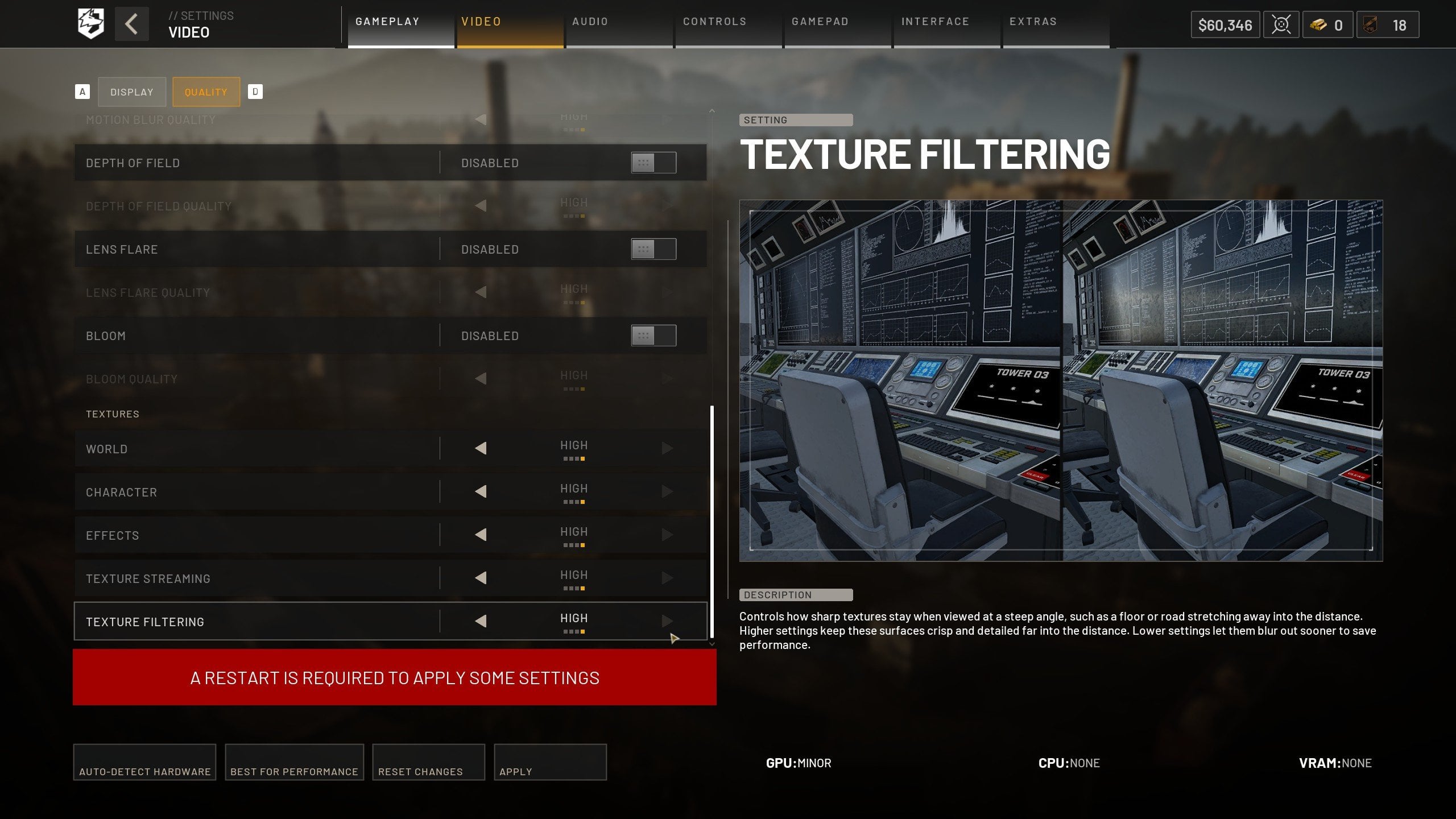
Keep Textures on High if you have enough VRAM. Textures mostly depend on VRAM, not raw CPU or GPU power. If your game is stuttering, hitching, or showing VRAM warnings, lower texture streaming first before destroying every texture setting. The game also shows helpful VRAM impact info in the corner, so use it. If you’re close to the limit, lower world textures to Medium or Low. I would follow this rule if you’re in doubt:
- 8GB+ VRAM: High textures should be fine
- 6GB VRAM: Try High, lower texture streaming if needed
- 4GB VRAM or lower: Start with Medium or Low
As you can see, having at least 8GB VRAM is enough to keep it on High. I guess most of you, my fellow readers, have this number or higher for sure.
Best Graphics Settings for Max FPS
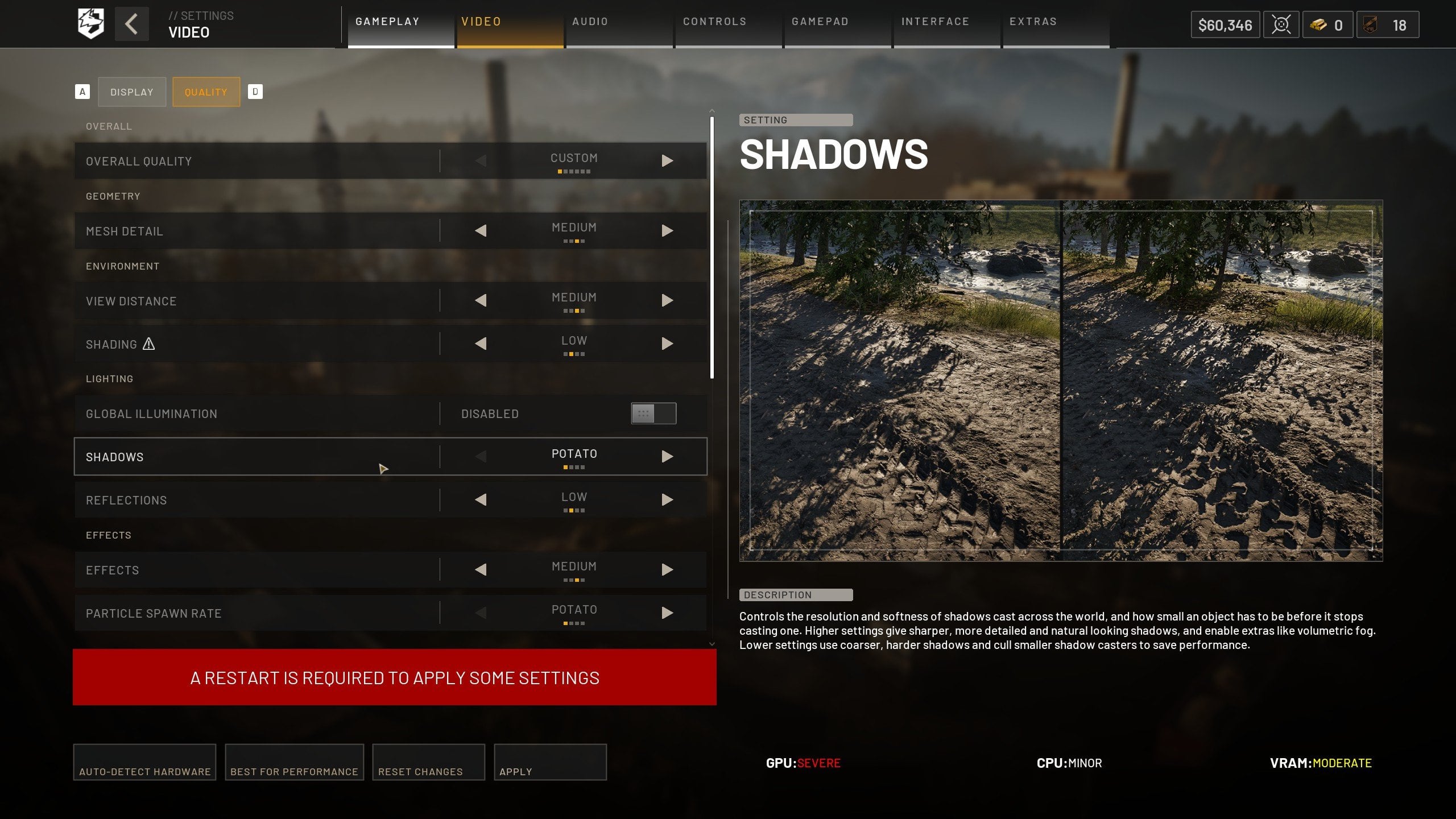
If you’re playing WARDOGS on a lower-end PC or laptop, for example, you might find these so-called potato settings useful. They’re meant to improve your FPS to the maximum limit and yet still keep the game looking okay. Check out the best graphics settings for max FPS for weaker PCs in WARDOGS:
|
Setting |
Value |
|
DLSS |
Quality first, Balanced if needed |
|
Mesh Detail |
Medium |
|
View Distance |
Medium |
|
Shading |
Low |
|
Global Illumination |
Off |
|
Shadows |
Potato |
|
Reflections |
Low |
|
Effects |
Low / Medium |
|
Particle Spawn Rate |
Potato |
|
Post Processing |
Low |
|
Textures |
Medium or Low |
|
Motion Blur / Bloom / DoF / Lens Flare |
Disabled |
Experimenting with Global Illumination, Shadows, Reflections, and Particle Spawn Rate brings the biggest change here. These settings are the ones that impact your FPS the most. If you’re running WARDOGS on a super potato PC, adjust these settings first. Trust me, with these settings you won't need to farm money in WARDOGS all the time, as you'll be dying less often and enjoy smoother gameplay.
Best Audio Settings
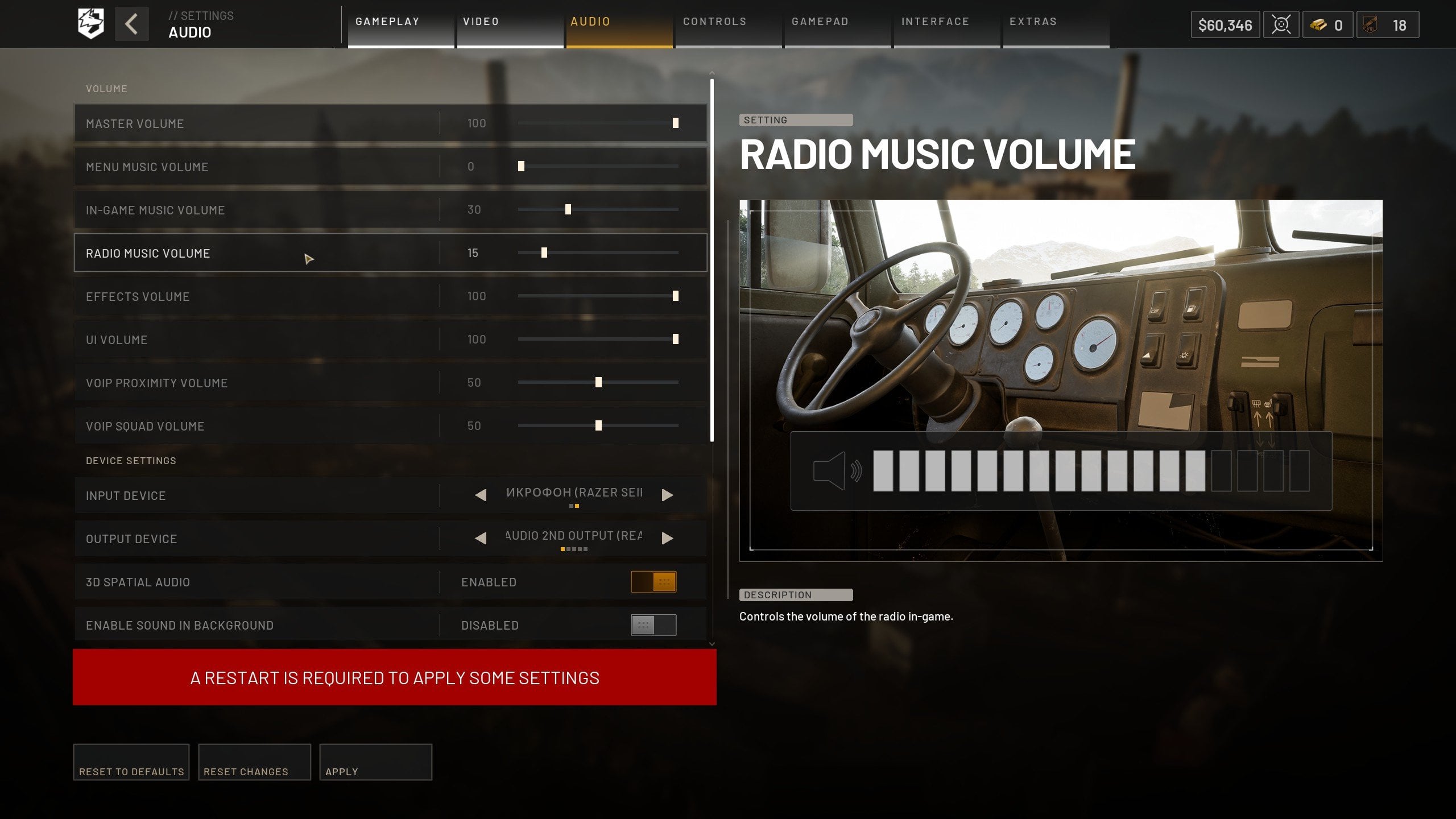
In terms of audio settings, you want to rely on your personal preferences here. I just share what I have in my game:
|
Setting |
My Value |
|
Master Volume |
100 |
|
Menu Music Volume |
0 |
|
In-Game Music Volume |
30 |
|
Radio Music Volume |
15 |
|
Effects Volume |
100 |
|
UI Volume |
100 |
|
VOIP Proximity Volume |
50 |
|
VOIP Squad Volume |
50 |
|
3D Spatial Audio |
Enabled |
I just like all the music and stuff being as low as possible for minimum distraction. Other than that, you can experiment here on your own to find the best settings for you.
Best Mouse Settings
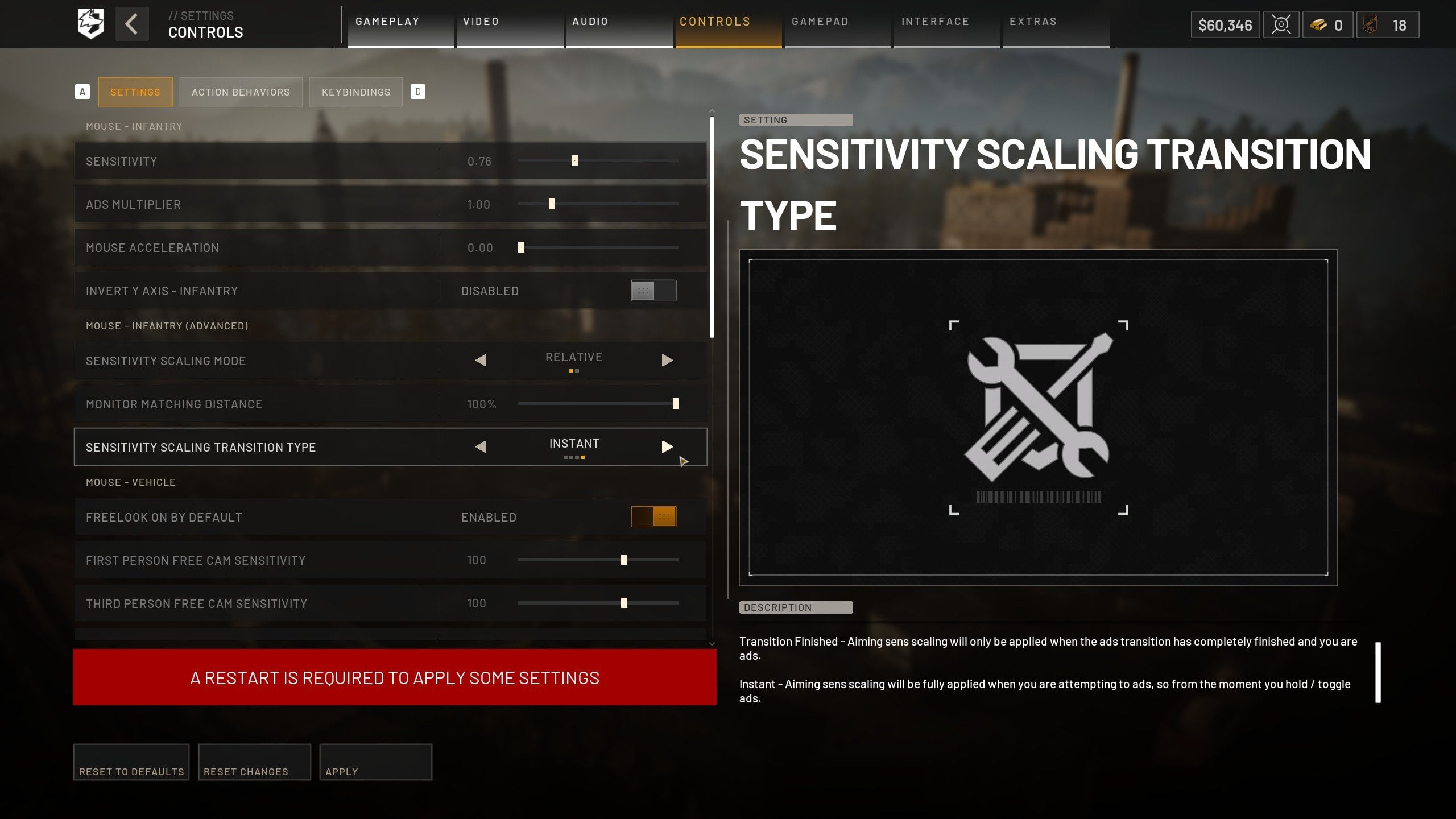
Mouse settings are another personal thingy here, but I once again share what I have when playing WARDOGS:
|
Setting |
My Value |
|
Mouse Sensitivity |
0.7 |
|
Mouse DPI |
800 |
|
ADS Multiplier |
Default |
|
Mouse Acceleration |
Off |
|
Sensitivity Scaling |
Relative |
|
Monitor Matching |
100% |
|
ADS Transition Type |
Instant |
Use 0.7 sensitivity with 800 DPI as a starting point. Sensitivity is personal, obviously. But this is a nice middle-ground setup for a tactical shooter, especially if you're a complete beginner in WARDOGS. You can aim at range without feeling like your crosshair is floating, but you can still turn fast enough when someone appears close.


You got -20% OFF 
Best Interface Settings
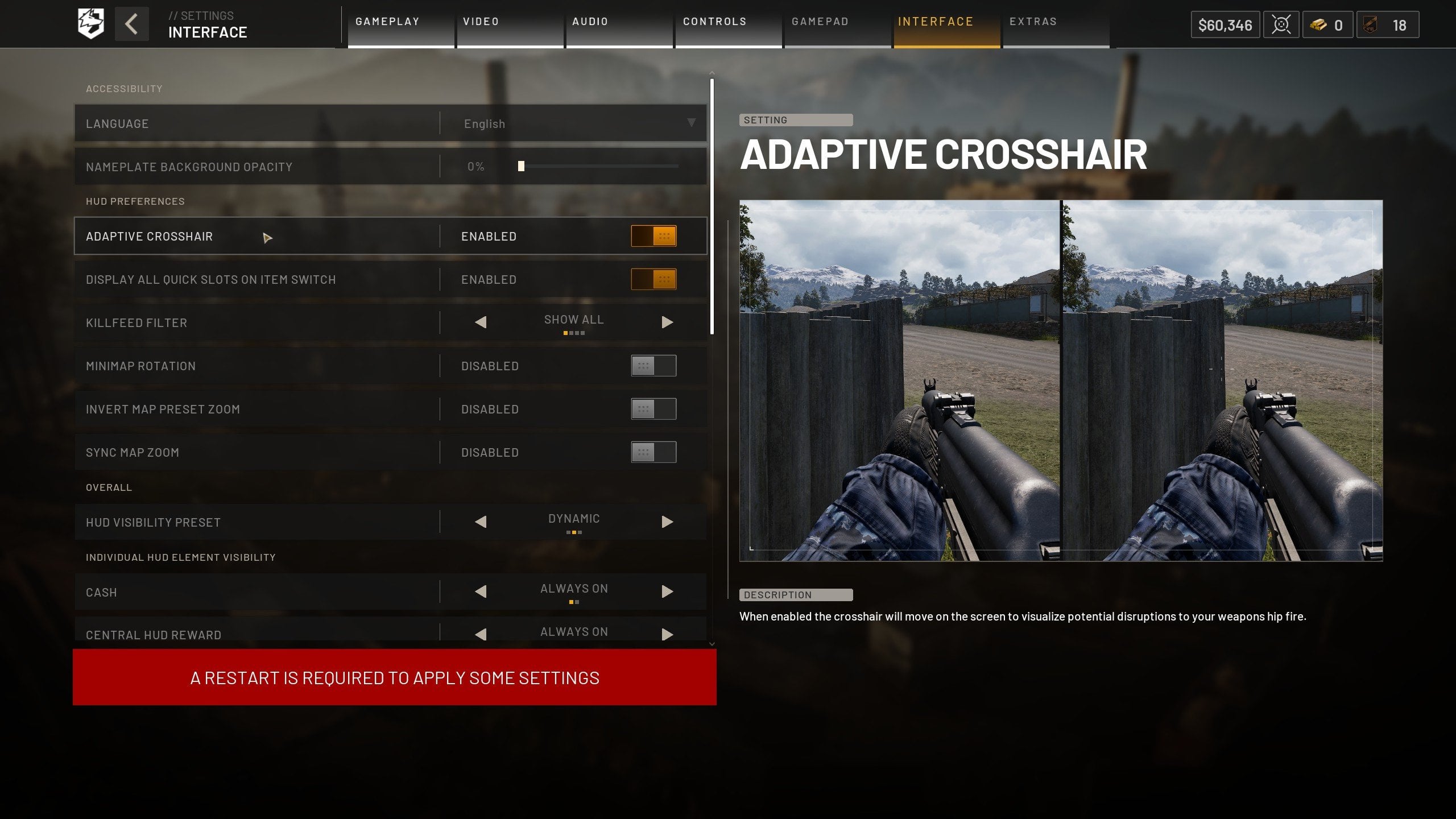
This doesn’t impact your FPS or overall game performance, but I’ve promised you that I’ll share my interface settings as well:
|
Setting |
My Value |
|
Adaptive Crosshair |
On / Personal |
|
Minimap Rotation |
Personal |
|
Info Feeds |
Always On |
|
Location Context |
Dynamic |
|
Chat Box |
Dynamic |
Keep Adaptive Crosshair on while learning the game. Trust me, it’ll help a lot. You can turn it off if you’re used to CS-style static crosshairs, but an adaptive crosshair helps you understand what affects your accuracy. That’s useful when you’re still learning weapon behavior.
Read our other WARDOGS guides: