 Dallon Avery
Ashes of Creation was recently released on Steam in early access, which means it is now more affordable and publicly available. This is still a very early version, with the main purpose being to test out stuff. In this Ashes of Creation best settings guide, I’d like help you get the best performance in the game that is still experiencing some visual and graphical bugs as well as some performance issues. The world of Verra is huge, and it is beautiful. With the right settings, you’ll be able to appreciate its beauty while you explore.
And if you need help leveling up your character to the maximum available level, buy the Ashes of Creation Powerleveling service at SkyCoach. Let the veteran MMO players take your character to any level you need quickly so you can enjoy complete access to all of the abilities and bigger damage numbers.
Read our other Ashes of Creation guides:
Note: At Skycoach, you can Buy Ashes of Creation Boost at the best prices with fast delivery. Use our special PROMO CODE (in green) hidden in this article for a 20% DISCOUNT.






Best Display And Graphics Settings
Despite being in Alpha, AoC has a decent amount of customization when it comes to settings, especially for the graphics quality. In this section, we’ll list the best Ashes of Creation display settings and graphics settings.
Display Settings
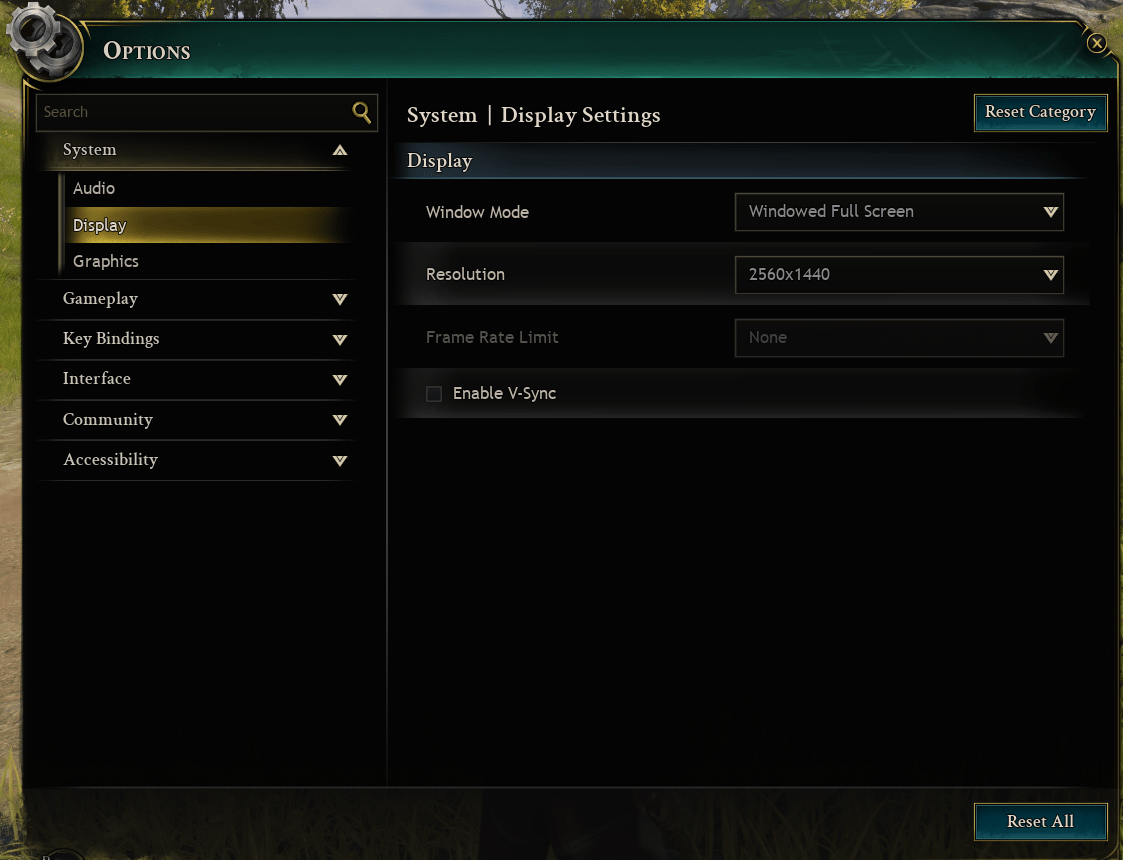
The Display tab in Ashes of Creation is very straightforward, but these options still matter for stability and raw performance. Since the game is in early access, small choices here can affect how smooth the experience feels, especially during long sessions.
- Window Mode: Windowed Full Screen
- Resolution: Monitor native resolution
- Frame Rate Limit: Available only in Full Screen
Window Mode
Most players will naturally gravitate toward Windowed Full Screen. It allows instant alt-tabbing, smoother transitions when switching apps, and fewer issues with focus loss. This is especially useful while testing, adjusting settings, or playing an MMO where you constantly jump between the game, browser, and Discord.
That said, if you want maximum performance and the most consistent frame delivery, Full Screen is still the safer option. Exclusive fullscreen gives the game more direct control over display output and can reduce overhead, which may result in slightly better FPS and frame pacing on some systems.
Resolution
Using your monitor’s native resolution is the best starting point. It preserves image clarity and avoids scaling artifacts that can make the game look soft or blurry.
In the past, lowering resolution was one of the most common ways to gain extra performance. Today, that approach is mostly outdated. Modern GPUs and drivers handle performance scaling through super resolution and upscaling technologies, which preserve image quality far better than simply dropping resolution. Lowering resolution should only be considered as a last resort on very limited hardware.
Frame Rate Limit
The frame rate limit option is only available when using Full Screen mode. Leaving it uncapped provides the highest possible FPS, but can increase CPU load and cause inconsistent frame pacing in busy areas. Setting a reasonable cap based on your system can help stabilize performance, especially in towns and large events.
Graphics Settings
These AoC best settings focus on stable performance in early access while keeping the game looking good. All settings below exist in the current Graphics tab and are based on how the game behaves right now, not theoretical optimization. BLOG20
Recommended Graphics Settings
- Graphics Quality: High
- Global Illumination: Medium
- View Distance: High
- Anti-Aliasing: High
- Post Processing: Medium
- Shadows: Medium
- Textures: Epic
- Effects: Medium
- Foliage: Medium
Super Resolution Sampling
- Super Resolution Sampling: DLSS
- Super Sampling Mode: Performance
- Super Resolution: 50
- Frame Generation: Auto
These are the best Ashes of Creation settings for fps, and below we’ll explain what each of them does or changes.
Graphics Quality
High is the best baseline preset for actual gameplay. Epic and Cinematic push visual fidelity hard but introduce large performance drops in towns and events. High keeps the world detailed while leaving headroom for CPU and GPU spikes.
Global Illumination
Medium offers the best balance between lighting quality and performance. Higher values dramatically increase load and are one of the main causes of FPS drops in populated areas.
View Distance
High keeps the world feeling large without the heavy CPU cost of Epic. This setting scales poorly at the top end and is one of the first to lower for smoother performance.
Anti-Aliasing
High smooths edges well without excessive blur or performance loss. Since super resolution is enabled, pushing this higher provides diminishing returns.
Post Processing
Medium keeps lighting and atmosphere intact while avoiding unnecessary overhead. Higher values mostly add visual effects that don’t improve gameplay clarity.
Shadows
Medium is the sweet spot. Epic shadows look good but are extremely expensive and scale badly during combat and movement-heavy situations.
Textures
Epic textures are safe as long as you have enough VRAM. Texture quality has little impact on FPS compared to lighting and shadows, so this can stay high for visual clarity.
Effects
Medium prevents large FPS drops during spell-heavy fights while keeping combat readable. Higher values can overwhelm performance during group content.
Foliage
Medium reduces environmental clutter without making the world feel empty. This helps stabilize performance in open zones and during travel.
Super Resolution Sampling
DLSS is the preferred option for supported GPUs. It provides a large performance boost while maintaining image quality far better than lowering resolution manually.
Super Sampling Mode
Performance mode prioritizes FPS and is ideal for early access builds where raw stability matters more than perfect sharpness.
Super Resolution
A value around 50 provides a strong performance uplift while remaining visually acceptable. This can be adjusted slightly based on personal preference.
Frame Generation
Auto lets the game decide when frame generation is appropriate. It can greatly increase perceived smoothness, but may add input latency, making it better suited for exploration than intense combat.
Best Settings for FPS
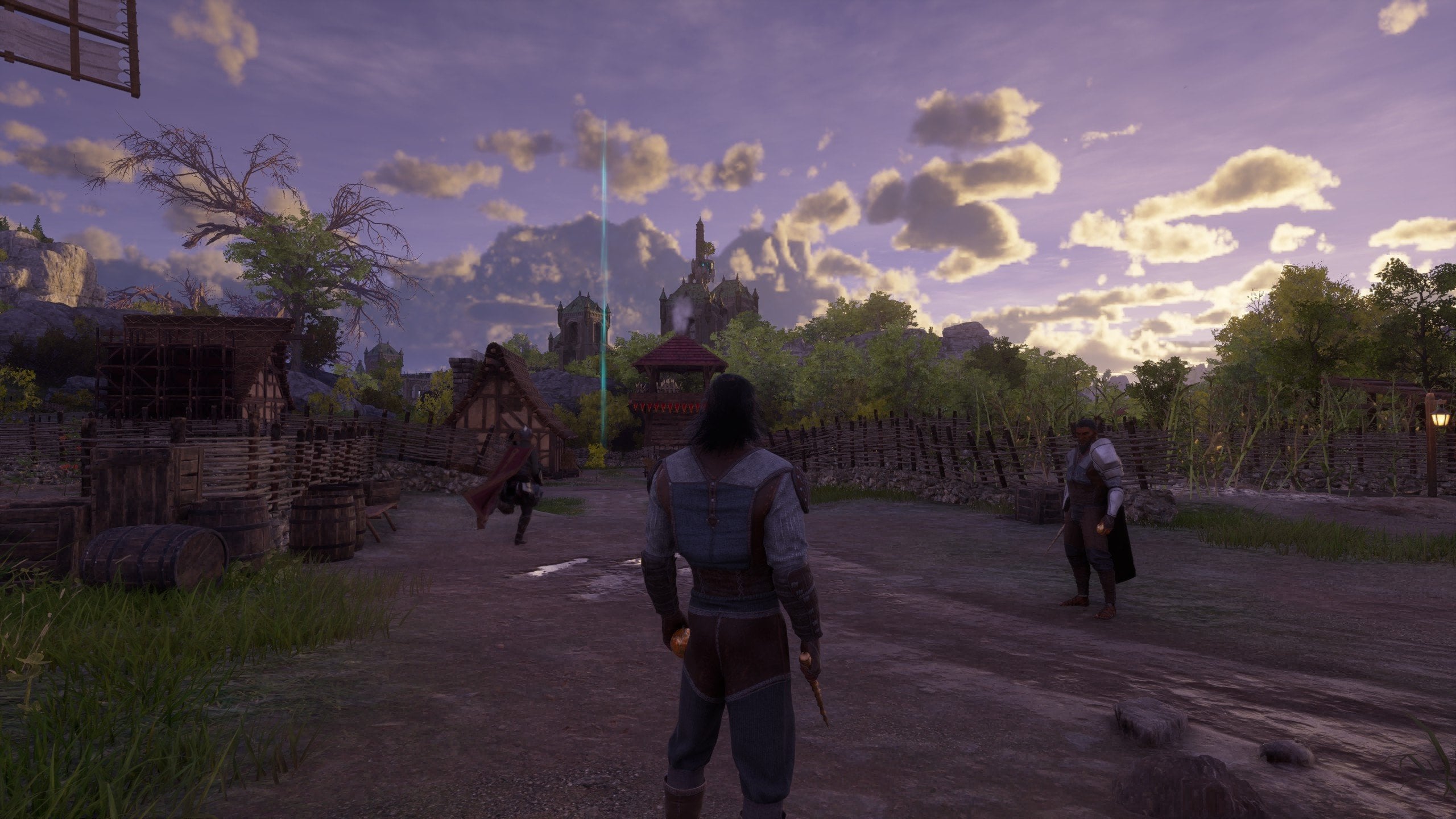
To increase fps in Ashes of Creation in towns, large events, and combat-heavy areas, a few settings matter far more than everything else. Based on early access testing and player reports, Ashes of Creation is currently very sensitive to CPU load, lighting calculations, and memory availability.
These are the settings that have the biggest impact on raw performance right now.
- Global Illumination: Medium
- View Distance: Medium or High
- Shadows: Medium or Low
- Foliage: Medium or Low
- Post Processing: Low or Medium
This is how to make Ashes of Creation run smoother, while keeping the graphics quality at a decent level. Now, let’s explain these settings further.
Global Illumination
This is the single most impactful graphics setting. Higher values drastically increase CPU and GPU load and can also cause lighting artifacts. Medium provides stable performance and consistent visuals.
View Distance
View Distance heavily affects CPU usage. Lowering it reduces the number of objects and characters being processed, which results in smoother FPS in cities and large encounters.
Shadows
Shadows scale aggressively and are especially demanding in motion. Dropping this to Medium or Low can eliminate sudden FPS drops during combat.
Foliage
Dense foliage increases draw calls and world complexity. Lower values help stabilize FPS during open-world exploration without breaking immersion.
Post Processing
Lowering post-processing removes some visual effects but noticeably improves frame consistency. This is a safe place to gain FPS with minimal gameplay impact.
- Super Resolution Sampling: Enabled
- Super Sampling Mode: Performance or Balanced
- Frame Generation: Off for combat-focused play BLOG20
Upscaling provides a large FPS boost without the high visual cost of lowering resolution. Frame Generation can increase perceived smoothness but introduces input latency, making it less ideal for PvP and fast combat.
Conclusion
As said earlier, despite being in the Alpha stage of the development cycle, the game does have some pretty good options when it comes to customizing your graphics and fixing potential performance issues. And even though the game isn’t really that demanding to the hardware, some people may still struggle due to the expectantly poor optimization. If you do experience issues, first, try to enable frame generation; your graphics card should support it. If that doesn’t help (the effects vary based on configuration), you might want to change different graphical settings. In this guide, we list those that are most resource-intensive.
F.A.Q.
What are the best settings for Ashes of Creation?
The best settings balance visuals with stability. Use High graphics as a base, set Global Illumination to Medium, keep View Distance and Shadows at Medium, and use super resolution instead of lowering resolution.
How to improve FPS in Ashes of Creation?
Focus on the settings that hit performance the hardest:
- Lower Global Illumination
- Reduce Shadows and View Distance
- Enable super resolution upscaling
- Use Full Screen mode
Also make sure you have enough free SSD space and at least 32 GB of RAM.
What is the average FPS in Ashes of Creation?
Average FPS varies heavily by location and hardware. Open-world exploration can run smoothly, while towns, events, and crowded areas often cause noticeable FPS drops, especially on CPU-limited systems.
Is Ashes of Creation well optimized?
Not yet. Ashes of Creation is still in early access, and optimization is ongoing. Performance can be inconsistent, and some settings have a bigger impact than expected, but updates are expected to improve this over time.