 Dallon Avery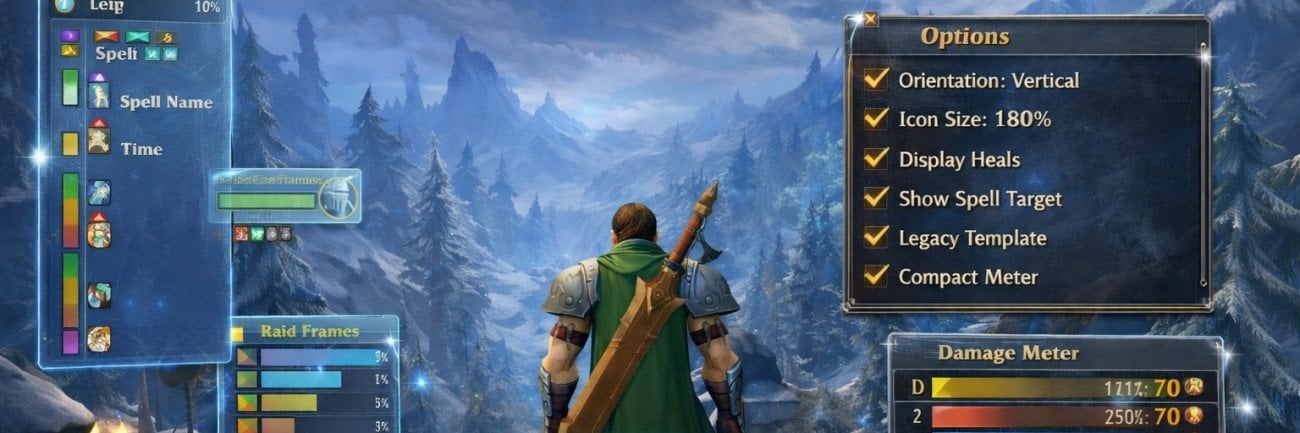
WoW Midnight UI Optimization Quick Summary:
- Default WoW Midnight UI settings reduce visibility and hide critical combat information
- To fix it, you don't need any addons - everything is hidden within the UI settings if you know where to look
- If you set it up right, you will have an addon-quality damage meter, nameplates, ability timeline, and more!
- The rest of the guide lists exactly what needs to be changed for every UI element you need to make them look useful!
Need help raiding in WoW Midnight without addons? Buy The Voidspire Raid Boost at Skycoach and play with our veteran WoW players. Assemble the full raid party and steamroll through the raid, claiming all loot for yourself!
Note: At Skycoach, you can Buy WoW Boost at the best prices with fast delivery. Use our special PROMO CODE (in green) hidden in this article for a 20% DISCOUNT.



Why the Default UI Settings Are Bad
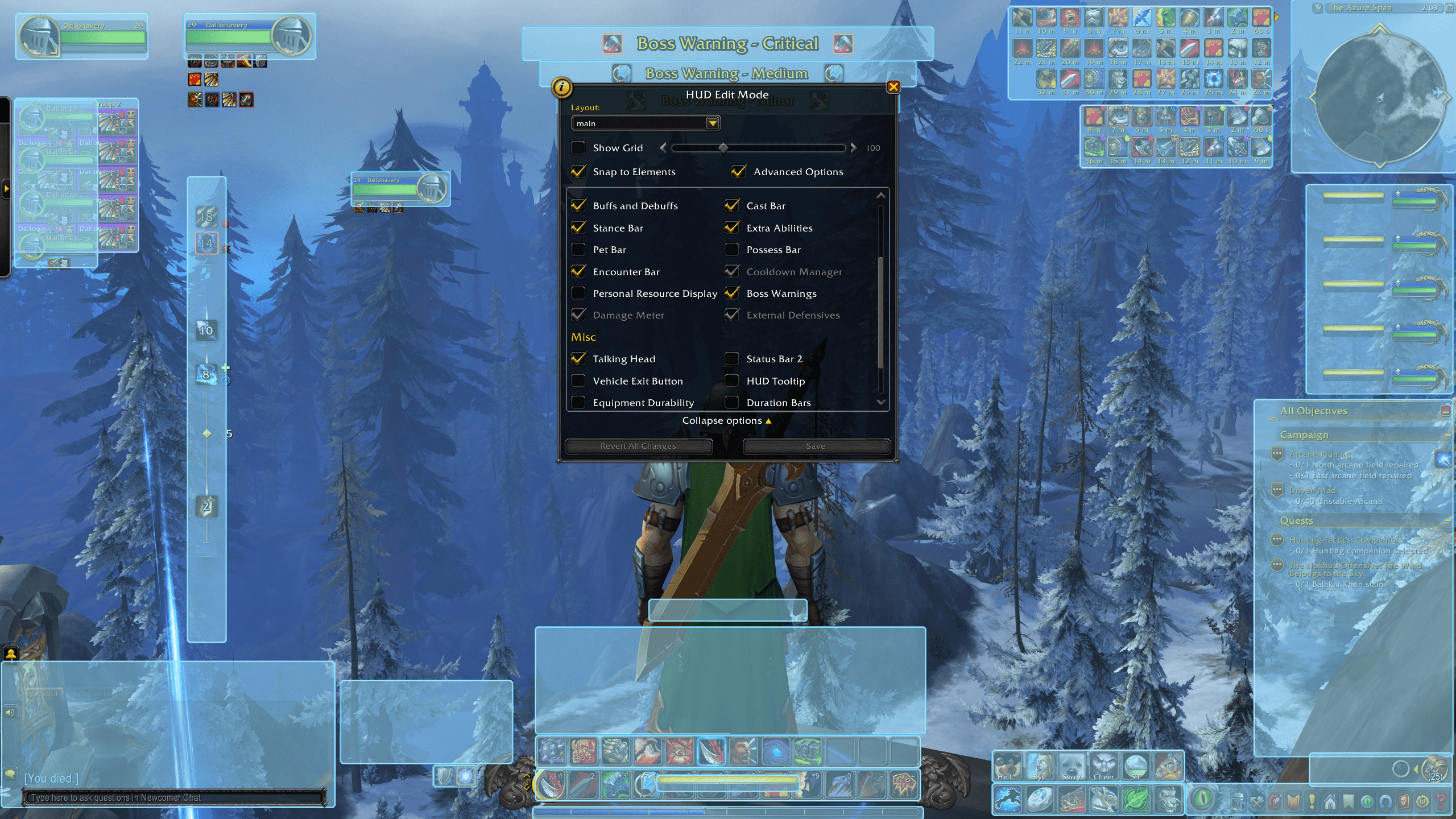
Before you learn how to fix Midnight UI, first you need to understand what's wrong with it. So much work has been put into expanding the native UI options, adding new HUD elements that should, in theory, make the need for UI addons obsolete. And while the new options do have pretty much everything you ever needed from those addons, for some reason, the default settings that you get from the start are the worst you could choose. So, the game actually begs you to head into the settings and change everything to make it actually usable.
Here’s what’s wrong. Again, visually, they look good. But when you try to use it, that’s when all the problems come in.
Take a look at the Boss Timeline from the Boss Warnings set of elements. A vertical line that shows what the boss cast, how, and when. The left side of the screen is where most players put their party-in-raid screens. The Boss Warnings themselves are at the top center of the screen. Critical warning - should be closer to the middle of the screen, but it's the furthest.
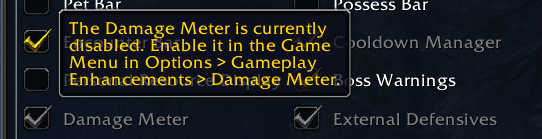
The Damage Meter is disabled by default?! You’re supposed to remember to go to the settings and actually enable it. And even when you do enable it, it’s placed at the top left corner of the screen, above the raid party window.
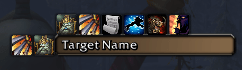
Nameplates and their important elements are made harder to see by default. The icons are overlapping with the healthbar although you do have the option to choose the spacing.
That’s only a handful of the most glaring problems the default UI settings have. Now, let’s fix them and show you the WoW Midnight best UI settings that will make your UI look like you have addons installed!!
Fixing Nameplates in WoW Midnight
 The new visual design of the nameplates isn’t bad at all, but there’s an even better one hidden inside the myriad of options. Here are the WoW Midnight best nameplate settings:
- Size - 1
- Buff/Debuff Scale - 100%
- Style - Blocky Bars
- Nameplate Information - Rarity Icon
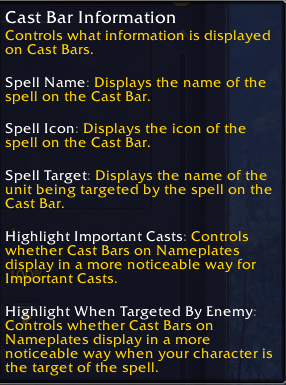
- Cast Bar Information - everything on, including Spell Target.
- Aggro Display - Health Bar Color
- Enemy NPC Buffs/Debuffs - Mob buffs, personal debuffs, Shared CC.
- Enemy Player Buffs/Debuffs - Enemy Buffs, Personal Debuffs
- Friendly Player Buffs/Debuffs - Personal Buffs, Enemy Debuffs.
- Debuff Padding - 2
- Simplify Nameplates - None
Starting with Style, the Blocky Bars option changes both the health bar and cast bar to be blocky, which adds clarity, since there are additional items around these elements. This allows you to reliably read spell names.
Turning on Spell Target in Cast Bar Information will help you see who is being hit by an ability. Pretty important, especially if that someone is yourself. The Aggro Display helps visualise whether or not you have aggro on yourself or it's lost. Progressive and Flash are more harmful and distracting than useful. The Threat Bar Color means that your health bar will change color based on the current threat level you have. It also mimics most players' setups from the addon,s and it is favored for a good reason - you can tell the aggro at a glance!
The debuff icons above your healthbar are set so low that they actually cut off some of the border. While this is a less functional change and is more on the side of perfectionism, changing Debuff Padding to 2 instead of 0 prevents this intersection, making it look just right.
Fixing Boss Warnings
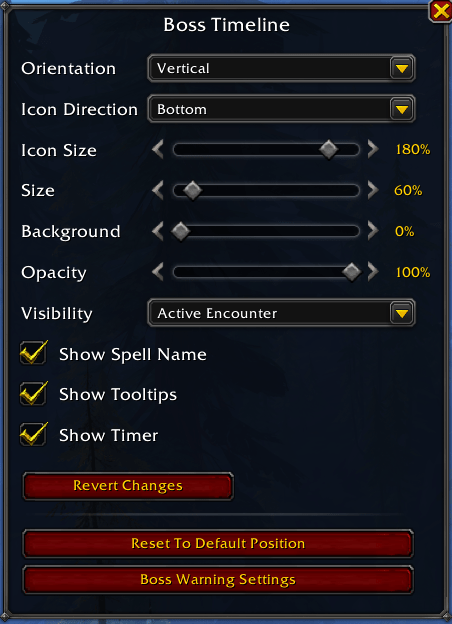
Those who used addons before are probably used to calling this the “ability timeline.” This UI element has to be one of the biggest changes in Midnight. It means that without any addons installed, you can see exactly what the boss is going to do and when. The issue is that the default settings for this set of UI elements make them difficult to see on 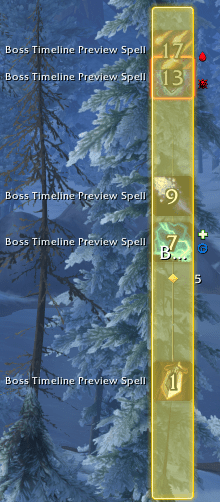 the screen. Let’s fix everything:
- Orientation - Vertical
- Icon Direction - Bottom
- Icon Size - 180%
- Size - 60%
- Background - 0%
- Opacity - 100%
- Visibility - Active Encounter
- Show Spell Name - On
- Show Tooltips - On
- Show Timer - On
The default position is on the left side, which is where most of us place our raid party frames. If the horizontal orientation of this bar looks better, be warned! Horizontal is missing an option called “Show Spell Name”, which is present in the Vertical orientation. So, best leave it vertical.
The default size is way too big, so making it smaller fixes the issue. However, when you do that, the ability icons also become smaller and harder to see. Thankfully, you can increase the Icon Size separately. Just increase it to the value that seems appropriate while keeping the entire frame small. It’s going to make it a lot easier on the eyes and free up more screen space.
Turning on the Tooltips lets you hover over any ability on the timeline to read what it does, which is just invaluable.
Additional Options for Boss Warnings
In the Gameplay Enchancements options, you can find more settings for Boss Warnings. But these are more personalized. If you want to focus on yourself, turn on “Hide Countdowns for Other Roles”. This will only show countdowns on the timeline that are relevant for your currently assigned group role. If you’re a DPS, you won’t get any healer or tank-related countdowns cluttering your screen. On the other hand, if you’re a healer or a raid leader, obviously keep that setting off.
What you absolutely have to turn on there is the “Spell Support Iconography”. This thing configures the display of support iconography, such as role and dispel type indicators on countdowns. In simple words, it means that if you don’t know what an ability does, those icons will give you some context clues as to what the abilities do. In the vertical orientation, those icons are to the right of the ability icons.
Enabling “Hide When Not Targeted” hides any Boss warning messages that are not targeting you. This gives you pure focus and the ability to react much faster. Again, if you’re a healer or a raid utility type, you can ignore this.
Text Warnings Fix
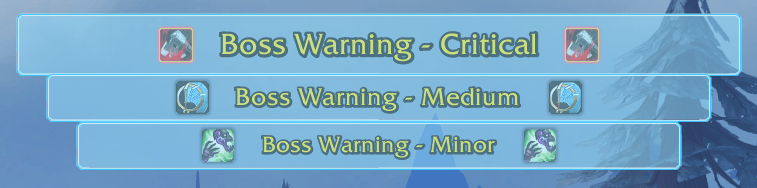
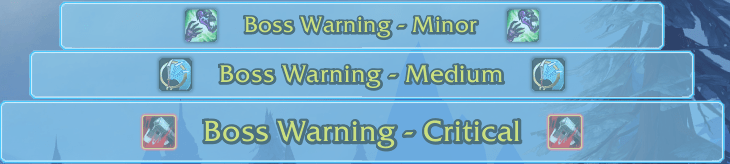
Nobody really looks at the top of their monitor during a fight. Worst of all, the devs have put them in the wrong order. When the critical warning is the furthest away from the middle of the screen, it makes it even harder to see. Luckily, each of these can be moved anywhere independently of the others in the WoW Midnight HUD editor. So, just flip the order and place the Critical closer to the middle of the screen, then Medium, and finally Minor warnings.
Each of the Warnings have their own Settings, and the most important one in there is “Show Tooltips”. So, make sure it’s on for each of the three of those. BLOG20
Fixing Raid Frames
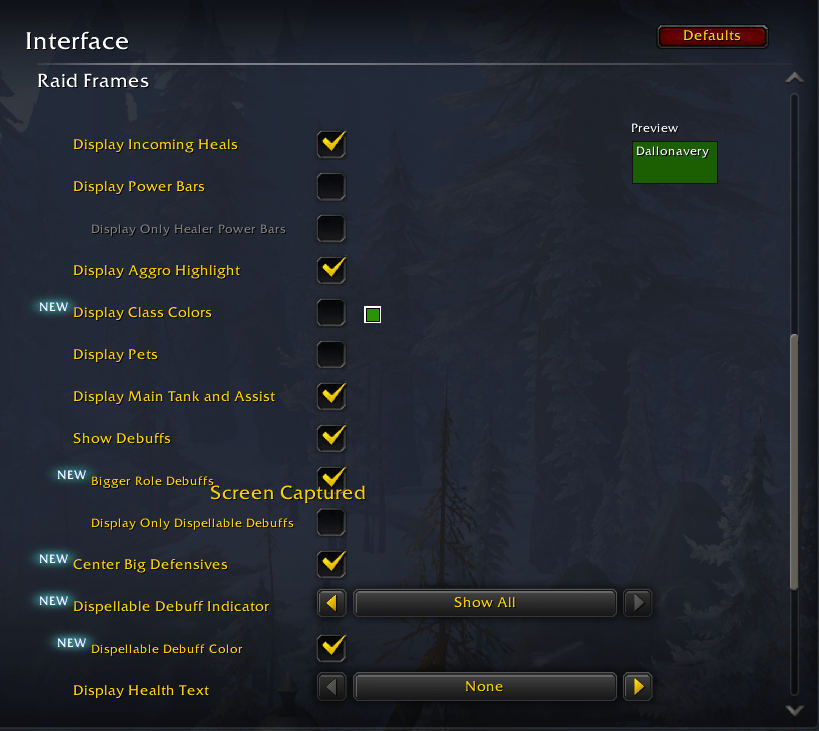
The Party and Raid frame changes feel underdeveloped. Luckily, there are a lot of things you can change under the hood that aren’t visible at first glance. Here are the Midnight best UI settings for raid frames:
- Display Incoming Heals - On
- Display Power Bars - Off
- Display Only Healer Power Bars - Off
- Display Aggro Highlight - On
- Display Class Colors - Off
- Display Pets - Off
- Display Main Tank and Assist - On
- Show Debuffs - On
- Bigger Role Debuffs - On
- Display Only dispellable Debuffs - Off
- Center Big Defensives - On
- Dispellable Debuff Indicator - Dispellable By Me
- Dispellable Debuff Color - On
- Display Health Text - None
The first half of this list is responsible for displaying all sorts of information on the party group screen. If you’re a tank or a healer, you might want to just turn them all on. If, however, you’re a selfish DPS, you can turn off Debuffs entirely, as it is no concern of yours which player caught what debuff. The option to turn on “Display Only dispellable Debuffs” means that you will only see those debuffs that you can dispel yourself!
Setting the “Dispellable Debuf Indicator” to “Dispellable By Me” means that if someone has an icon its because you can actually help them.
This might not be enough customization for players who are used to more options in the addons, but for most players its a huge improvement over what we had before this.
Customizing Raid Frame Display
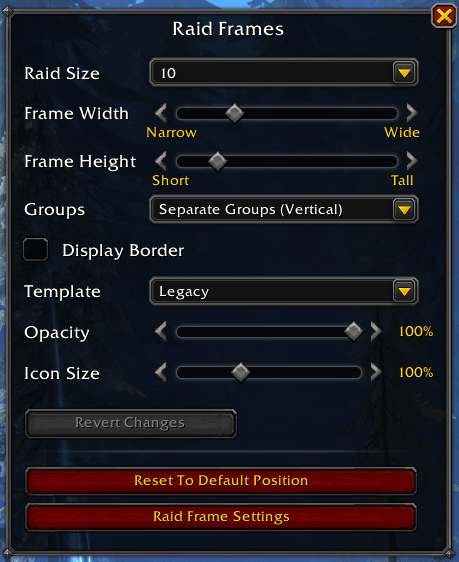
There’s a very limited amount of WoW Midnight raid frames customization that is available right now. Let’s take a look at the best options you can change:
- Raid Size - 10
- Frame Width - Wide
- Frame Height - 60-70% tall
- Groups - Separate Groups (Vertical)
- Display Border - Off
- Template - Legacy
- Opacity - 100%
- Icon Size - 90%
The most important setting here is the style or Template. The three options available don’t carry too much meaning, as it’s hard to understand the difference.
- Legacy - the dispel indicator and the buffs are all on the right side, making them easier to see.
- Buff Focused - puts the buff icons at the top right corner of the player frame in the group, leaving more room for icons on the bottom.
- Debuff Focused - leaves more room for debuffs instead, but places them all at the bottom of a player’s frame. Possibly, designed for PvP.
You might endup looking up some raid frame addons because the current level of adaptability is pretty low. Maybe we’ll see more options added in future updates.
Fixing Damage Meter
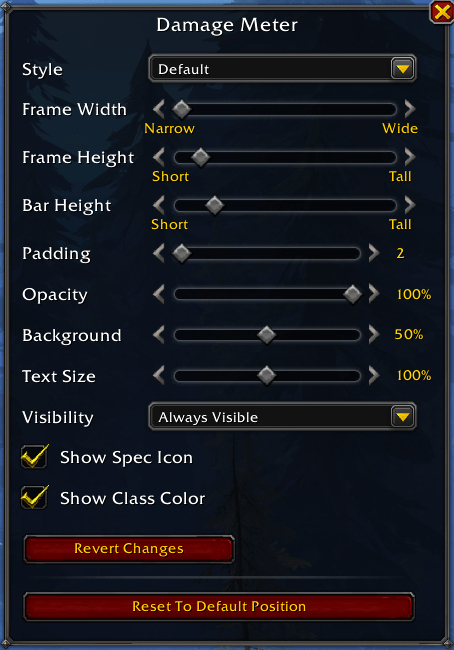
For some unexplainable reason, the Damage Meter is off by default, and what’s even more mysterious is why it is located in the top-left corner of the screen by default when 99% of players put it in the bottom-right corner. But those are easy fixes. Want to know how to enable damage meter WoW Midnight? It’s easy. Go to Options -> Gameplay Enhancements and scroll down until you see the Damage Meter. But the problem with the damage meter is the same as with the raid frames - a lack of options.
- Style - Default
- Numbers - Compact
- Frame Width - minimum.
- Frame Height - 2-3 from short
- Bar Height - 4-5 from short
- Padding - 2
- Opacity - 100%
- Background - 50%
- Text Size - 100%
- Visibility - Always Visible
- Show Spec Icon - On
- Show Class Color - On
The default style is the best one currently. Bordered just adds a while line around the meters, which is just more clutter. The Thin option makes the meters too small and harder to read when you do a quick look at them. So, the best option is the default one.
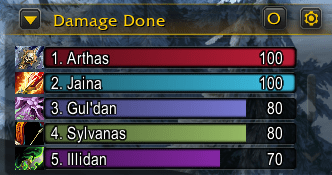
Reducing the width to the minimum frees up space but still keeps the damage meters very readable. Just doing that creates more problems - the text is overlapping, and the bars are too short. To fix the overlapping, bring the Bar Height up by four notches. This will give you the top-5 players by damage, leaving the rest on scroll.
Read our other WoW guides:
- Twilight Ascension Guide
- Midnight Leveling Guide
- Midnight Gearing Guide
- Gold Farming Guide
- Mythic+ Guide
F.A.Q.
How to enable Damage Meter in WoW Midnight?
Go to Options -> Gameplay Enhancements and scroll down until you see the Damage Meter. Tick the option, and you will be able to move around it and edit its details in the UI editor.
Where is the Ability Timeline in WoW Midnight?
Ability Timeline is called Boss Timeline in the game. To enable it:
- Go to HUD Edit Mode
- Enable Advanced Options
- Enable Boss Warnings
Do UI addons still work in WoW Midnight?
Some addons have been updated for the Midnight expansion and continue to work as before. Check the addon’s official page for more information.
How to change the size of the Damage Meter in WoW Midnight?
When you activate the damage meter in the game’s options, go to the HUD editor and click on the Damage Meter. This will open its settings, where you can change the size of the entire window or its elements.