 Crispy Jackie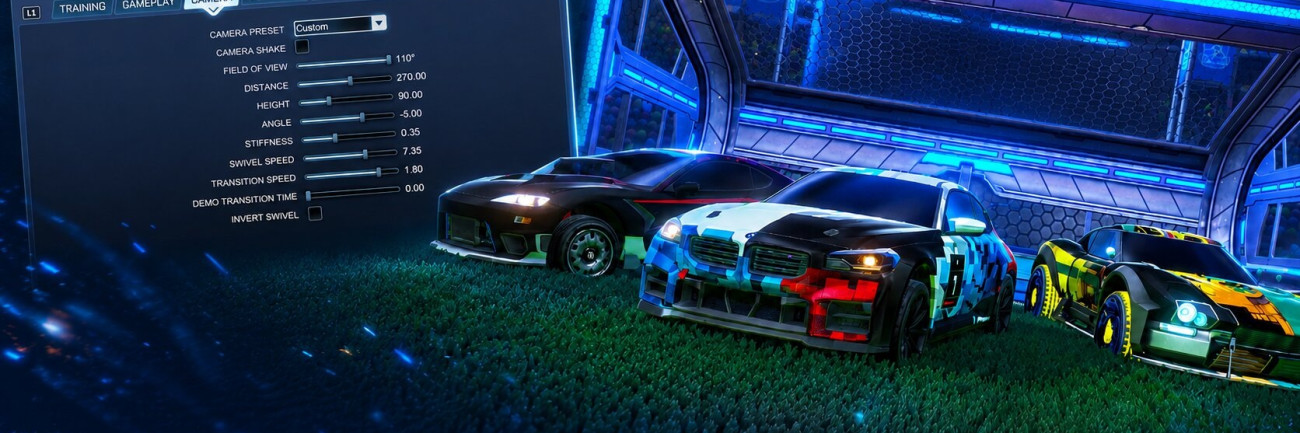
Best Rocket League Settings Quick Summary:
- Always keep VSync turned off and use your monitor’s recommended FPS cap to reduce input delay as much as possible.
- You can improve control by setting Steering and Aerial Sensitivity to 1.60, Controller Deadzone to 0.07, and Dodge Deadzone to 0.80.
- A great camera settings setup can be Camera Shake Off, FOV 110, Distance 270, Height 90, Angle -5, and Stiffness 0.35.
Speaking of ranked, you can Climb All the Way to Supersonic Legend with Skycoach. Forget about grinding and enjoy the game at the desired rank. Choose the mode you want and trust this job to our team.

Read closely 
Browse our hottest Rocket League Boosting services
Best Gameplay Settings
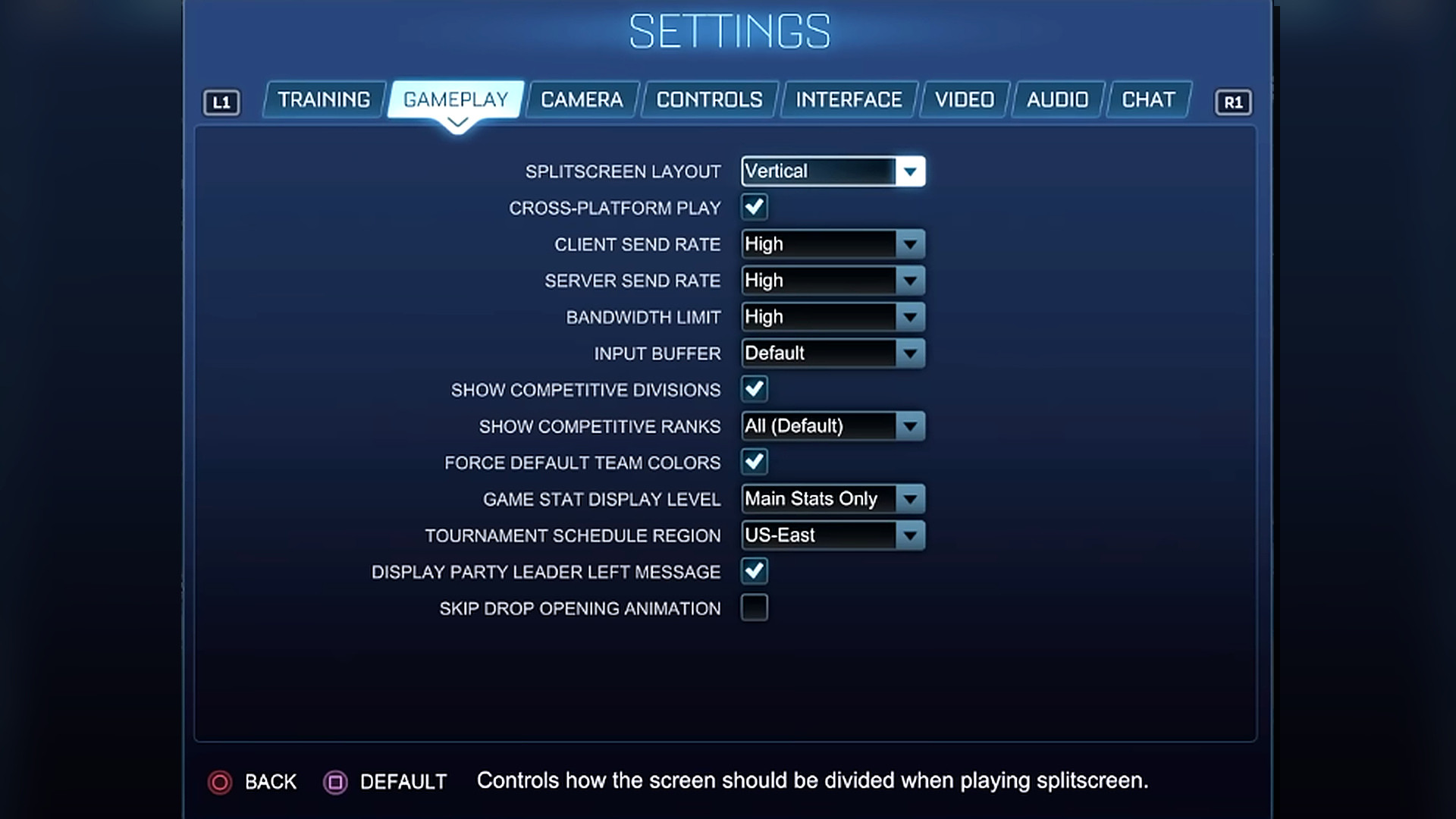
Let’s begin with something on a more prep level here. Gameplay settings in Rocket League don’t matter as much as camera, controller, or graphics settings. But I recommend that you scroll through this section and set these options once and leave them alone for good then. This is especially important for the network and competitive display settings here. Check out the best gameplay settings to go for:
- Splitscreen Layout: Vertical
- Cross-Platform Play: On
- Client Send Rate: High
- Server Send Rate: High
- Bandwidth Limit: High
- Input Buffer: Default
- Show Competitive Divisions: On
- Show Competitive Ranks: All (Default)
- Force Default Team Colors: On
- Game Stat Display Level: Main Stats Only
- Tournament Schedule Region: Your region
- Display Party Leader Set Message: On
- Skip Drop Opening Animation: Off
I personally leave Cross-Platform Play on because it gives matchmaking a larger player pool. I don’t think that I’ll ever want platform-only matches for either ranked or casual play. But you can switch it off if you’d like.
For the network options, keep Client Send Rate, Server Send Rate, and Bandwidth Limit on High. These settings are the safest choice if your connection is stable, because they let the game send and receive match data more consistently. Input Buffer should stay on Default unless you are specifically testing connection issues.
Best Camera Settings
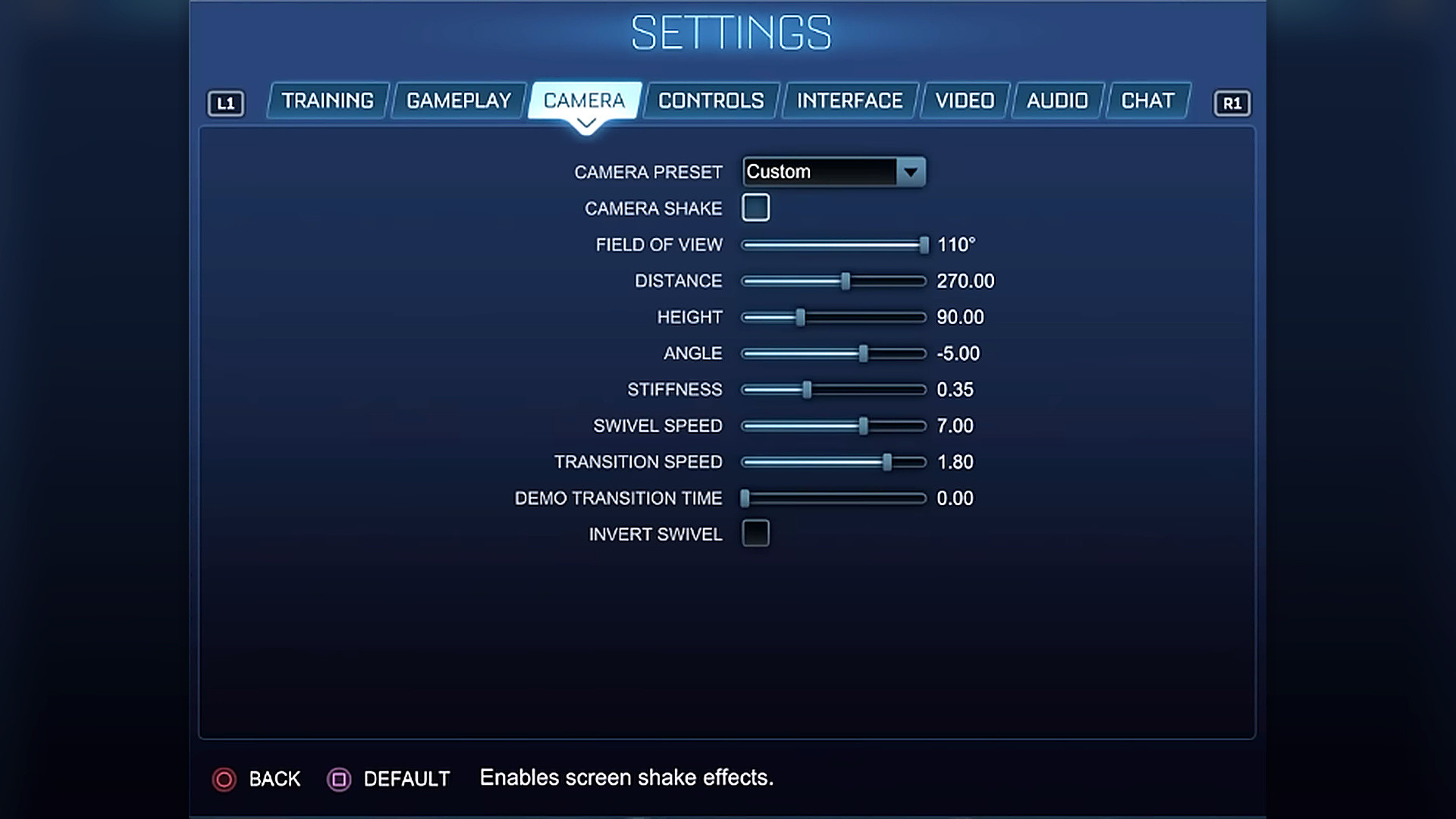
This is the section that changes how you play Rocket League. I highly recommend that you try out my camera settings first, and then change them accordingly to match your preferences. Camera settings decide how much of the field you can see, how clearly you can control your car, and how comfortable the game will be at high speed. See what I’m using for the best camera settings in 2026:
- Camera Preset: Custom
- Camera Shake: Off
- Field of View: 110
- Distance: 270
- Height: 90
- Angle: -5
- Stiffness: 0.35
- Swivel Speed: 7.00
- Transition Speed: 1.80
- Demo Transition Time: 0.00
- Invert Swivel: Off
Camera Shake should always be off, or your gameplay would be ruined, no matter if you’re even driving the best car in Rocket League, it’s just too distracting. This is one of the few settings that has almost no real debate around it. When Camera Shake is enabled, your screen moves during jumps, bumps, ball touches, and dribbles. That adds visual noise for no useful reason.
Field of View can be controversial for every player, but give it a go with 110. This is usually the value that gives the widest view of the field, and that actually helps a ton. Lowering this value will put you at a disadvantage among high-level players for sure.
Best Controller Settings
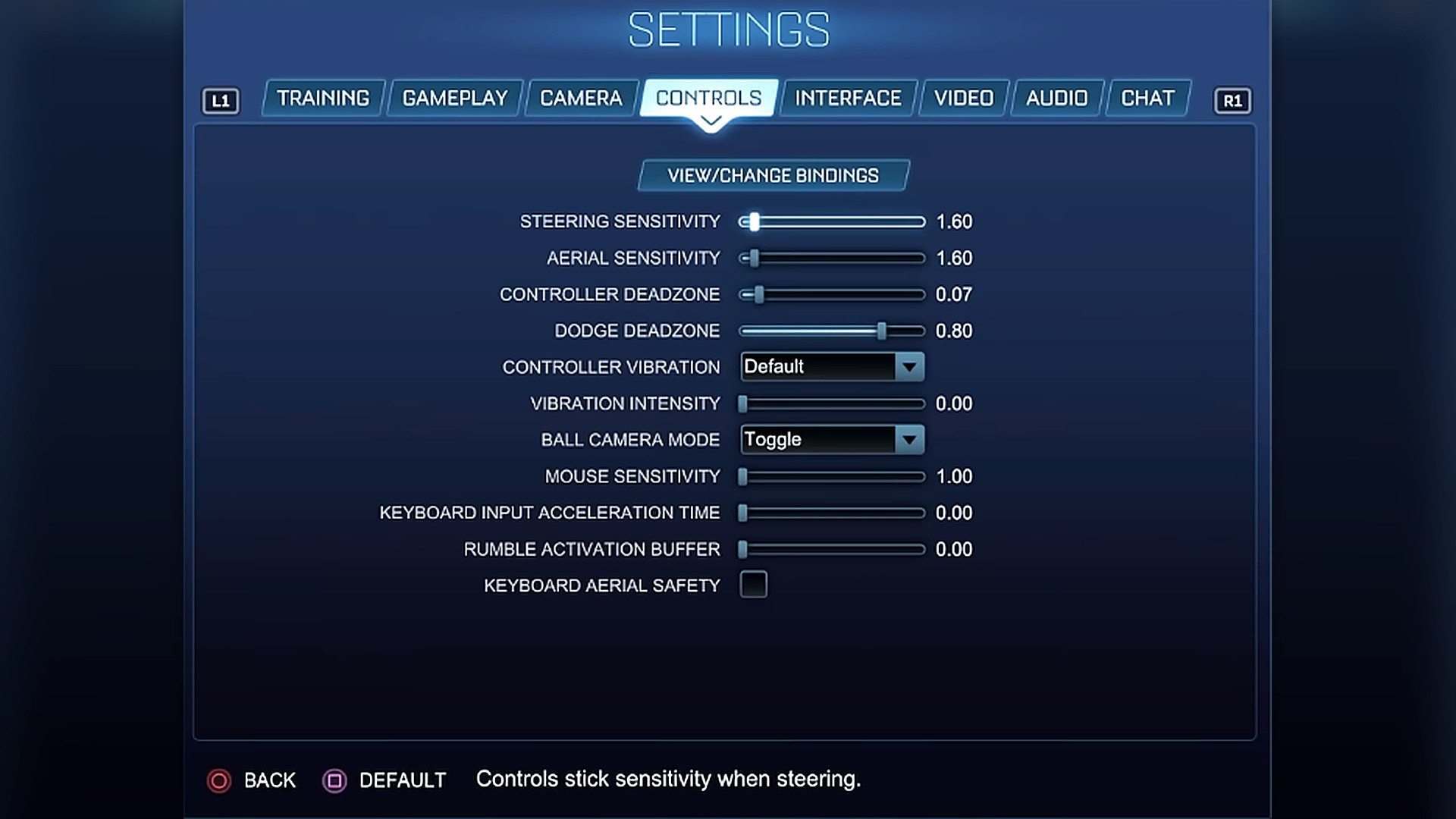
Just like with the camera, you can experiment with controller settings to set them according to your preferences. In Rocket League, this matters a lot, and I highly recommend that you pay enough time to find the perfect setup for you. All your future jumps, boosts, rolls, powerslides, and other tricks are tied to how comfortable you’re with your controller.
- Steering Sensitivity: 1.60
- Aerial Sensitivity: 1.60
- Controller Deadzone: 0.07
- Dodge Deadzone: 0.80
- Controller Vibration: Default
- Vibration Intensity: 0.00
- Ball Camera Mode: Toggle
- Mouse Sensitivity: 1.00
- Keyboard Input Acceleration Time: 0.00
- Rumble Activation Strength: 0.00
- Keyboard Aerial Safety: Off
I’m not gonna explain every choice here, and you can try these values. I’m almost 100% sure that you’ll love it, but tweaking it a bit is always your pick.
The tricky part here is Dodge Deadzone set to 0.80. I’m sticking to this value because it’s more controlled in that way. Especially if I backflip by mistake during fast aerials or recoveries. You can try 0.70 if it’s too slow for you, as both options can work just fine.
The same goes for Aerial Sensitivity at 1.60 because you’ll see that many competitive players use 1.20-1.40 for extra control. But having 1.60 works perfectly for me to react quicker. You can also give these settings a few tries and see what value is best for you personally.
Best Rocket League Keybinds
Just like many competitive players, I don’t like that too many important actions sit on my right thumb by default in Rocket League. I’m talking about Jump, Boost, Ball Cam, and face buttons. My personal advice here is to try changing your standard keybinds before you start grinding ranked for real. I’d recommend setting it like this:
- Boost: R1 / RB
- Powerslide: L1 / LB
- Air Roll: L1 / LB
- Air Roll Left: L1 / LB, or another free bumper if preferred
- Ball Cam: Triangle / Y
- Jump: X / A
In most cases, you’ll like it that way. Maybe you won’t leave all the keybinds as I suggest, but even changing a few of them can improve your gameplay a lot.
Best Interface Settings
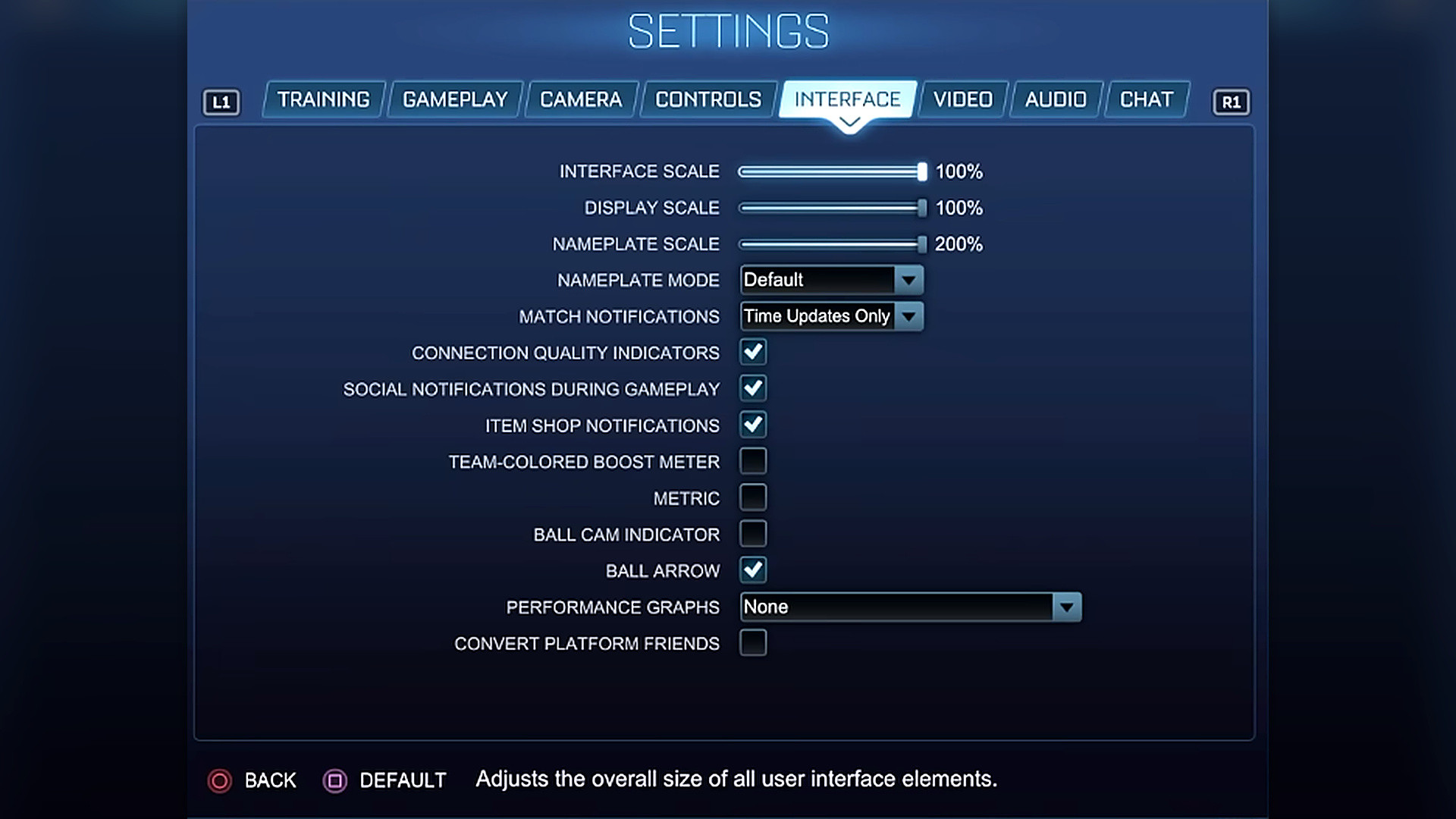
You might think that interface settings don’t matter that much, too. But this tab is what allows you to get more information during the match, and this is what matters in Rocket League. In this section, I’ll explain what settings you want to keep and what to turn off so as not to have a screen full of useless stuff.
- Interface Scale: 100%
- Display Scale: 100%
- Nameplate Scale: 200%
- Nameplate Mode: Default
- Match Notifications: Time Updates Only
- Connection Quality Indicators: On
- Social Notifications During Gameplay: On
- Item Shop Notifications: On
- Team-Colored Boost Meter: Off
- Metric: Off
- Ball Cam Indicator: Off
- Ball Arrow: On
- Performance Graphs: None
- Convert Platform Friends: Off
Interface Scale and Display Scale can stay at 100%. There is no real need to mess with these too much. The game already gives you enough HUD size at default, and changing it too much can make the screen weird for no reason.
Nameplate Scale is the big one here. I’d keep this at 200%. This helps you see opponents and teammates much easier, especially when the play gets fast. I’ve tried other options, but this value is what fits me most.
Browse our hottest Rocket League Boosting services
Best Graphics Settings
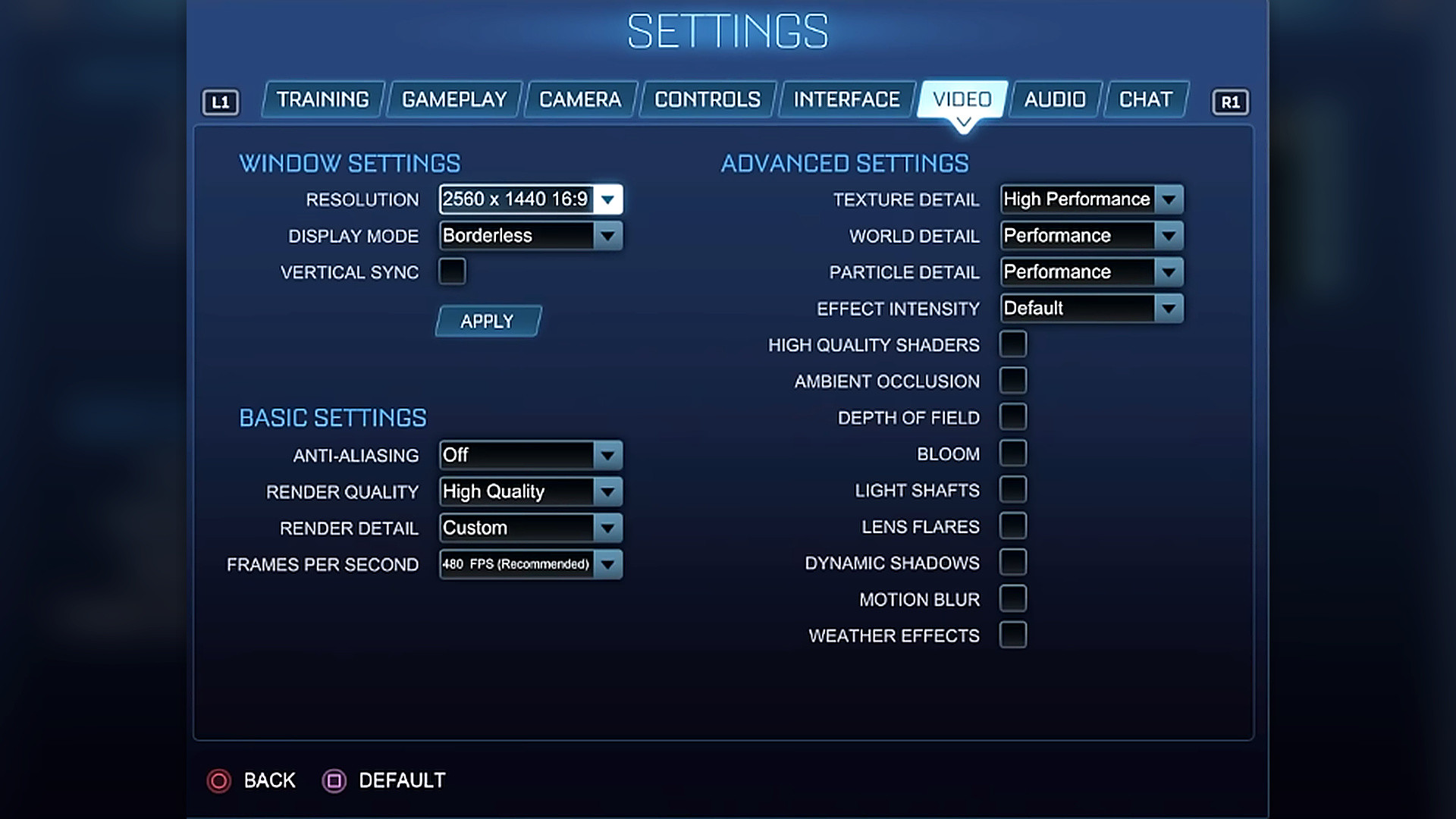
And we’ve finally made it to the most important section for those who want Rocket League to look like a top-tier AAA game. Even though visuals don’t play any important role in this title, I’ve managed to combine everything in terms of graphics settings. It still looks good, but I highly recommend that you turn off extra effects or visual clutter. This matters more than you think in higher ranks where the lowest input delay and minimum visual noise wins you a match. Here are the best graphics settings for Rocket League in 2026:
- Resolution: Your native monitor resolution
- Display Mode: Borderless
- Vertical Sync: Off
- Anti-Aliasing: Off
- Render Quality: High Quality
- Render Detail: Custom
- Frames Per Second: Recommended, based on your monitor refresh rate
- Texture Detail: High Performance
- World Detail: Performance
- Particle Detail: Performance
- Effect Intensity: Default
- High Quality Shaders: Off
- Ambient Occlusion: Off
- Depth of Field: Off
- Bloom: Off
- Light Shafts: Off
- Lens Flares: Off
- Dynamic Shadows: Off
- Motion Blur: Off
- Weather Effects: Off
I only want to underline how important it is to have Vertical Sync turned off. Never ever turn it on because you’ll increase your input delay a ton, around 16-33 ms extra. Along with Camera Shake, this is one of the first settings I’d turn off on any setup.
All other settings are quite obvious, and some of them are optional. You’ll see them vary from topic to topic on Reddit and other platforms. You can try and experiment here, depending on your device, and see how it goes for you. And as for the Display Mode, I prefer Borderless because I Alt-Tab quite often, but you can easily go Full Screen if you like. This doesn’t change anything, though.

You got -20% OFF 
Best Audio Settings
Audio settings are mostly preference, but for ranked, I’d keep them simple. You want to hear the game, but you do not need music, crowd noise, or random background sounds fighting for attention. The biggest advice here is to keep only the most important sounds. Don’t put too much stuff. See the best audio settings for Rocket League:
- Master: 30%
- Gameplay: 25%
- Music Playlists: 0%
- Music Gameplay: 0%
- Voice Chat: 0%
- Ambient: 0%
- Crowd: 0%
- Output Type: Speakers
- Dynamic Range: Default
- Play Soundtrack in Menu: On
- Play Soundtrack in Training: On
- Play Soundtrack in Game: Off
- Player Anthems: Matches Only
- Streamer Safe Music: Off
- Mute on Unfocused: On
Experiment with Master and Gameplay values here to find a perfect balance for you. I keep it around 30% and 25%, which works just fine for me.
F.A.Q.
What are the best Rocket League camera settings?
This is what your camera settings for Rocket League should be:
- Camera Shake: Off
- FOV: 110
- Distance: 270
- Height: 90
- Angle: -5
- Stiffness: 0.35
- Swivel Speed: 7.00
- Transition Speed: 1.80
What are the best controller settings for Rocket League?
Use 1.60 Steering Sensitivity, 1.60 Aerial Sensitivity, 0.07 Controller Deadzone, 0.80 Dodge Deadzone, Ball Cam Toggle, and Vibration Intensity at 0.00.
Should camera shake be off in Rocket League?
Camera Shake should always be off. It adds unnecessary screen movement and makes touches, dribbles, jumps, and aerials harder to read.
What are the best Rocket League graphics settings for FPS?
Here are a few examples of the best graphics settings to go for:
- Texture Detail: High Performance
- World Detail: Performance
- Particle Detail: Performance
- Effect Intensity: Default
- High Quality Shaders: Off
- Ambient Occlusion: Off
- Depth of Field: Off
- Bloom: Off
- Light Shafts: Off
What is the best FOV in Rocket League?
The best FOV is 110. You’ll have the widest useful view, and that matters a lot in ranked.