 Rick Flair
Best Crimson Desert Settings in 2026 Quick Summary:
- For the best image quality, turn off VSync, put your resolution on Native, and choose the appropriate upscaling mode.
- It is highly recommended to leave Ray Reconstruction off, as it eats too many of your FPS.
- The most taxing graphics settings are shadow quality, lighting quality, model quality, and foliage density. Lower these first if you need more frames.
- Best graphic settings are Model Quality: High. Texture Quality: Ultra. Shadow Quality: Medium or Ultra. Ray Tracing: On. Lighting Quality: High. Reflection Quality: Ultra. Advanced Weather Effect: On. Water Quality: High. Foliage Density: High. Volumetric Fog Quality: High. Effect Quality, Simulation Quality, and Post-Processing Effect Quality: Cinematic.
If you’re stuck in your progression and need more Abyss Artifacts to finish one of the many bosses of Crimson Desert, then let our Pros farm them for you. Try the Crimson Desert Abyss Artifacts Farm service.


Read closely 
Browse our hottest Crimson Desert Boosting services








Crimson Desert Best Graphics Settings
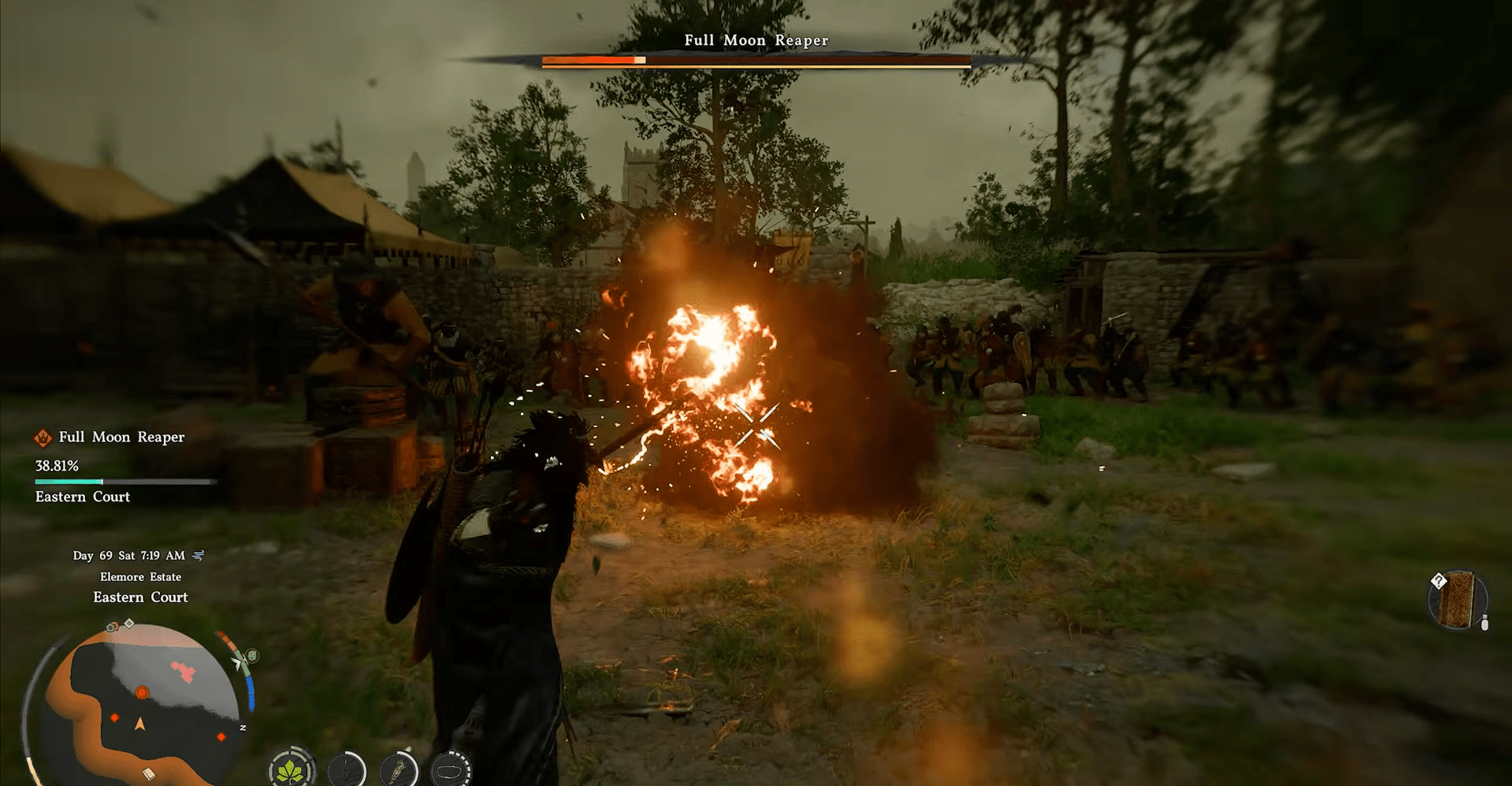
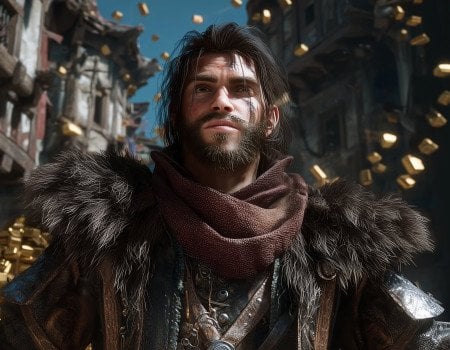
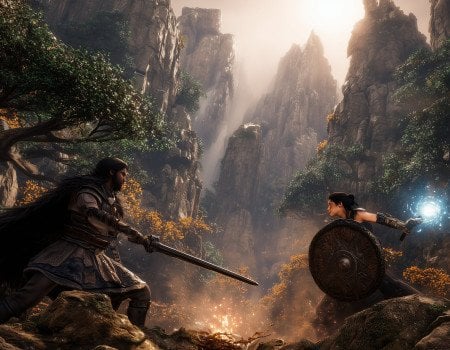
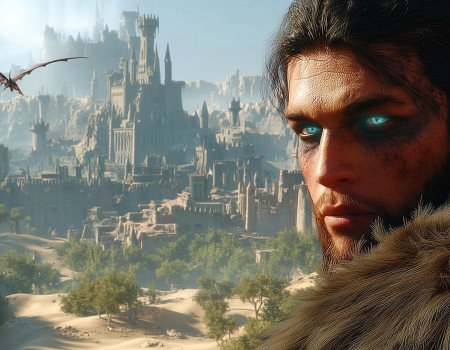
While Crimson Desert has pretty poor character models, I think that the environment the devs have created with their in-house engine is on par with Death Stranding 2. It looks lively, with trees and grass moving with wind gusts and cloud shadows covering distant mountains. And of course, to see all this beauty can be difficult, since some settings are way more resource-hungry than others. I’m going to share the best optimized settings for Crimson Desert, so that you can see the game in its best visual state with minimal tradeoffs.
Video Settings
I recommend turning on upscaling before changing the graphics settings in the next section. The frame generation and ray reconstruction should only be experimented with after you’ve set up your graphics settings properly and feel happy with them.
|
Setting |
Best Option |
Explanation |
|
Resolution |
Native |
Never go below your native resolution if you don’t want your game to look bad. |
|
Upscale Mode |
DLSS 4 for RTX20-30 FSR 3 for AMD and Intel |
DLSS 4 is stable and less noisy than 4.5, but is much blurrier. Plus, DLSS 4 is much less resource-hungry than 4.5 on RTX 20-30 series. |
|
VSync |
Off |
If you have G-Sync or Adaptive Sync on your display, turn it on and leave VSync off. |
|
DLSS Framegen |
On |
Turn it on only if your PC is able to output 60 stable FPS. If not, don’t turn it on. |
|
DLSS Ray Reconstruction |
Off |
A very costly setting that highly improves the image only if Max Lightning Quality is turned on. On modern GPUs, you get a 20% performance loss. |
The most important settings that will improve and impact your visuals are upscaling and ray reconstruction. If you don’t like overly sharp image, don’t use DLSS 4.5 and settle for DLSS 4 or even FSR 3. Upscaling in this game looks kinda wonky, and it’s primarily because of the ray tracing and how it’s implemented in this engine. More on that later.
Graphics Settings
Now to the main course. The best graphics settings for Crimson Desert do not necessarily include the highest settings. In fact, some of these settings don’t even influence the visuals, yet they increase your FPS if turned down. There are also some settings that don’t impact the performance but improve the image significantly. Let’s go over the graphic settings for higher FPS in Crimson Desert.
|
Setting |
Best Option |
Explanation |
|
Model Quality |
High or Ultra |
Avoiding big words, it simply controls the distance at which geometry changes. It also influences pop-in, but unfortunately, not as hard. The difference between medium and ultra is minimal. |
|
Texture Quality |
Ultra |
The game uses around 7.2 GB VRAM even on Cinematic, but Cinematic seems to be bugged and sometimes displays broken textures. Low looks bad, so don’t use it. |
|
Shadow Quality |
Medium or Ultra |
Affects the resolution of shadow maps. If you need more fps, go for medium. If you want sharper shadows, go for ultra. I actually recommend medium, cause shadows aren’t as sharp and unrealistic, and also there’s less visual shimmer when using DLSS 4.5 |
|
Ray Tracing |
On |
Heavily depends on the Lighting Quality setting. If on low or medium Lighting Quality, disable RT. If high and above, enable it. Interestingly, the performance cost is negligible on higher Lighting Quality settings, around 2%. |
|
Lighting Quality |
High or Ultra |
The most important setting in the game. Never go below High. Ultra is a sweet spot, and Cinematic is if you want the best visuals. Don’t go for Max, as it has a 40-50% performance cost. Yeah, I’m not kidding. |
|
Reflection Quality |
Ultra or Cinematic |
Affects the off-screen reflections, meaning the things that are not in the screen view will be drawn on reflective surfaces even if you don’t look at them. Little performance cost. |
|
Advanced Weather Effects |
On |
No visual influence or performance cost. |
|
Water Quality |
High |
Adds barely noticeable foam particle effects. No performance cost. |
|
Foliage Density |
High |
Affects the amount of shrubs and grass. No point in going above High as the visual difference is very subtle. Don’t go medium or low. |
|
Volumetric Fog Quality |
High |
Despite the name, it mostly influences how clouds look. |
|
Effect Quality |
Cinematic |
On paper, it should affect how good the special effects, like fire, smoke, and particles, look. In reality, no visual or performance difference is observable. |
|
Simulation Quality |
Cinematic |
Affects how the foliage and cloth move. No difference between the low and cinematic. |
|
Post-processing Effect Quality |
Cinematic |
All I noticed is that it adds a lens flare effect when going from low to higher settings. |
The last visual setting is for some reason hidden in the accessibility menu, although it affects the fps. It’s called Particle Effects Quality. It’s a slider that influences the amount of particles visible on screen, like grass, leaves, etc. Turning it to 0 removes practically all particle effects, and moving it to 100 has around 2% performance hit.
Browse our hottest Crimson Desert Boosting services








Crimson Desert Optimization Tips
It just so happens that I’m a 3d modelling enthusiast, and I sort of understand how the graphics in games work. I gotta say, that Crimson Desert is pretty decently optimized for a game of this size that uses a proprietary game engine. Below is a Crimson Desert optimization guide.
- Cap FPS: You bought a 240Hz display, and you want to see all those frames on the screen. I get it. Unfortunately, unless you’re playing on RTX 50 in 1080p, your PC won’t likely hit these numbers. Lock your frames using RTSS, Nvidia Control Panel, or whatever software allows you to do that. Just never do it through the game itself, as it will never provide smooth framing.
- Tinker with FOV: Usually, the higher your field of view is, the lower fps you get. Sometimes it’s vice versa, like in COD, for instance, where a lower FOV renders objects in better detail, and you lose frames.
- Sacrifice some Graphics Quality: Not every setting influences FPS. Texture Quality doesn’t influence FPS directly, and even the highest setting will not result in your FPS tanking. Some of the settings to consider are usually shadow quality, shaders, reflections, and lightning quality. Basically main effects that make the picture. I don’t put shadows higher than medium most of the time, as sharper shadows look ugly in my opinion. I’d prefer them to be smoother and softer than overly sharp if I don’t use ray tracing.
- Use Frame Gen: Before, I wouldn’t recommend that, but modern frame generation works really well, and the problems with input lag appear only when you strain the generator too much. Setting generated frames to 2 or 3 is more than enough for most players to get good FPS with little artifacting that doesn’t distract you too much.
- Avoid Ray Reconstruction: It seems like Ray Reconstruction in this engine doesn’t work as it does in other games. Usually, it lowers the noise that RT produces. Here, this setting changes the tesselation settings and makes textures appear flat, but it makes the light look almost path-tracing worthy. Considering how much it drops your performance, don’t use it.
- Don’t Neglect Upscalers: I know that a lot of people genuinely hate upscaled images and prefer playing in native, but we’re far past the point where an upscaled image looked like a blurry mess. Mostly, at least. Sure, there are some artifacts, but they’ll stay in native. Most of the time, uspcalers grant a 5-10% FPS boost and make the image better. If you have some spare FPS, I suggest using the native upscalers like DLAA to make the image look even sharper and better.
In my opinion, Crimson Desert isn’t poorly optimized, but it’s very harsh on your CPU, which is to be expected since it’s an open-world game and you have lots of NPCs constantly moving and performing actions. If you have a nice GPU but experience FPS drops, you’re likely bottlenecked by your CPU, so for the final tip, perhaps it’s time to buy a new one before the prices skyrocket because of AI usage.


You got -20% OFF 
Crimson Desert System Requirements
This game is not very GPU-intensive, as much as it is CPU-bound. If you have an older CPU, I recommend double-checking the video settings provided above, as during encounters, your fps may drop around 10-15%. I have an RTX 4070, and during normal exploration, I have around 85 fps with optimized settings, but when I encounter large groups of enemies, the fps drops to 75-78. Be sure to check the Crimson Desert system requirements to see if your PC fits them.
|
Preset |
Specs |
GPU |
CPU |
|
Minimum |
Upscaled 1080, 30 FPS |
GTX 1060 / RX 5500 XT |
Ryzen 5 2600X / i5-8500 |
|
Low |
Native 1080p, 30 FPS |
GTX 1660 / RX 6500 XT |
Ryzen 5 2600X / i5-8500 |
|
Medium |
Native 1080p, 60 FPS / 4K, 30 FPS |
RTX 2080 / RX 6700 XT |
Ryzen 5 5600 / i5-11600K |
|
High |
Native 1440p, 60 FPS |
RTX 4070 / RX 7700 XT |
Ryzen 5 7600X / i5-12600K |
|
Ultra |
4K, 60 FPS |
RTX 5070 / RX 9070 XT |
Ryzen 7 7700X/ i5-13600K |
You also need to have 16 GB RAM and 150 gigs of free space on an SSD. To be honest, you need 32 GB RAM to properly run the game, idk why they decided to misinform their players here. Otherwise, I gotta say, these specifications are pretty close to reality, though initially I thought that 2080 pulling 4K 30 is kind of unrealistic, but even RTX 4070 is kind of able to pull it off with upscaling and some fine-tuning.
Read our other Crimson Desert guides:
F.A.Q
What are the best settings for Crimson Desert?
I’ll highlight only the most important ones that influence fps and the image:
- Model Quality: High or Ultra. Influences draw distance and LODs.
- Shadow Quality: Medium or Ultra. Depends on your GPU.
- Lighting Quality: High or above. Avoid Max as it’s broken.
- RT: On.
- Upscaling: DLSS 4 for RTX 20-30. DLSS 4.5 for RTX 40+.
- Frame Generator: On, 2-3 frames generated maximum.
- Ray Reconstruction: Off. Very taxing setting.
What settings do I lower first to gain FPS in Crimson Desert?
The most performance-hungry settings are shadows and lighting. Lighting quality can give you an 8% performance boost if you drop it from high to medium or low, though image quality will suffer too. Shadows give around 4% boost if dropped from high to low.
How do I boost my FPS in Crimson Desert?
First thing you need to do is to turn on image upscalers, they grant between 5-10% FPS gain. Then, if you’re still unlucky with the resulting FPS gain, change the quality of upscaling. Finally, if you manage to hit at least 60 stable FPS, turn on frame generation.
How do I make Crimson Desert run better?
I have a few tips for making the game work better. If you’re suffering from stutters or sudden frame drops, limit your FPS. Avoid ray reconstruction if you’re using it, as the performance cost is too high. Finally, turn on framegen and upscalers. It’s a duct tape solution, but it works.