 Dallon Avery
Forza Horizon 6 Best Wheel Settings Quick Overview:
- Difficulty and Control settings are different depending on the wheel and wheelbase type
- Gear-driven and direct-drive wheels have different base parameters
- I have included and explained the settings value ranges for different types of wheels and bases
- I've also included firmware app settings for popular wheel brands
Want to try out your wheel settings on different cars? Buy Forza Horizon 6 Account Leveling Service and unlock new cars through progression. Different cars will behave differently with your wheel. Find the best settings and enjoy a flawless driving experience on the most premium cars in the world!


Read closely 
Browse our hottest Forza Horizon 6 Boosting services


Best Difficulty Settings in Forza Horizon 6
Here’s the deal: I know there are a lot of steering wheels and brands that make them. You got Logitech, Thrustmaster, Fanatec, Moza, and others. I will do my best to provide the best settings that will make it easier to drive cars in the game, regardless of your wheel. However, wheels have different parameters, and some of them are hard to ignore. I will make a note or provide a suitable range of options to accommodate as many different setups as possible. Also, I’m not going to be covering the steering wheel apps and their settings. Just the in-game settings.
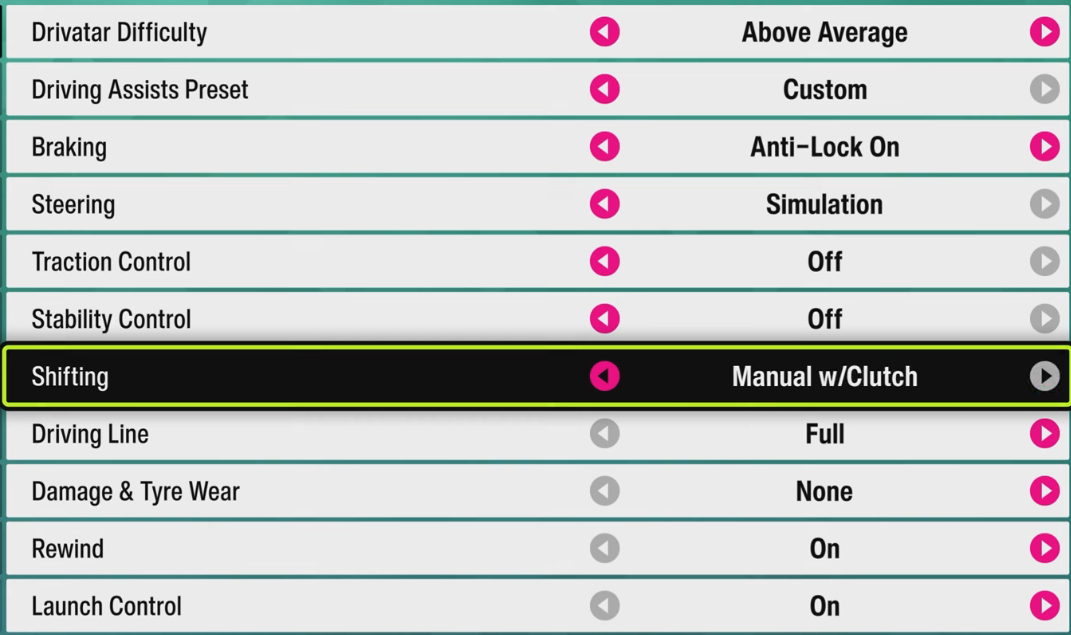
Let’s start with the difficulty tab. This is the one where you turn on or off all kinds of driving assistance.
|
Setting |
Recommended Value |
|
Drivatar Difficulty |
Above Average |
|
Driving Assists Preset |
Custom |
|
Braking |
Anti-Lock On |
|
Steering |
Simulation |
|
Traction Control |
Off |
|
Stability Control |
Off |
|
Shifting |
Manual w/ Clutch |
|
Driving Line |
Full |
|
Damage & Tyre Wear |
None |
|
Rewind |
On |
|
Launch Control |
On |
The idea behind choosing these is removing all kinds of artificial helpers that make driving feel “unrealistic”. You’re already using a steering wheel, probably have a shifter and some pedals, so you want to have as much control as possible. So, for steering, always go with Simulation as this is the one that lets you take control of the car completely.
ABS should stay on for most players. A lot of wheel users have basic pedals, and even stronger pedal sets can feel inconsistent until you tune them properly. Anti-Lock braking makes the car easier to slow down without turning every corner into a brake-locking test.
Traction Control and Stability Control are better turned off. These are the artificial assists that I’ve talked about. They can make the car feel strange on a wheel because they correct the throttle and rotation. With both off, you’ll have a much easier time turning and sliding. Having more throttle control matters more, and drifting becomes much easier.
Shifting depends on your hardware. Manual with Clutch is the best option for a full wheel setup with clutch pedals and a shifter. The manual is for paddle users. Automatic is fine for casual driving or drifting, but it gives less control in proper races.
Driving Line, Rewind, Damage, and Launch Control are comfort settings. They do not define force feedback, but they make wheel testing much less annoying.
Best Advanced Controls in Forza Horizon 6
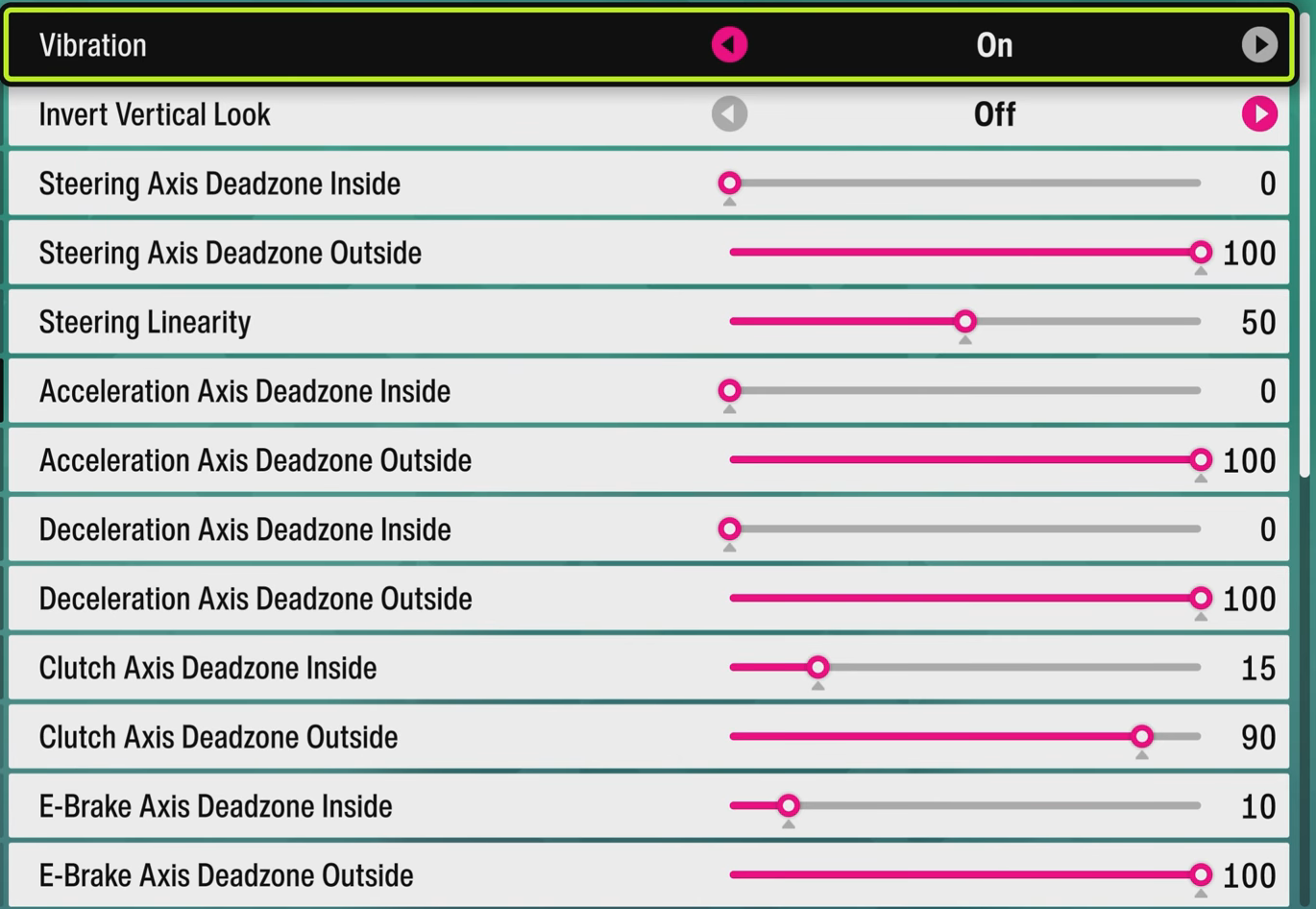
In here, you’re going to want to mostly stick to the default values. If you change all of these at the same time, you’re going to basically break the handling and your driving experience. I’m trying to say that, if you really want to find and tune the settings for your wheel, do so by changing one setting at a time, or do it in pairs.
|
Setting |
Best Universal Value |
|
Vibration |
On |
|
Invert Vertical Look |
Off |
|
Steering Axis Deadzone Inside |
0 |
|
Steering Axis Deadzone Outside |
100 |
|
Steering Linearity |
25 |
|
Acceleration Axis Deadzone Inside |
0 |
|
Acceleration Axis Deadzone Outside |
100 |
|
Deceleration Axis Deadzone Inside |
0 |
|
Deceleration Axis Deadzone Outside |
100 |
|
Clutch Axis Deadzone Inside |
15 |
|
Clutch Axis Deadzone Outside |
90 |
|
E-Brake Axis Deadzone Inside |
10 |
|
E-Brake Axis Deadzone Outside |
100 |
|
Vibration Scale |
0.5 |
|
Force Feedback Scale |
0.8 |
|
Center Spring Scale |
0.8 |
|
Wheel Damper Scale |
0.5 |
|
Mechanical Trail Scale |
0.9 |
|
Force Feedback Minimum Force |
0.9 |
|
Force Feedback Load Sensitivity |
1.0 |
|
Road Feel Scale |
0.8 |
|
Off-Road Feel Scale |
0.4 |
|
Steering Rotation |
720 |
|
Steering Lock Multiplier |
1.00 |
|
Steering Speed Sensitivity |
1.00 |
For gear-driven wheels, use a little more help from the game. These wheels usually have weaker force feedback and less detail, so they can feel loose with low spring, damper, and trail values. Raise Center Spring Scale toward 0.8-1.0, Wheel Damper Scale toward 0.2 to 0.5, and Mechanical Trail Scale toward 1.0 to 1.3. If you go higher than 1.0 on the Center Spring Scale, it’s going to cancel the FFB, which will basically create a “lag” effect or a delay. Which is not the same as the tire feedback you want. On wheels like Logitech G920 and G29, which are all gear-driven, setting the Damper Scale too high is pointless, because the gears in the wheel already create that mechanical resistance you want to feel when driving. No need to add artificial resistance through this setting, although it's more of a preference thing. Keep Steering Rotation around 720 for racing, because 900 degrees can feel slow on weaker wheels.
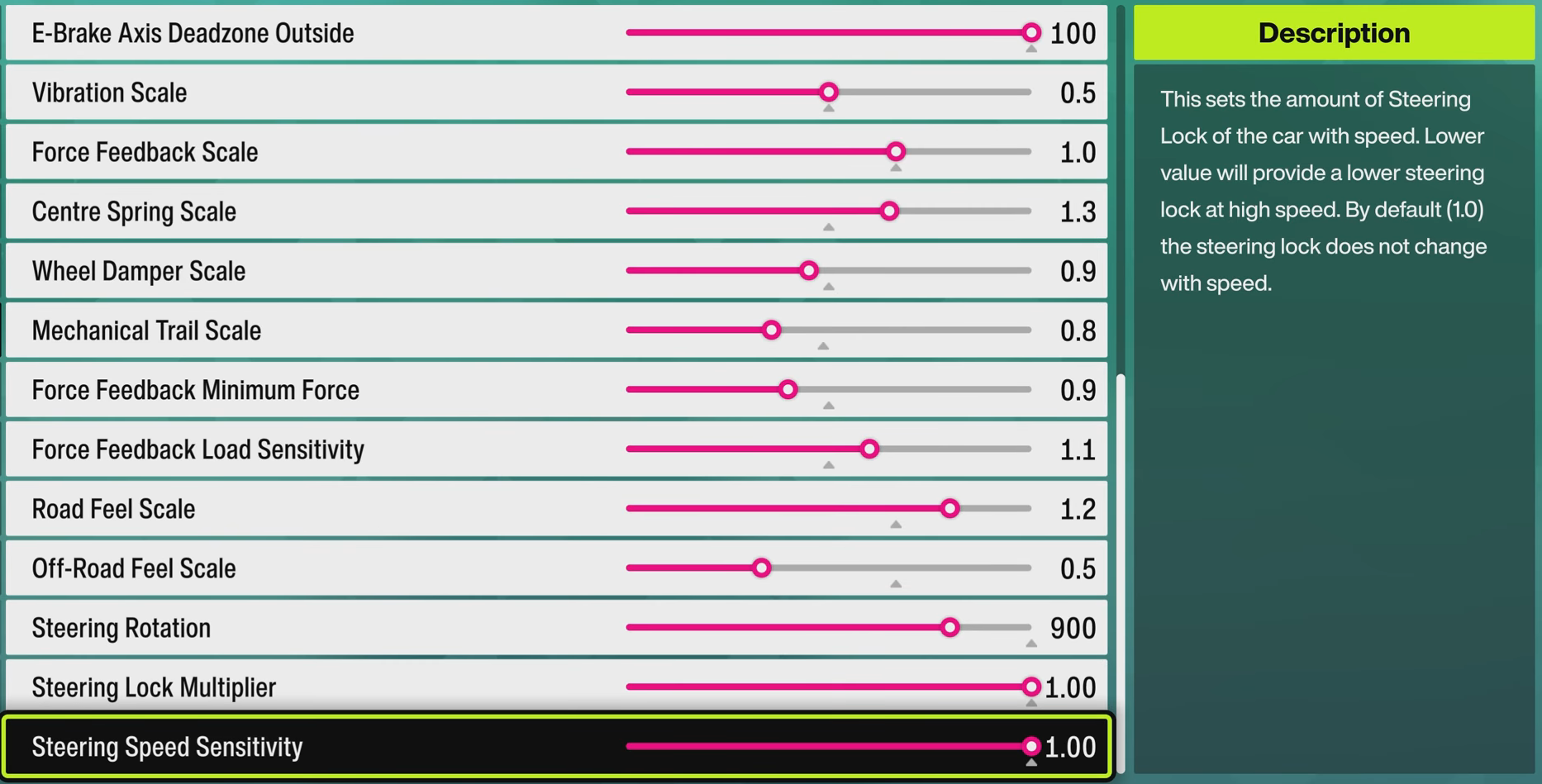
For belt-driven wheels, stay close to the universal preset. These wheels usually feel smoother than gear-driven models, but they still do not have the raw torque of direct-drive wheels. Center Spring around 0.7 to 1.0, Wheel Damper around 0.4 to 0.8, and Mechanical Trail around 0.9 to 1.1 should feel balanced. Use 720 for faster racing control or 900 for a smoother road-car feel.
For entry-level direct-drive wheels, lower the artificial weight a little. These wheels already give cleaner feedback, so too much spring or damper can make the steering feel slow. Try Center Spring Scale around 0.4 to 0.8, Wheel Damper Scale around 0.2 to 0.5, and Mechanical Trail around 0.7 to 1.0. Steering Rotation can stay between 720 and 900, depending on how quickly you want the car to react.
For high-torque direct-drive wheels, reduce the spring and damper. Strong DD bases can feel heavy very quickly, and too much in-game force can hide the tire feedback. Try Force Feedback Scale around 0.5 to 0.7, Center Spring Scale around 0.0 to 0.4, and Wheel Damper Scale around 0.0 to 0.3.
I’ve read on OverTake.gg that having a high Force Feedback setting value caused the wheel to snap and rotate uncontrollably, which can inflict an injury, especially if you’re using expensive wheels with heavy and solid components, not the cheap and light plastic counterparts.
Mechanical Trail around 0.5 to 0.9 usually works better than very high values. Steering Rotation between 720 and 900 is the safest range, while 540 is better saved for drifting or advanced players.
For graphics settings to tune your game performance and FPS, check out Best Forza Horizon 6 Settings by Rick Flair.
Browse our hottest Forza Horizon 6 Boosting services

Best Wheel App Settings
Now, most wheels come with their own software that allows you to customize how steering works in all games. I’ve included some app settings for the most popular brands. I don’t recommend changing them at all, but if you want to try different options, at least make a separate settings profile, so you can always switch to the default whenever you want.
Fanatec Podium DD
|
App / Hardware Setting |
Value |
|
Fanatec SEN / rotation |
540° |
|
Compatibility mode |
Yellow compatibility mode to enable force feedback in the game |
|
Force effect / intensity / strength |
0 |
|
FullForce |
Not important |
Logitech G Pro Racing Wheel
|
G HUB Setting |
Road Racing |
Drifting |
|
Rotation |
900° |
540° |
|
Dampener |
22 |
22 |
|
Force Feedback Strength |
9 Nm |
2 Nm |
|
Force Feedback Filter |
12 |
6 |
|
TrueForce |
15 |
15 |
Logitech G29 / PlayStation G923
|
G HUB Setting |
Road Racing |
Drifting |
|
Sensitivity |
50 |
Not changed / likely 50 |
|
Operating Range |
720° |
540° |
|
Centering Spring |
Off |
Off |
On these wheels, the Force Feedback may feel lighter on the same setting compared to Forza Horizon 5. This is the only case where you might want to exceed the suggested Force Feedback value to really feel it in the game. Set it at least to 1.20-1.3 to make it work as intended.


You got -20% OFF 
MOZA R25
|
MOZA Pit House Setting |
Values |
|
Wheel Base Strength |
30% |
|
Wheel Rotation |
800° |
|
Suggested rotation range |
720° to 900° |
|
Firmware / software version |
Latest Pit House, around 1.3.9 |
|
Device order |
MOZA must be device #1 |
|
mBooster pedal resistance |
Easier to reach 100% |
All in all, for app settings, the only universal value is 540° rotation for drifting. For racing, you can go from 720° to 900°, with 800° looking like a middle ground for direct-drive wheels. Logitech G Pro has the most detailed app settings, while Fanatec and MOZA offer more options for rotation, strength, and compatibility.
F.A.Q.
What are the best wheel settings for Forza Horizon 6?
The best FH6 wheel settings depend on your wheel, but most players should go with these:
- Simulation Steering
- ABS On
- Traction Control Off
- Stability Control Off
- Balanced Force feedback or lower damper and center spring if the wheel feels too heavy.
Should I use Normal or Simulation Steering in Forza Horizon 6?
Simulation Steering is usually the better choice if you’re using a wheel. It gives more direct control and makes the car feel less assisted, which helps with racing, drifting, and learning proper throttle control.
What steering rotation should I use in FH6?
For racing, most players should start between 720° and 900°. That depends on what your wheel can actually do, because different models have different max rotation degrees. For drifting, 540° is usually easier because it lets you countersteer faster and catch slides with less wheel movement.
Why does my wheel feel too heavy in Forza Horizon 6?
Your Wheel Damper, Center Spring, or Force Feedback Scale may be too high. Lower these settings gradually until the wheel feels lighter, but do not remove all resistance if the car starts feeling loose.
Why is my steering wheel not working properly in Forza Horizon 6?
First, update your wheel firmware and check that FH6 detects the correct input device. If the wheel pulls the wrong way, use Invert Force Feedback, and if pedals or steering inputs act by themselves, adjust the related deadzone settings.