 Rick Flair
Best Controller Settings for Forza Horizon 6 Quick Summary:
- Default controls work well, but pro controller users can make manual shifting easier with back paddles.
- Advanced Controls matter more than basic bindings because deadzones and linearity change how responsive the car feels.
- Lower trigger deadzones help with throttle and brake control, especially when coming out of corners.
Forza Horizon 6 feels slow in the beginning. You don’t have money and access to the coolest cars in the game. With our Forza Horizon 6 Credits, you can solve this problem instantly.


Read closely 
Browse our hottest Forza Horizon 6 Boosting services
Forza Horizon 6 Best Gamepad Settings
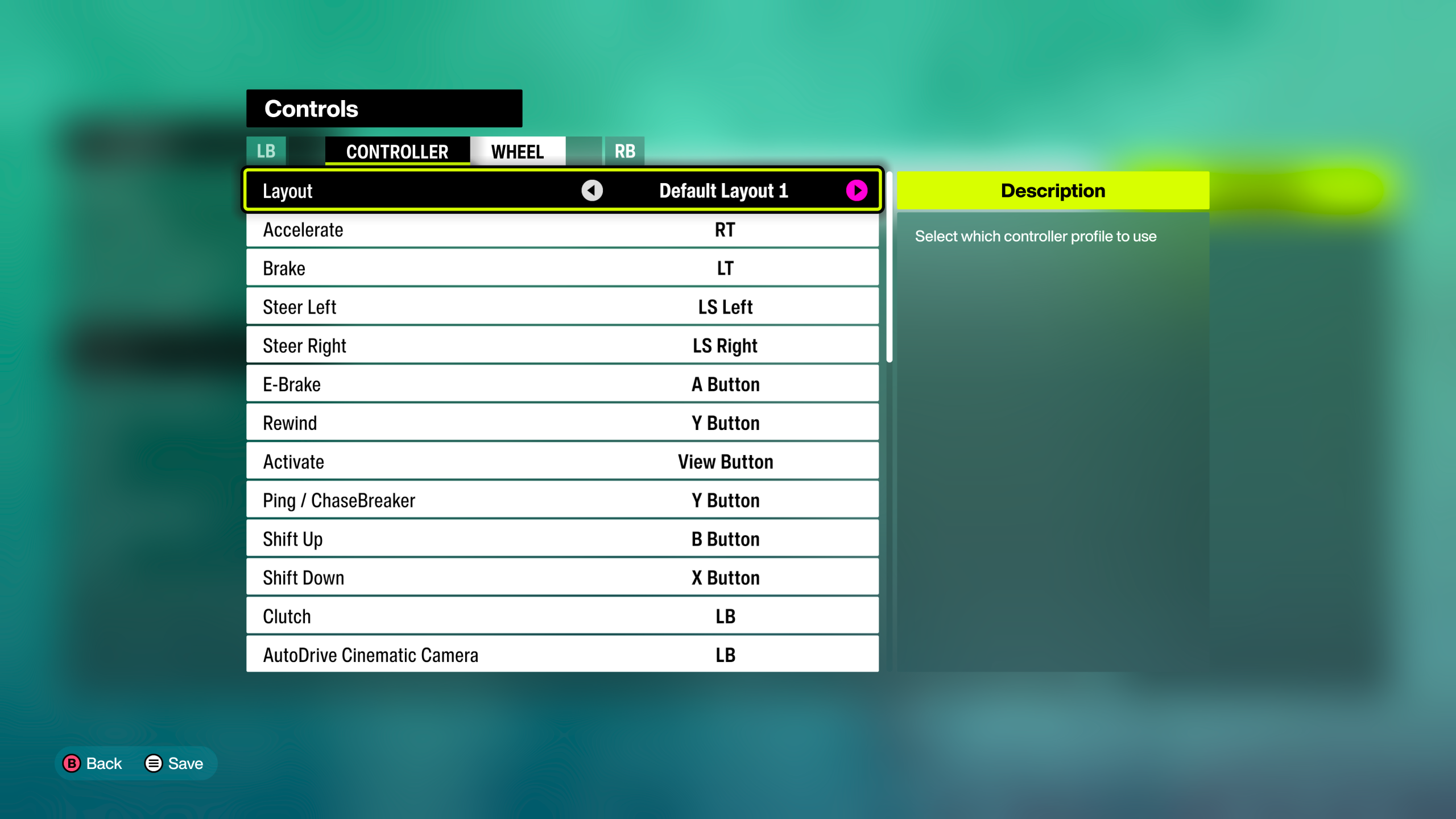
Forza has never been famous for the depth of its control settings (unless you’re using a wheel), but what’s there is quite enough. The default controller layout in Forza Horizon 6 is fine, and I actually prefer it that way, but there are some things you can tweak to your liking, depending on whether you have a pro controller or not. To change the bindings, go to Settings > Controls. Here are the best gamepad settings for Forza Horizon 6:
|
Function |
Button |
|
Accelerate |
RT / R2 |
|
Brake / Reverse (on Auto Transmission) |
LT / L2 |
|
Steer Left |
Left Stick Left |
|
Steer Right |
Left Stick Right |
|
E-Brake |
A / X |
|
Rewind |
Y / △ |
|
Activate |
X / □ |
|
Ping / ChaseBreaker |
Y / △ |
|
Shift Up |
B / O |
|
Shift Down |
X / □ |
|
Clutch |
LB / L1 |
|
AutoDrive Cinematic Camera |
LB / L1 |
|
Switch Camera |
RB / R1 |
|
Toggle Convertible |
LS / L3 |
|
Look Left |
Right Stick Left |
|
Look Right |
Right Stick Right |
|
Look Back |
Right Stick Down |
|
Look Forward |
Right Stick Up |
|
Telemetry |
- |
|
Telemetry Previous |
D-Pad Left |
|
Telemetry Next |
D-Pad Right |
|
Map |
Select |
|
Horn |
RS / R3 |
|
Toggle Mini Leaderboard |
D-Pad Down |
|
Photo Mode |
D-Pad Up |
|
Radio Previous |
- |
|
Radio Next |
D-Pad Right |
|
Activate ANNA |
D-Pad Down |
|
Forza LINK |
D-Pad Left |
|
ANNA/Forza LINK - Option 1 |
D-Pad Up |
|
ANNA/Forza LINK - Option 2 |
D-Pad Left |
|
ANNA/Forza LINK - Option 3 |
D-Pad Right |
|
ANNA/Forza LINK - Option 4 |
D-Pad Down |
These are basically default settings with no changes. If you are on a pro controller, just bind your extra back buttons to shift up / shift down and forget about ever using face buttons. If you’re not, then it’s not a problem at all. The default bindings are actually very intuitive, but I’ve seen some people recommending rebinding them to LB/RB or L1/R1 depending on your controller. Another option is to bind the Clutch to the A/X button and leave the gear shift buttons as is, so that you can switch your gears with one motion. Note that both of these options are only applicable if you drive a manual or manual w/ clutch (the superior way to drive).
Browse our hottest Forza Horizon 6 Boosting services

The Best Advanced Settings for Controllers Forza Horizon 6
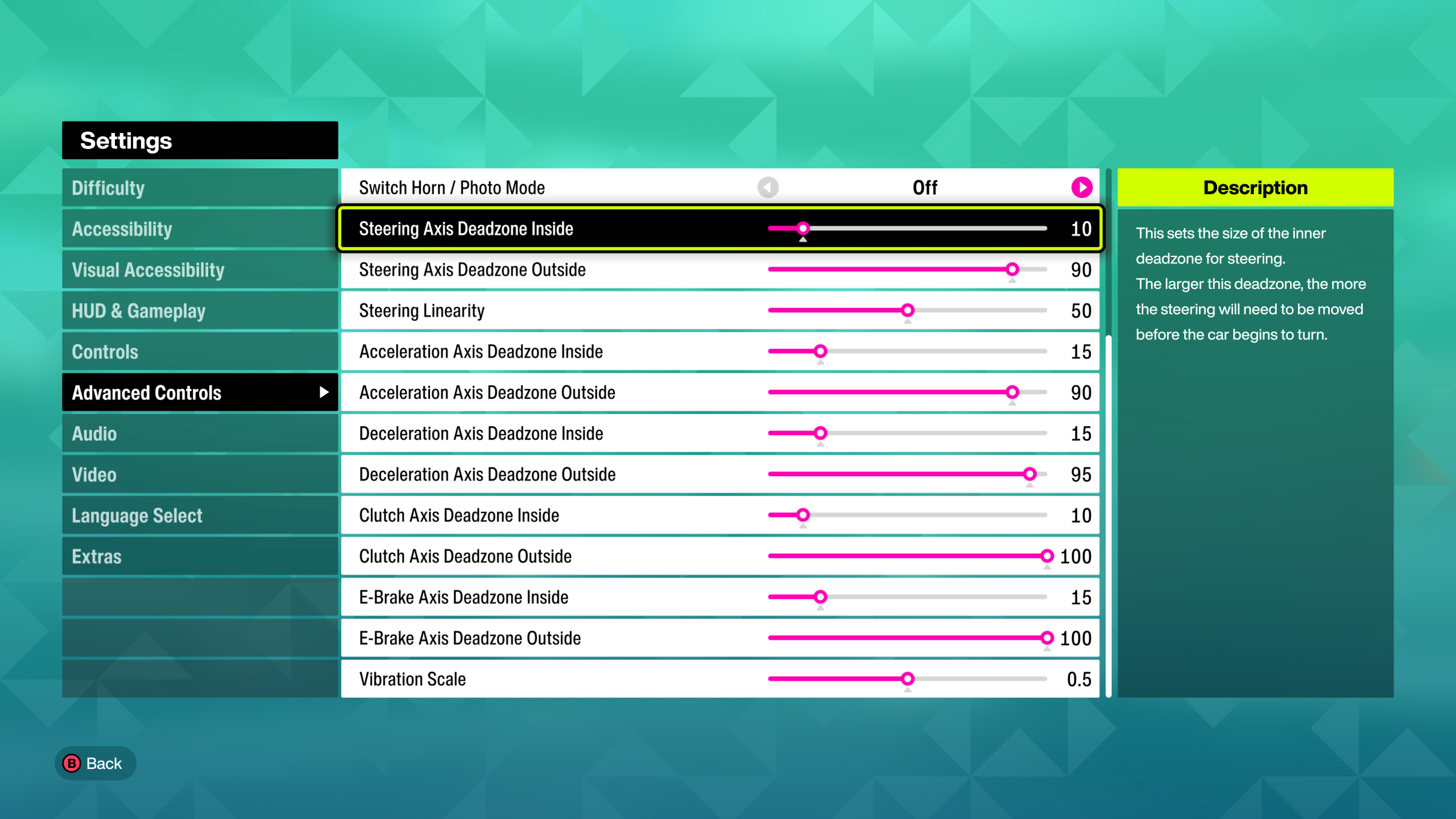
This is where the real fine-tuning begins. Not really fine-tuning, more like very blunt and straightforward tuning. If you feel that your car responds to your input slower than you’d prefer, this is where you can change it. Same as before, you open Settings in the pause menu and then navigate to Advanced Controls. First, let’s talk about Steering Axis deadzones:
- Steering Axis Deadzone Inside: 0-5. Controls how sensitive your car is to the minor left stick adjustments. If you have a hall-effect or TMR controller, drop it to 0. If you are on a default controller, lower it to 0 and observe the car’s behavior. If it starts turning where it shouldn’t raise the deadzone.
- Steering Axis Deadzone Outside: 100. Doesn’t matter what controller you’re on, you should always put it to 100. It controls how much the stick needs to travel to reach the maximum steering angle. If it’s high, then the car is more obedient to your stick adjustments.
Do note that with a lower inside deadzone, it might feel a bit awkward at first cause your car will start reacting to every tiny movement you make on your stick. It will feel almost like oversteering when you’re just getting used to it, but don’t start tuning your car to fix it. It’s working as intended. Then again, high sensitivity might not be for you. Not everyone is like Max Verstappen to enjoy an insanely sensitive car. Next is steering linearity:
- Steering Linearity: 50. Treat it as you treat a response curve in FPS games. At 50, your input is linear. If you are an aggressive driver who swings their stick to the maximum and your car starts spinning because of that, lower it to around 45-47. This will make tiny adjustments more sensitive, and wider adjustments less so. If, on the contrary, you are someone who controls their car smoothly, you might want to increase this setting to around 53-55 tops.
Now to the acceleration and deceleration deadzones. You should put them as low as possible for the widest range:
- Acceleration/Deceleration Axis Deadzone Inside: 0. At the default 15, the car feels too unresponsive, so even if you don’t like playing with 0 as your deadzone, set it not higher than 5. It’s especially useful for feathering when coming out of the corner.
- Acceleration/Deceleration Axis Deadzone Outside: 100. Gives you the full range and the throttle control.
The next two settings are only useful for people who bind their clutch to a trigger, or, god forbid, to a stick. Unless you’re one of these people, don’t change Clutch Axis Deadzone settings. The same goes for the E-Brake Axis Deadzone, as it’s only useful for those who use a real E-Brake pedal or a trigger. If you are, then just like before, put the Inside deadzone to 0 and the outside to 100.


You got -20% OFF 
Forza Horizon 6 Best Controller Settings for Beginners
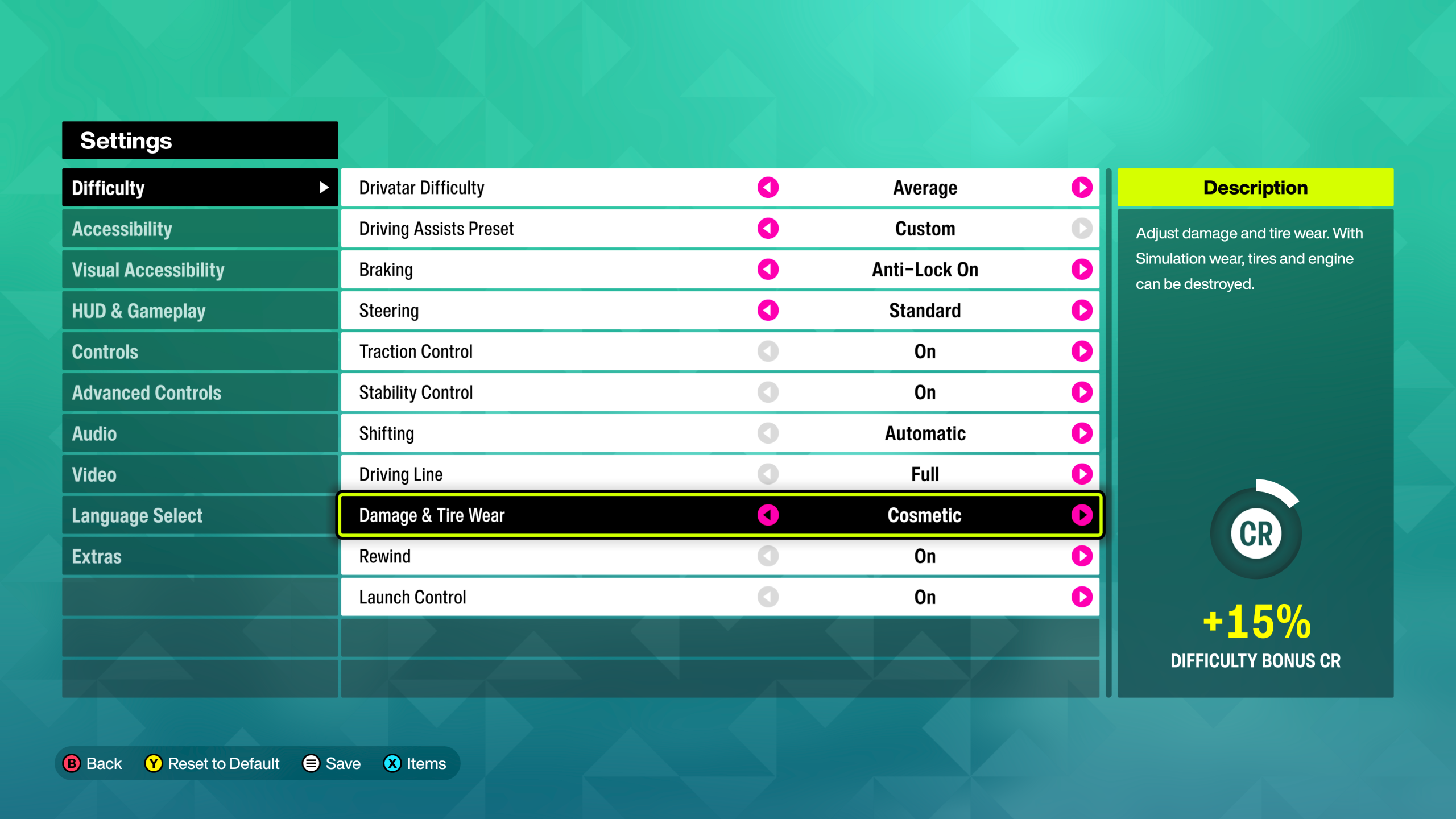
Forza Horizon 6 isn’t fully an arcade racer like the NFS series, but it’s also not a simulator like iRacing or Assetto Corsa. It’s closer to Gran Turismo in a way. It mixes rougher, more realistic physics with some simplified mechanics. If you’re new to driving and it feels like the car is fighting you, perhaps it's because of the difficulty settings and helpers. Another reason might be that your controller settings aren’t what they should be. Here’s a quick guide for the best controller settings for Forza Horizon 6 newbies:
- Controls: Leave the default button layout.
- Steering Inside Deadzone: 3 to 5. These and the following settings are all done in the Advanced Controls tab under Settings.
- Steering Outside Deadzone: 100.
- Steering Linearity: 50.
- Acceleration and Deceleration Inside Deadzone: 0 to 5.
- Acceleration and Deceleration Outside Deadzone: 100.
These settings will make your car feel more responsive. That’s not everything, though, as you might wanna change the difficulty options, as the lowest difficulty settings almost make the car drive itself, and that’s not what you wanna do if you want to learn to drive in this game. Open Settings > Difficulty. Here’s what you wanna change:
- Drivatar Difficulty: Average. Don’t go lower, as you’ll quickly find it boring fighting bots who don’t drive and constantly give in to you.
- Braking: Anti-Lock On. Don’t turn on Full, as the car will brake for you, often more than you want to.
- Steering: Standard. This is the best setting. Going low, and the car starts driving for you. Go too far, and you’ll be playing a sim racer.
- Traction Control: On. Until you learn how to brake correctly, this will help you a lot.
- Stability Control: On. Same for this setting.
- Shifting: Automatic. Though manual and manual w/ clutch are superior and faster ways to drive, you need to learn one thing at a time. When you are comfortable driving a car with these settings, you might switch to manual.
- Driving Line: Full. It gives you a good idea of how to position your car on the track, as in Forza, it’s important to pay attention to the corner angle.
- Damage & Tire Wear: Cosmetic. Even when you’re ready to drive on harsher difficulty settings, changing it to simulation is purely preferential.
- Rewind: On. The AI in FH6 is very aggressive and constantly tries to push you off the road. If you don’t wanna lose just because the AI cars don’t change their trajectory and constantly stick to the driving line, don’t turn it off.
- Launch Control: On/Off. Purely preferential, it’s on in races anyway.
After you’ve played for some time with these settings and feel that you’re ready for something more interesting, you wanna change the following settings:
- Drivatar Difficulty: Expert
- Braking: Anti-Lock Off
- Traction Control: Off
- Stability Control: Off
- Shifting: Manual or Manual w/ Clutch
- Driving Line: Braking Only or Off
- Damage & Tire Wear: Up to you
- Rewind: Up to you
- Launch Control: Up to you
The best thing about Forza is that it lets you experience it the way you want to, so any of these settings are purely preferential and aren’t a golden standard for Festival participants around the world. Once you are skilled enough, you will know what works best for you and what doesn’t.
Read our other Forza Horizon 6 guides:
F.A.Q
What are the best controller settings for Forza Horizon 6?
The best starting point is default button bindings, 0 to 5 inside deadzones, 100 outside deadzones, and 50 steering linearity.
Are pro controllers better for Forza Horizon 6?
I wouldn’t say that they are a must, but they make your life easier and even more immersive, allowing you to shift gears with back buttons.
What settings should beginners use in Forza Horizon 6?
Beginners should keep Standard Steering, ABS on, Traction Control on, Stability Control on, Automatic Shifting, Full Driving Line, Cosmetic Damage, and Rewind on. For controls, you keep default button bindings, 0 to 5 inside deadzones, 100 outside deadzones, and 50 steering linearity.
Should I use manual or automatic shifting in Forza Horizon 6?
Automatic is better while learning. Manual or manual with clutch is much stronger once you are comfortable with the game’s physics. Automatic shifts gears too early, and manual lets you control your RPM and shift at perfect points.