 Dallon Avery
Best Midnight Addons to Get in 2026 Quick Summary:
- See what addons work in Midnight and fix everything that’s wrong with the game and its UI.
- You can clean up the interface by hiding some elements, and be able to move any window with your mouse with one addon.
- Track specific currencies next to gold, check all expansion info in one place with another addon.
- Turn your bags' inventory into one, single space with all items neatly categorised.
- Add missing options to the HUD editor.
Need a little gold to get you going? Buy WoW Gold at Skycoach and get any amount fast and safely. Stop googling gold farming guides, installing unnecessary addons, just get gold directly from players like you!


Read closely 
Browse our hottest WoW Boosting services






Top-5 Must-Have Addons for WoW Midnight
Even with all the changes and additions to the settings options, WoW is not yet ready to leave the need to install addons in the past. As a somewhat new player myself who has played during Shadowlands and is back for Midnight, I found myself in need to fix a couple of baffling problems that WoW has. And don’t get me wrong - I’m fine with what the game lets you do with the UI. I think there’s enough information on the screen to keep a somewhat new player such as myself well-informed about what is going on. But the absence of some of the most basic features that literally every other MMORPG has made me go look for some addons.
In this one, I’ll share my personal top 5 addons that every player needs to have. It’s not just for new players like me; it’s the list of addons for everyone who thinks they can do without addons. Believe me, I’ve already written “How to Fix WoW UI Wihtout Addons,” and I know exactly where Blizzard fell short of players’ expectations. So, I’ll start with the two addons that I am currently using and then name 3 more that you should have as well. Yes, some of their functionality overlaps, but at least you will be able to make the game way more comfortable and cleaner.
Enhance QoL
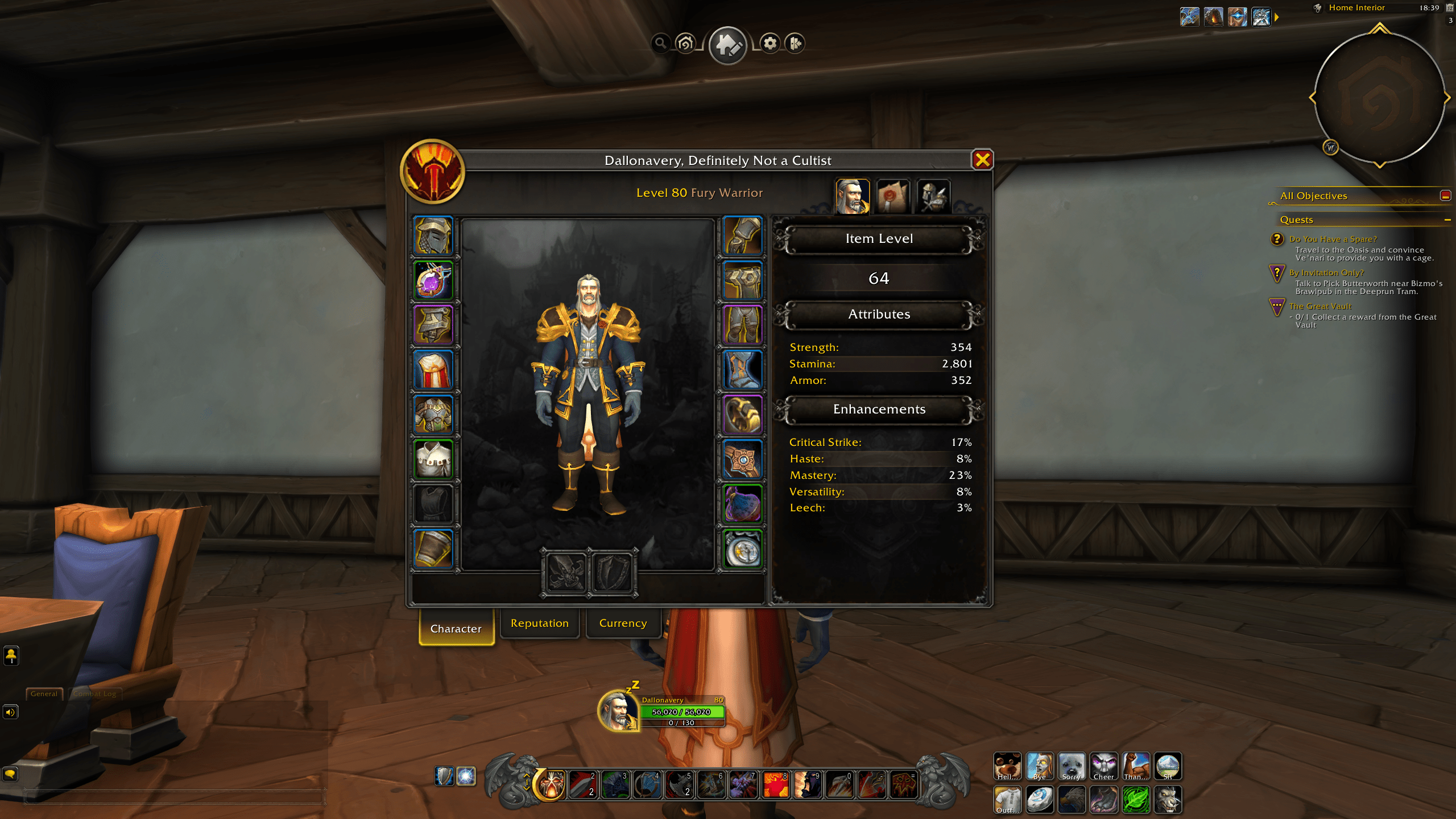
Could anyone explain to me why every window I open in the game, be it the map, questlog, bags, the character page, or the professions window, is all locked in specific places on the screen, and you can’t even move any of them? If Blizzard is refreshing the UI and adding quality of life features, letting you move things around, then why can’t I move any of these things?
I can’t preview how graphics settings change in the game because that window is in the middle, and I have to close it to see what’s changed, even though the changes apply instantly.
This was the first thing that I just had to fix, and I found the solution in this mammoth of an addon called Enchance QoL.
This addon includes a whole bunch of useful things. And while I haven’t used every single thing it can do, it’s nice to know that if something is bothering me, this addon can help me change it. So, here’s what I’ve changed:
Enable Mover and Scaler for In-game Windows
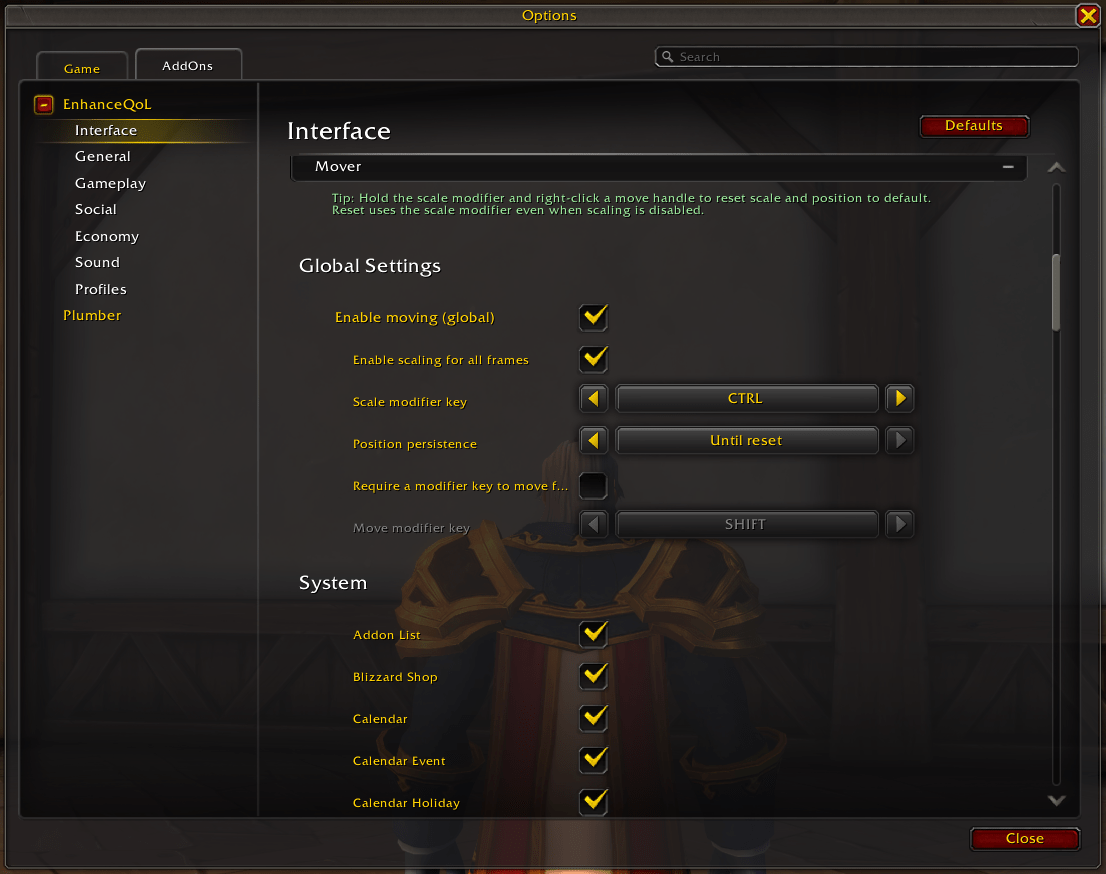
Go to the addon settings and select the Interface category. Scroll down to the bottom and expand the last option called “Mover”. In there, you’ll see a bunch of settings. Here’s what I chose and why:
- Enable moving (global): Enabled (checked)
- Enable scaling for all frames: Enabled (checked)
- Scale modifier key: CTRL
- Position persistence: Until reset
- Require a modifier key to move frames: Disabled (unchecked)
- Move modifier key: SHIFT
By default, you’ll be able to move any window you like if you hold down SHIFT, but I disabled it, so I can move windows just by dragging them with my mouse.
Scaling is disabled by default, but you can enable it to resize any window individually, in case you have a big monitor, and you want to see something bigger. The game lets you scale text by default, but that doesn’t even work well. With this, you’ll be able to resize any window.
And it should not be surprising, but all the changes that you made to the window position or scale will be saved until you move them again. If you don’t like that, you can change it to reset on frame close or logout.
Hiding Action Bars And Menus When You Don’t Need Them
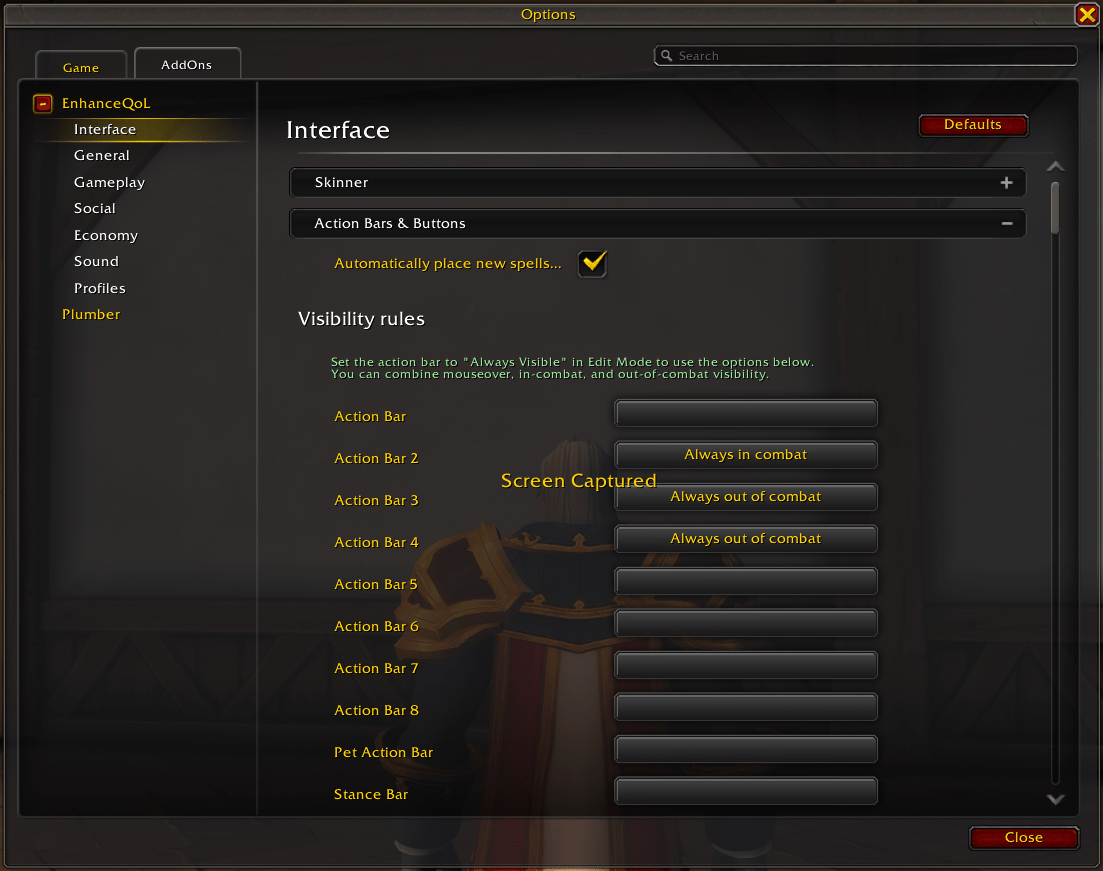
Another thing I decided to do is clear up some of the on-screen HUD that I don’t need to see all the time when I’m playing the game. Luckily, this addon lets you do that.
For example, you can hide individual action bars and have them display under certain conditions. For example, I’ve added two custom action bars for my emotes (for social interaction and some light RP) and utility stuff like my mount, hearthstone, transmog window (which is another addon feature), etc. But I don’t need to see them during combat, so I made them disappear when combat starts.
Similarly, I don’t need to see the second action bar with all of my abilities when I’m out of combat. It just takes space on the screen. So I changed it so that the second action bar only shows up when I’m in combat. To do that:
- Expand the Action Bars & Buttons menu in the Interface Category.
- Change any bar display behavior and conditions;
The list of available conditions is pretty extensive:
- Mouseover
- Always in combat
- While skydiving
- Hide while skydiving
- Always out of combat
- Player is casting
- Mounted
- Not mounted
- In party/raid
I’ve also hidden the Micro Menu on the right and the bags icon because I just don’t need to see them all the time. I’ve made it so they appear when I hover the mouse over them, so I don’t have to memorise the specific key binds for every button. It’s very handy and cleans up a lot of space on the screen.
- Expand the Visibility & Fading (Frames) menu in the Interface Category.
- Select any desired frame and its display behavior.
I could literally write an entire guide on using this addon, because there are hundreds, if not thousands, of things you can change with it. I just want to mention some of the coolest things that you can also do with Enchance QoL:
|
Feature |
What it does |
Why use |
|
Teleport Compendium panel |
Let's you pick teleports directly from the world map |
Huge time saver, replaces hunting toys, hearths, and teleports |
|
Health potion macro |
One button emergency heal that auto updates to your current potion or healthstone |
Zero upkeep, saves keybinds, avoids broken icons when bags are empty |
|
Out of combat Recuperate swap |
Option to use Recuperate outside combat instead of a potion |
Keeps the same keybind useful and reduces button bloat |
|
Custom cooldown panels |
Tracks spells and items that the default cooldown manager does not |
Great for potions, trinkets, racials, and niche cooldowns |
|
Minimal quest tracker minimization |
Makes the minimized quest tracker actually minimal |
Cleans the screen without losing quest awareness |
|
Action bar fading and cleanup |
Fades action bars and supports a minimalist leveling UI |
Replaces separate HUD tweak addons with less setup |
|
Built in popular WeakAura style utilities |
Includes things like mouse ring, hold to release, and keystone helper style functions |
Adds common QoL staples without extra addons |
|
One addon replacing several others |
Can cover automations, selling items, and UI tweaks depending on settings |
Fewer addons to manage, fewer conflicts, faster setup |
So, yeah, there’s a lot, and you should really check this addon out. It’s a life-changer and a must-have even for new players.


You got -20% OFF 
Plumber
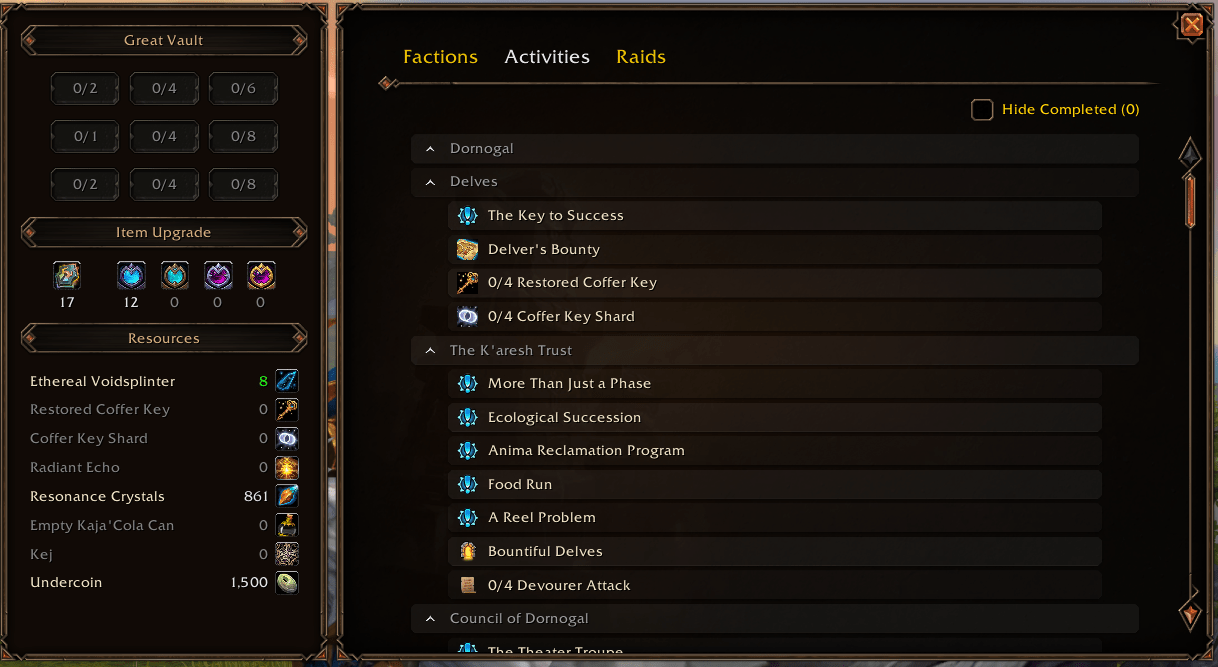
Another addon that doesn’t just add something totally new, but also addresses every little oversight in the design of the user interface and makes it look better. And best of all, these additions look absolutely natural, as if they were added by the devs themselves. Here’s everything I’ve enabled and am using with Plumber.
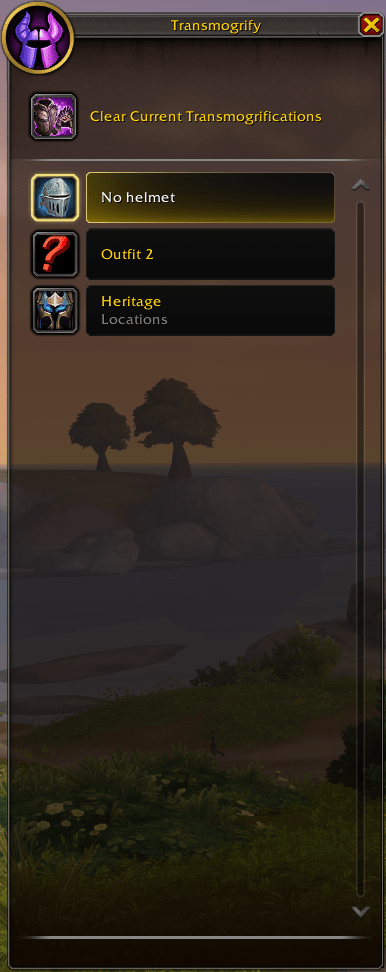 Transmog Window Button
While you can drag every single transmog set to your action bar and switch between them, Plumber adds a macro button that opens the list of your transmogs, where you can easily switch between them on the go!
Even someone who has literally less than 10 transmog sets found this feature useful. Because I know, I’m going to need this a lot in the future. All you have to do to enable this is go to the Collections section and tick the “Outfit Collection: Quick Access.” After that, the next time you visit Transmogifier, just drag the quick access button that you will find above the list of outfits to your action bar.
Improved Loot Window
The default loot window is fine, but the new one fits all items in the same window and adds the “Take All” keybind, which is super handy. The design also looks clean and modern.
Backpack Item Tracker
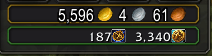
This one is cool because it lets you drag any collectible item, like a unique currency, onto the currency line in the bag right next to the gold, so you can have an easier time tracking it. I’m using it to track the Twilight’s Blade Insignia, the pre-patch event currency, and the Trader’s Tenders, so I never have to open the character screen for it. To enable this, go to your currency screen and left-click on any currency you want to track, then select “Show on Backpack”.
Expansion Summary
This one is for me. As someone who has zero idea about the kind of content I can do in any expansion, this window is a lifesaver. It lets me see all important quests and activities, track all faction reputation, check every raid and every boss inside for specific loot on any difficulty, and see all the currencies. Just enable this window in the settings and then click on the small icon under the calendar in the top right corner of the screen to open it. You can also set a custom keybind for this window. It’s also a movable window with the Enchance QoL addon!
Browse our hottest WoW Boosting services







Better Bags
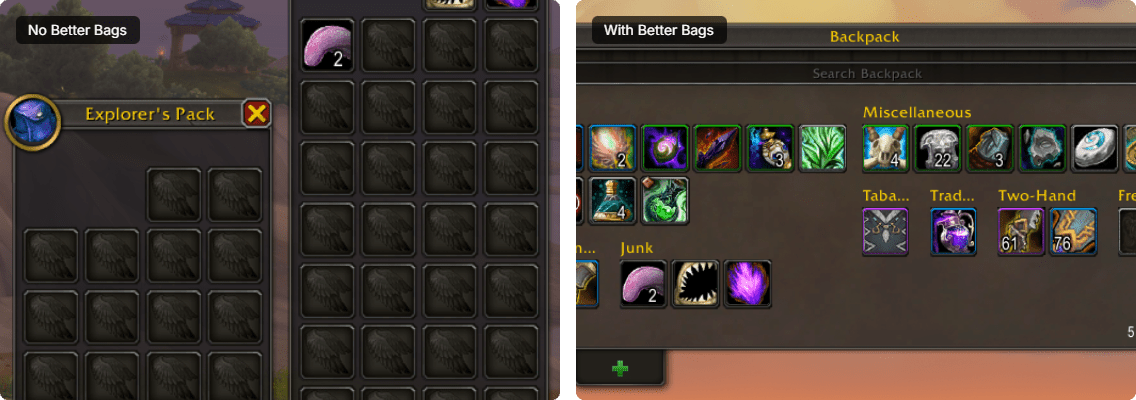
I don’t know why this game still has a bag system when most MMORPGs give you a clean, unified inventory. I get it - it's pretty cool to customize the amount of inventory slots that way, but it's a goddamn nightmare to look for something in it. I do appreciate the developers adding the individual filters that I can put on each bag, but it's not really helping much.
Auctionator
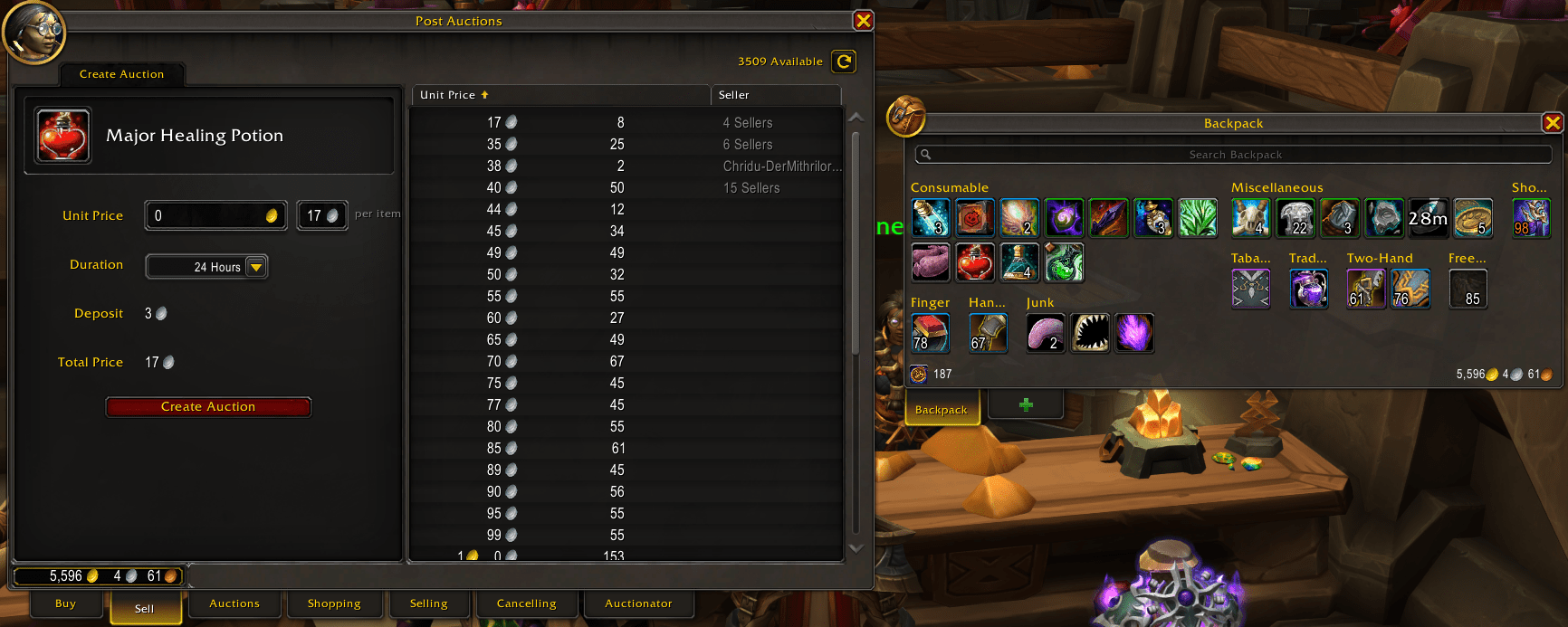
I’m pretty sure anyone who is using Auction House for any reason should use Auctionator. Auctionator is the “make the Auction House painless” addon for normal players who just want to buy, sell, and move on. It replaces the clunky default flow with a clean UI, fast searching, and safer posting so you do not accidentally list items for pennies. It also adds market context everywhere, since it can show auction and vendor values right in your tooltips, powered by full scans that update pricing data.
Most important Auctionator features to mention
- Auction prices in item tooltips, updated via full scans
- Simple, straightforward Auction House UI
- Protection against posting too low
- Shopping lists with search history and strong filters
- Faster selling workflow with auto undercut options and quick posting
- Undercut scanning plus one click cancelling for your auctions
- Price history so you can judge “good deal” vs “trap.”
- Crafting support that shows reagent costs and estimated profit, plus a quick reagent search from crafting
- Optional addon module support, like Journalator for tracking sales and purchases
The addon changes the interface, but not in a way that feels out of place. It looks pretty native to me, which is why some new players who haven’t used AH before wouldn’t even know that this is an addon-enriched window.
Cooldown Manager Centered
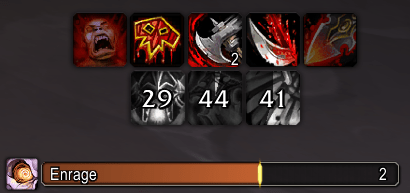
Cooldown Manager is something that’s used by a lot of players, but the default settings for it don’t allow you to center the cooldowns. It only fixes one annoying thing without changing what the developers added. It might be a little nitpicky to fix this, but come on. The devs put a lot of work into this and somehow missed this? That’s a shame. Luckily, it’s an easy fix with this addon.
The way it works is this - whenever you reduce the number of columns in the horizontal orientation, the icons in the new row are centered instead of placed on the left or right. Makes it look better.
Read our other WoW guides:
- Twilight Ascension Guide
- Midnight Gearing Guide
- Midnight Leveling Guide
- Gold Farming Guide
- Mythic+ Guide
F.A.Q.
How to install addons in WoW Midnight?
The installation is simple, just unpack the folder with the addon into the _retail_/Interface/Addons folder. Then, make sure to check the addon in the in-game settings.
Do addons work in WoW Midnight?
Some of the most popular ones have been discontinued, but there are fully operational addons that offer a huge number of customizations and additional features.
How to move windows in WoW?
If you install the Enchance QoL addon, you can enable the mover and resize features, which will allow you to move your map, character panel, and any other window.
Can I hide some of the HUD elements in WoW?
Yes, some HUD elements can be hidden with the in-game HUD editor, but there are addons that expand on this, allowing you to hide more stuff, making the interface cleaner and more dynamic.
How to change inventory in WoW?
If you install the Better Bags addon, the default layout of separate bags will be changed to one unified interface with all items automatically categorised.