 Crispy Jackie
Best Marathon Settings Quick Summary:
- Drop all the settings to Low if you’re struggling with FPS, but leave Texture and Shadow Quality on High for better visibility.
- Always turn off Motion Blur, Film Grain, and Chromatic Aberration for a sharper image and better aim control.
- Keep Render Resolution at 100% unless you’re having serious problems with FPS, or you’ll lose a lot in terms of visibility and spotting enemies at mid-range distance.
- Always set V-Sync to off to avoid capping your FPS.
Don't waste your time and trust your Marathon Leveling to our PROs at Skycoach. We're always here to help you get the best rewards, tons of loot, faction rep, and so much more.


Read closely 
Browse our hottest Marathon Boosting services






Best Marathon Video Settings
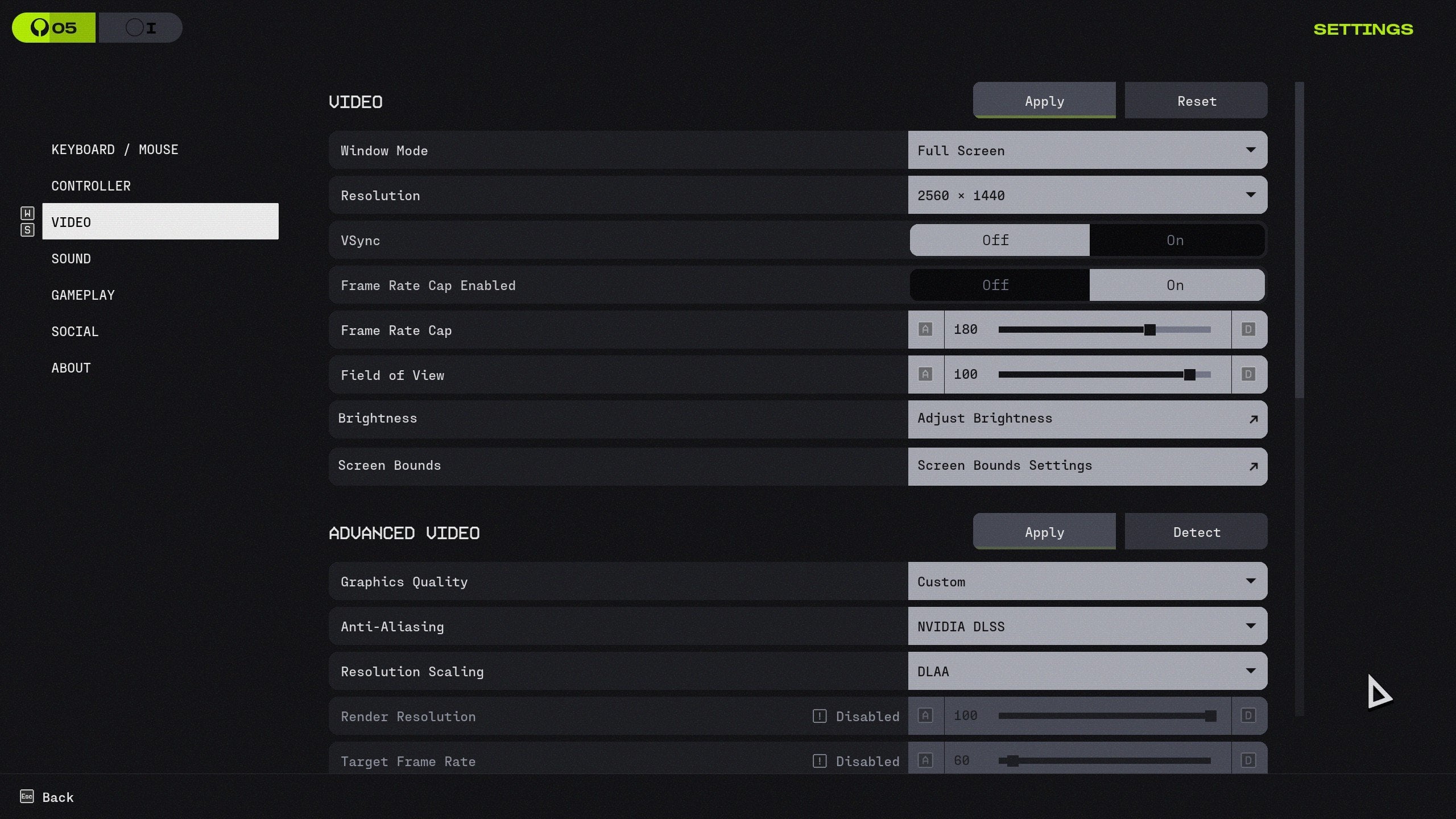
Alright, let’s start with the boring stuff that secretly matters the most. I’m talking about video settings, and this is what helps you fix input delay and clean up motion. All that makes Marathon look like a game, not a random sci-fi slideshow after anything explodes near you. Certain settings in this table should be changed according to your preference (Resolution), but most of them should stay the way I show them. See the best Marathon video settings here:
|
Option |
Recommended |
|
Window Mode |
Fullscreen |
|
Resolution |
Your native monitor’s value (e.g. 2560 x 1440) |
|
V-Sync |
Off |
|
Framerate Cap Enabled |
On |
|
Framerate Cap |
Slightly higher than your native monitor’s refresh rate |
|
Field of View |
100 |
|
Brightness |
Up to your preference, but don’t make it too dark |
My biggest advice here is to cap your FPS at a slightly higher value than your monitor’s refresh rate. For example, I’m running a 180 FPS cap at my 165Hz monitor, and yeah, I’m feeling more than okay with that. My PC isn’t good enough to run everything on Highest, but I’m satisfied with how the game runs.
You might also want to experiment with FOV here, but the value of 100 is usually a golden standard. There’s no way you want to go higher because you’ll have a sort of fisheye effect. But going lower than 90-100 will often leave you at a disadvantage when you just don’t see an enemy from the sides.
And, for God’s sake, never ever turn on V-Sync. That’s the most terrible tweak you can do out of all Marathon settings. It’ll completely ruin your experience. I’m actually wondering when game developers stop adding this option at all. That’s so old school…
Best Marathon Graphics Settings
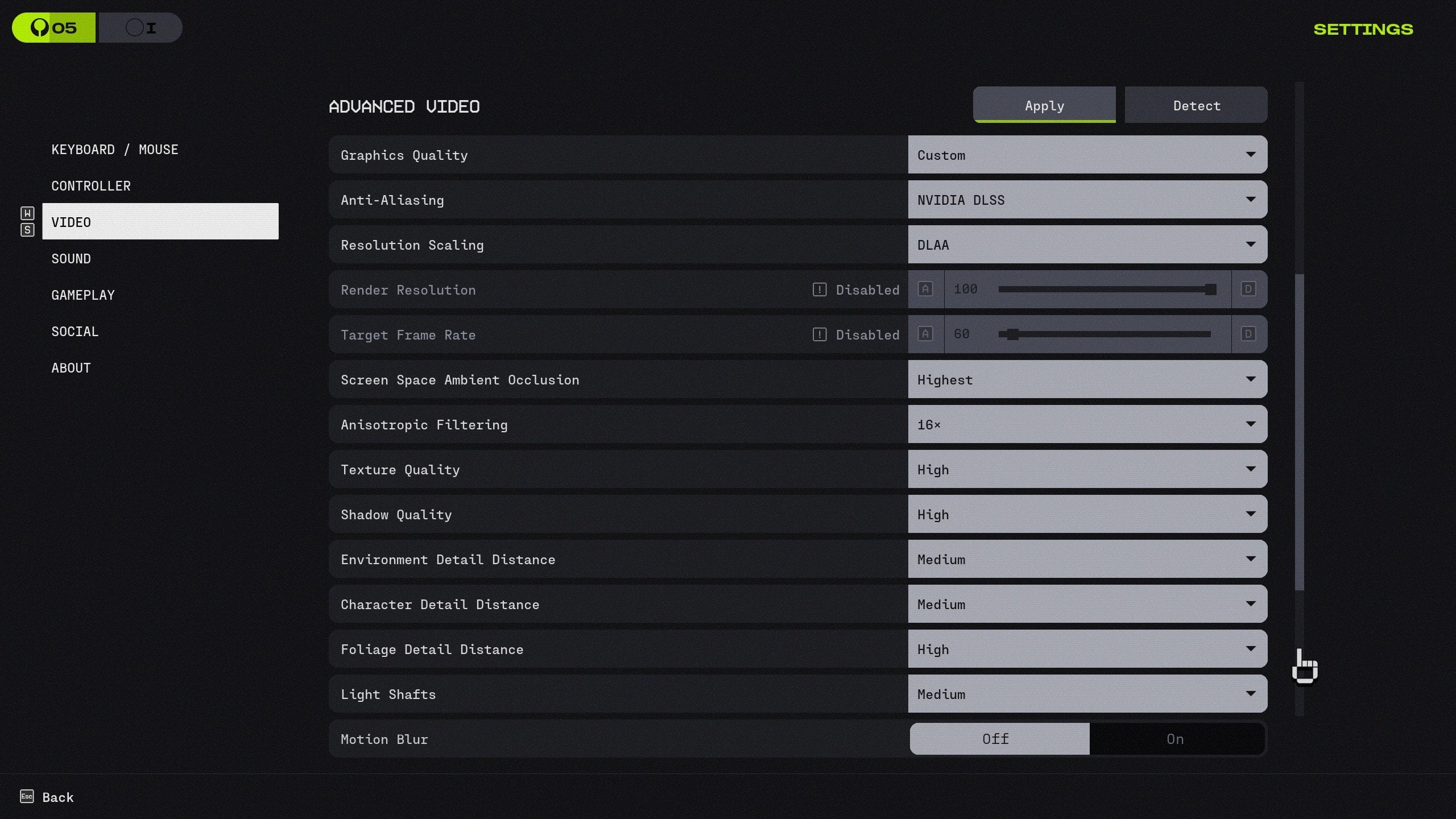
As for changing your graphics settings, this largely depends on what PC you’re running Marathon on. The table you see below would fit most of the medium-to-modern rigs, but there’s always space for experiments. Check out the best Marathon graphics settings:
|
Option |
Recommended |
|
Anti-Aliasing |
NVIDIA DLSS |
|
Resolution Scaling |
DLAA |
|
Render Resolution |
Disabled |
|
Target Frame Rate |
Disabled |
|
Screen Space Ambient Occlusion |
Highest |
|
Texture Anisotropy |
16x |
|
Texture Quality |
High |
|
Shadow Quality |
High |
|
Environment Detail Distance |
Medium |
|
Character Detail Distance |
Medium |
|
Foliage Detail Distance |
Medium |
|
Light Shafts |
Medium |
|
Motion Blur |
Off |
|
HDR |
Up to your preference |
|
Chromatic Aberration |
Off |
|
NVIDIA Reflex |
Up to your preference, but I have it On |
| UI Refresh Rate | High |
The big win here is DLSS for AA paired with DLAA scaling at 100% render resolution. I’ve also set some of the settings to Medium just to get extra frames, but you can definitely go High if your PC allows so. But I keep Texture Quality and Shadow Quality high for better visibility in Marathon, yet we’ll get to that section later in the guide.
What I don’t recommend leaving on are all the cinematic settings like Motion Blur, Chromatic Aberration, and so on. Stuff like Film Grain should always be Off as well because all that doesn’t help in an extraction shooter, trust me. This will only distract you from seeing clearly and reacting to your enemy’s actions. Combine these well-balanced graphics settings and the strongest Runner Shells in the game, and you're good to go in both solo and squad modes.
Best Marathon Settings for FPS
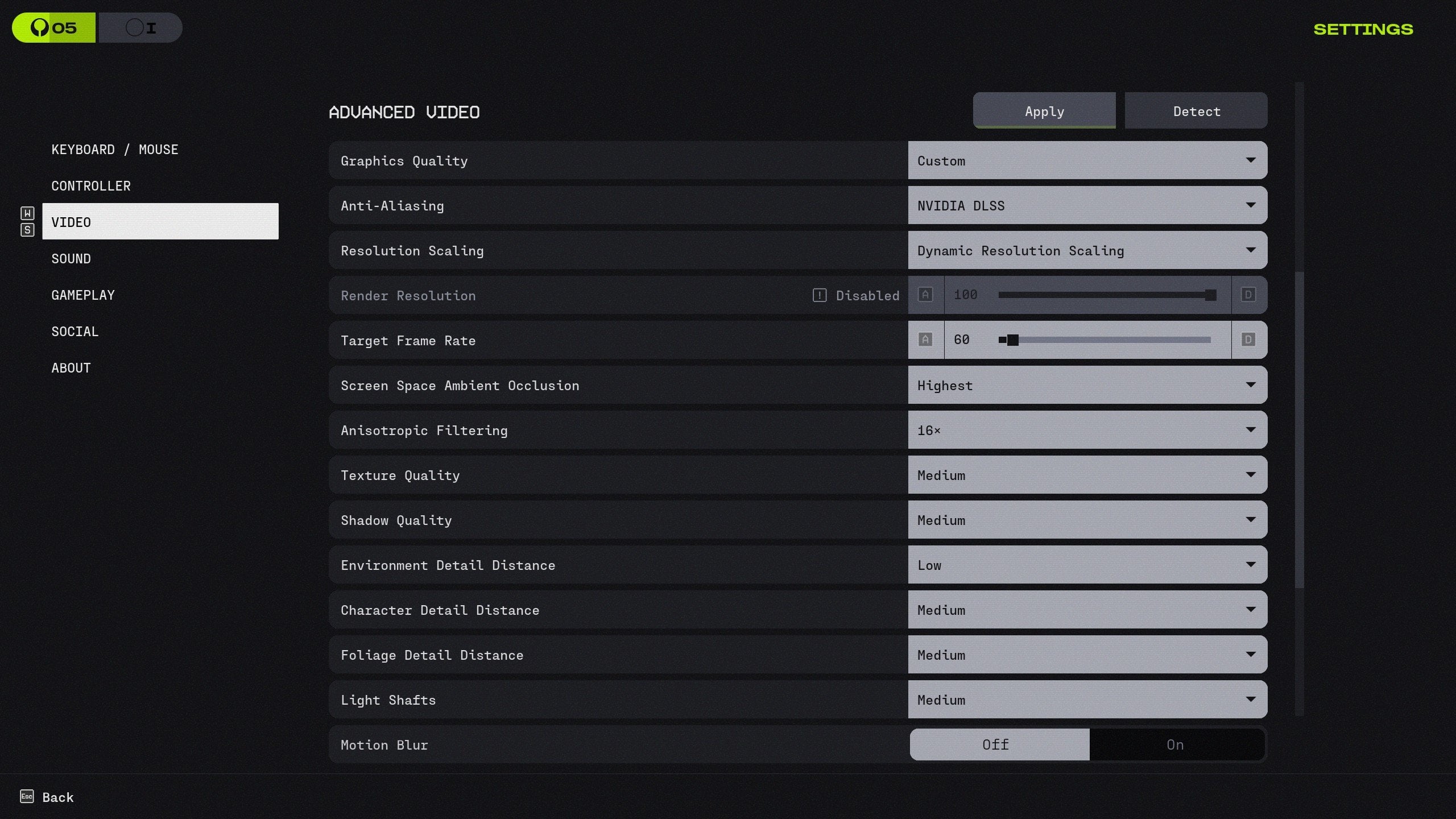
This is the most controversial part of the guide for me because you surely want to squeeze every frame possible, but also keep your game looking okay. The words "crisp" or "sharp" wouldn’t be appropriate here at all, lol. I’ve run a lot of tests to see what options actually cut down frames and how they impact the gameplay. And here are the best Marathon settings for FPS:
|
Option |
Recommended |
|
Anti-Aliasing |
NVIDIA DLSS |
|
Resolution Scaling |
DLAA |
|
Render Resolution |
You can set it lower 100%, but don’t go too low |
|
Target Frame Rate |
60 |
|
Screen Space Ambient Occlusion |
Highest |
|
Texture Anisotropy |
16x |
|
Texture Quality |
Medium |
|
Shadow Quality |
Medium |
|
Environment Detail Distance |
Low |
|
Character Detail Distance |
Low |
|
Foliage Detail Distance |
Medium |
|
Light Shafts |
Medium |
|
Motion Blur |
Off |
|
HDR |
Off |
|
Chromatic Aberration |
Off |
|
NVIDIA Reflex |
Up to your preference, but I have it On |
| UI Refresh Rate | High |
I already hear the way you’re arguing about Render Resolution and how I suggested lowering it. But the thing is that this is the only thing that can help those who are using the lowest-end PCs. Still, don’t go too low or enemies will start blending into the map, especially at mid-range.
Second, the target frame rate of 60 looks weird if you own a high refresh monitor, but it’s a stability cap for weaker PCs, so your frames stop spiking. Third, keeping Texture Anisotropy at 16x is intentional because it’s usually cheap and it keeps surfaces crisp, which helps tracking. And yes, Reflex stays on. You can also experiment with Foliage Detail Distance and Foliage Shadows Distance, but keeping them on Medium seems like the best option.
Browse our hottest Marathon Boosting services


How to Increase FPS in Marathon
For those of you who have an actual old setup but don’t want to upgrade it now, I’ve got other solutions. You can do certain PC fixes, each taking no more than five minutes. But this should help you get extra frames in Marathon and other games. This is how to increase FPS in Marathon and what steps to try:
- Update GPU Drivers: But make sure you do a clean install rather than just updating. This point is especially important if you’re playing fresh releases like Marathon. By the time you’re reading this article, the devs have surely released the latest batch of drives for you to download. Don’t miss that.
- Close Background Apps: This eats both CPU and RAM. Yes, it’s time to close that browser with 30 tabs you’re not going to open any time soon. The same goes for any unnecessary launches, overlays, and even Discord if you’re not using it now.
- Set Marathon to High Priority: Make sure that the game always runs in high priority. You can do this by opening the Task Manager and selecting the priority you want this app to be in.
- Switch Your Power Plan: See if your Windows works in High or Ultimate performance. This is especially important if you’re playing on a laptop, as they hard throttle on Balance mode.
- Install Marathon on an SSD: This is a golden rule, but I’m just reminding you of that in case you forget. All the online games, especially competitive shooters like Marathon, should always be installed on your SSD, not HDD.
- Check Your Temps: If your CPU or GPU is hitting thermal limits, you’ll eventually lose FPS and overall performance in any game. Marathon isn’t an exception here. This might be a very good time to clean up your PC.
- Play Plugged In: This is only applied to those who’re using laptops to play Marathon. Playing unplugged significantly reduces your rig performance.
These tips might be quite basic, but you never know what ruins your performance. Going through this checklist will make Marathon run better. If nothing helps, this might be the signal you’ve been waiting for, and you need to upgrade your PC.
Best Marathon Audio Settings
The only rule you need to remember in any competitive shooter, especially extractions, is that audio is basically free wallhack. You just need to tune it right to hear all the footsteps. Check out my best Marathon audio settings to help you with that:
|
Option |
Recommended |
|
Lobby Music |
0 |
|
Gameplay Music |
2 |
|
SFX Volume |
8 |
|
Dialogue Volume |
6 |
|
Chat Volume |
5 |
|
Mute When Not Focused |
Up to you, but I leave it On |
Turning Lobby Music to 0 is just sanity. Gameplay Music stays low because it’s fun, but it should never cover enemy movement. SFX at 8 is the big one, since that’s where footsteps, reloads, and ability cues live. Dialogue at 6 keeps callouts clear without blasting you during fights, and chat at 5 is enough to hear teammates without them drowning out the game.
Extra Tips for Better Visibility
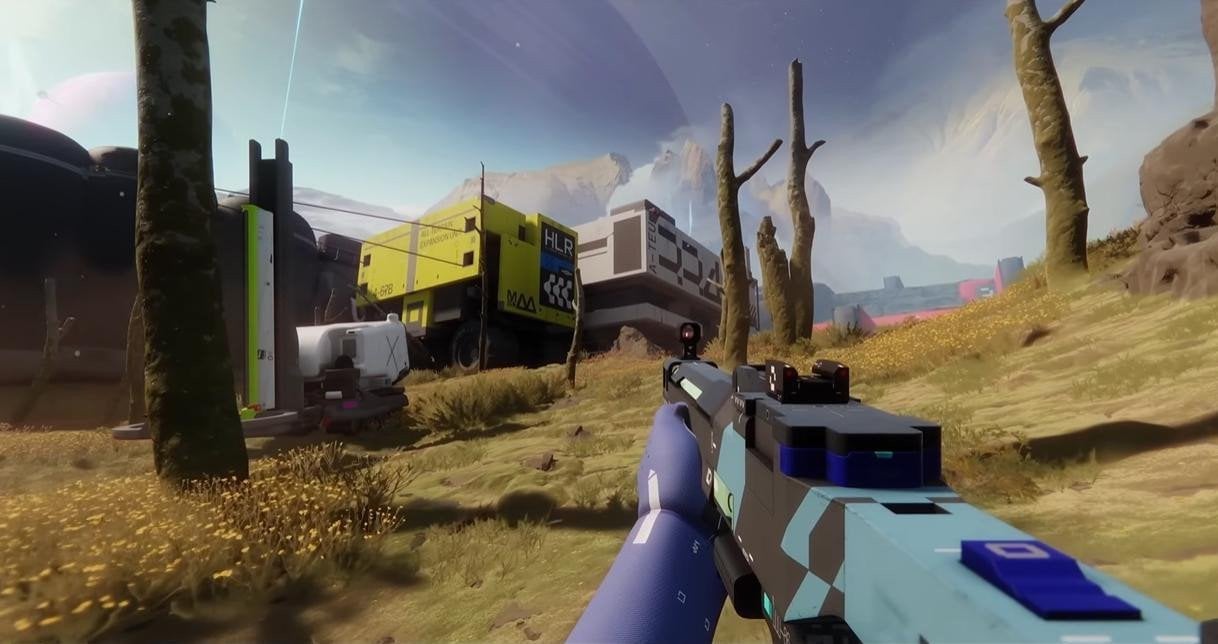
I’ve gone through all the in-game settings you can tweak for better performance. But now let’s talk about what matters more than that in extraction shooters, where you don’t have the right for a mistake. I’m talking about visibility, of course. It’s the only thing you should care about if your PC is running the game fine. These are the settings you want to change in Marathon for better visibility:
- Turn off Motion Blur, Film Grain, and Chromatic Aberration. You get no better if you leave them working, but they significantly ruin your image. This is especially seen during fast tracking and recoil control.
- Keep Render Resolution at 100% if you can. Setting it to a lower value gives FPS, but it also makes targets look softer at mid-range. My advice is to keep it at 100%, even if you lose a few extra frames because of that.
- Set Texture Anisotropy to 16x. This doesn’t eat many frames, but makes edges smoother. This is exactly what you need to spot the enemy’s model and see it clearly.
- Don’t set FOV too high. I’ve said about it already, and you want to keep your FOV around 90-100, no more. Setting less will put you in a lot of moments when you die because you don’t see what’s happening. But setting it too high shrinks targets and makes spotting way harder.
Don’t underestimate the visibility factor because you have no room for mistakes in Marathon, especially when playing solo. The faster you spot an enemy, the more chances you’ll win this fight. You can also learn more about core in-game mechanics by reading our separate Marathon beginner's guide. It'll help you stay alive and extract with a ton of loot even if you're a complete newcomer.


You got -20% OFF 
Marathon System Requirements
I’m sure that even the oldest PC will run Marathon on low settings. You can make sure if your rig meets the requirements in this part of the guide. I’ve prepared two tables for your convenience.
Marathon Minimum System Requirements for PC:
|
OS |
Windows 10 64-bit |
|
CPU |
Intel Core i5-6600 / AMD Ryzen 5 2600 |
|
RAM |
8 GB RAM |
|
GPU |
NVIDIA GeForce GTX 1050 Ti (4 GB) / AMD Radeon RX 5500 XT (4 GB) / Intel Arc A580 (8 GB, with ReBAR on) |
|
Storage |
17 GB During Server Slam |
Marathon Recommended System Requirements for PC:
|
OS |
Windows 10 64-bit |
|
CPU |
Intel Core i5-10400 / AMD Ryzen 5 3500 |
|
RAM |
16 GB RAM |
|
GPU |
NVIDIA GeForce RTX 2060 (6 GB) / AMD Radeon RX 5700 XT (8 GB) / Intel Arc A770 (16 GB, with ReBAR on) |
|
Storage |
17 GB During Server Slam |
These system requirements look like a blessing to me, especially in 2026. Marathon feels super optimized, and I’ve never had a single problem when running it. All that will only become better with future optimization patches.
Read our other Marathon guides:
Changelog
March 6, 2026 - Updated for the game's full release
F.A.Q.
What are the best settings in Marathon?
These are the best settings to use in Marathon in 2026:
- Anti-Aliasing: NVIDIA DLSS
- Resolution Scaling: DLAA
- Render Resolution: 100%
- Target Frame Rate: 120
- Screen Space Ambient Occlusion: Highest
- Texture Anisotropy: 16x
- Texture Quality: High
- Shadow Quality: High
- Depth of Field: High
- Environment Detail Distance: Medium
- Character Detail Distance: Medium
- Foliage Detail Distance: Medium
How much FPS is good for Marathon?
Aim for stable FPS that matches your monitor. That would be 120+ on 144Hz screens and 60+ on 60Hz screens.
How can I make Marathon run better?
Lower render resolution slightly, reduce detail distances and shadows, disable overlays, set Windows to High Performance, update GPU drivers, and install the game on an SSD.
Is 60 FPS good in Marathon?
Yes, if it is stable and your monitor is 60Hz. But on high refresh monitors, it will be less responsive and harder to track fast targets compared to 100-144+ FPS.
Is Marathon well optimized?
Marathon is one of the most optimized games in its genre, and this lets most players enjoy the title even on older PCs.
What is the average FPS for Marathon?
It varies too much by hardware and settings to give one number, but most players land somewhere between 60 and 144. It depends on resolution, GPU tier, and other factors I’ve covered in this guide.